ZeroBounce Logo

Docs

Language Icon
  • Sign In
  • Sign Up Free

Languages

ZeroBounce ImageGetting Started
ZeroBounce ImageEmail List Validation
ZeroBounce ImageA.I. Email Scoring
ZeroBounce ImageEmail Finder
ZeroBounce ImageDomain Search
ZeroBounce ImageActivity Data
ZeroBounce ImageMulti-file upload
ZeroBounce ImageIntegrations
ZeroBounce ImageUsage Reports
ZeroBounce ImageYour ZeroBounce Account
ZeroBounce ImageChanging Your Email
ZeroBounce ImageChanging Your Password
ZeroBounce ImageTwo-Factor Authentication
ZeroBounce ImageChanging Your Time Zone
ZeroBounce ImageNotification Settings
ZeroBounce ImageAccount Assist
ZeroBounce ImageInvoices
ZeroBounce ImageDeleting Your Account
ZeroBounce ImageTeam Accounts
ZeroBounce ImageConfigure Okta SSO
ZeroBounce ImageConfigure Azure SSO
ZeroBounce ImageConfigure OpenID SSO
ZeroBounce ImageEmail Validation API
ZeroBounce ImageEmail Finder API
ZeroBounce ImageDomain Search API
ZeroBounce ImageA.I. Scoring API
ZeroBounce ImageActivity Data API
ZeroBounce ImageList Evaluator API
ZeroBounce ImageApi Dashboard
ZeroBounce ImageAPI Wrappers
ZeroBounce ImageAPI Migration
ZeroBounce ImageFAQ
ZeroBounce ImageSecuring Your Account
ZeroBounce ImageAbout ZeroBounce
ZeroBounce ImageDeliverability Tools
ZeroBounce ImageStatus Page
  • Email Validation Homepage
  • Separator
  • Docs
  • Separator
  • Your ZeroBounce Account
  • Separator
  • Changing Your Password
Your ZeroBounce Account

CHANGING YOUR PASSWORD

Need to change your ZeroBounce password? Below you'll find all the info you need.

Changing your ZeroBounce password to a secure password that only you know, and that no one else can guess, protects your private information from unauthorized access.

We recommend, but do not require a password:

  • with 8 or more characters,
  • including numbers,
  • and including both uppercase and lowercase letters and special symbols.

To ensure your account's security, we do require a password of 6 characters or more.

Now, let's guide you through the process of changing your password. It's really quick and simple.

  1. Step 1:

    Click on your "Profile" on the top-right menu. Then click or scroll down to the "Change Password" section
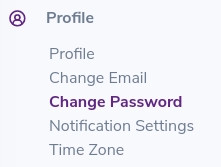
    Change Password section found under your account profile

    Change Password section found under your account profile

  2. Step 2:

    Now fill in the three shown fields: Current Password, New Password and Confirm New Password.
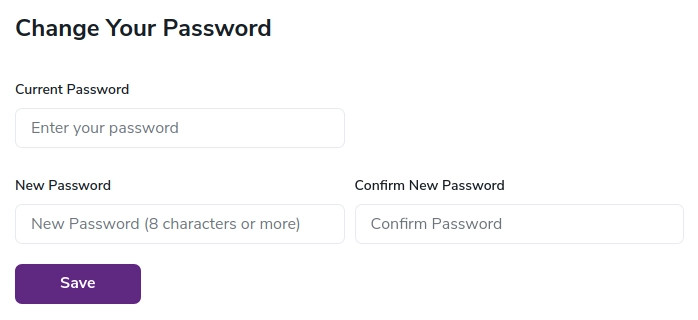
    Current password, new password and confirm new password fields for changing your account password

    Current password, new password and confirm new password fields for changing your account password

  3. Step 3:

    Once you've double-checked your new password, click the "Save" button to confirm.
    That's it! You will be signed out and you can now sign in again with your new password.

Need help changing your password? Reach out to our 24/7 customer support team.