
Docs
Docs
Prerequisites
You must have a valid Adobe Experience Platform account with appropriate access to your Contacts and Lists.
If you do not have an account, then you can create one at https://business.adobe.com/products/experience-manager/adobe-experience-manager.html.
Ensure the contacts from your Adobe Journey account are included in a list.
Step 1: Configure Adobe Developer Console
For the integration to work, you need first to log in to the Adobe Developer Console: https://developer.adobe.com/console/
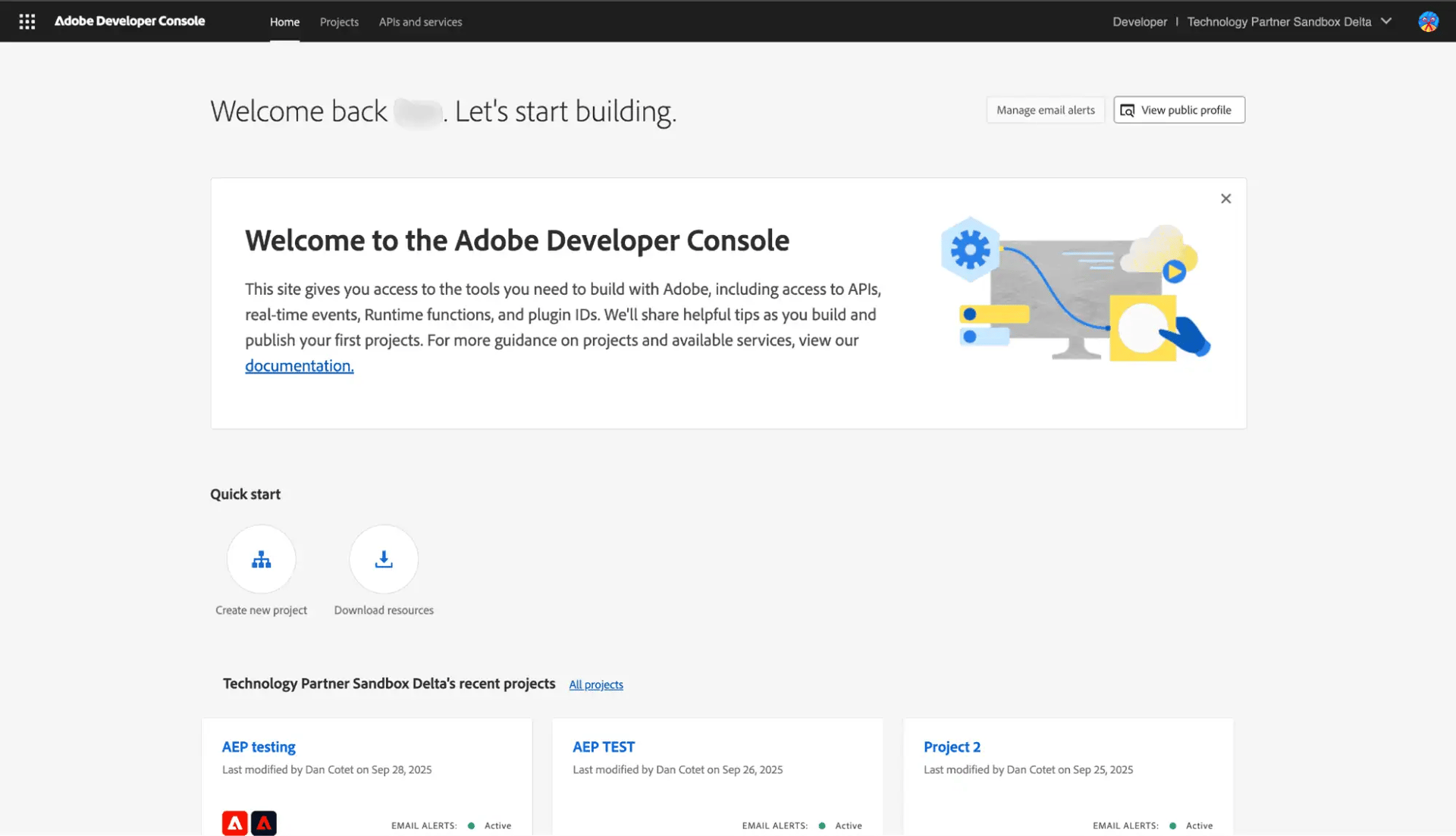
Adobe Developer Console
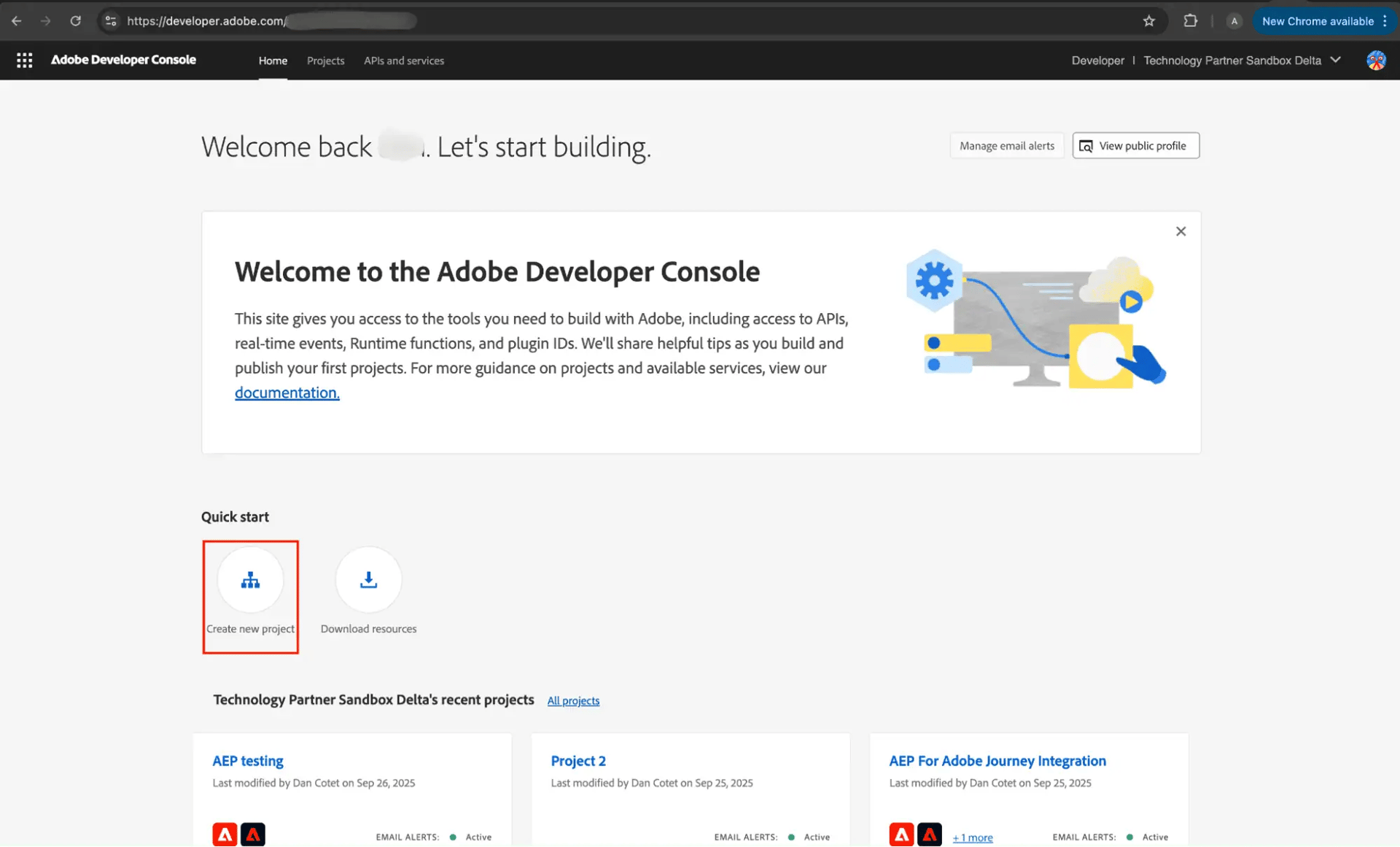
Click on Select a New Project
On this page, you will be able to edit the project name, and you will need to add two APIs: Adobe Journey Optimizer and Experience Platform API. For both, we select the Server-to-Server option and the product profile AEP-Default-All-Users.
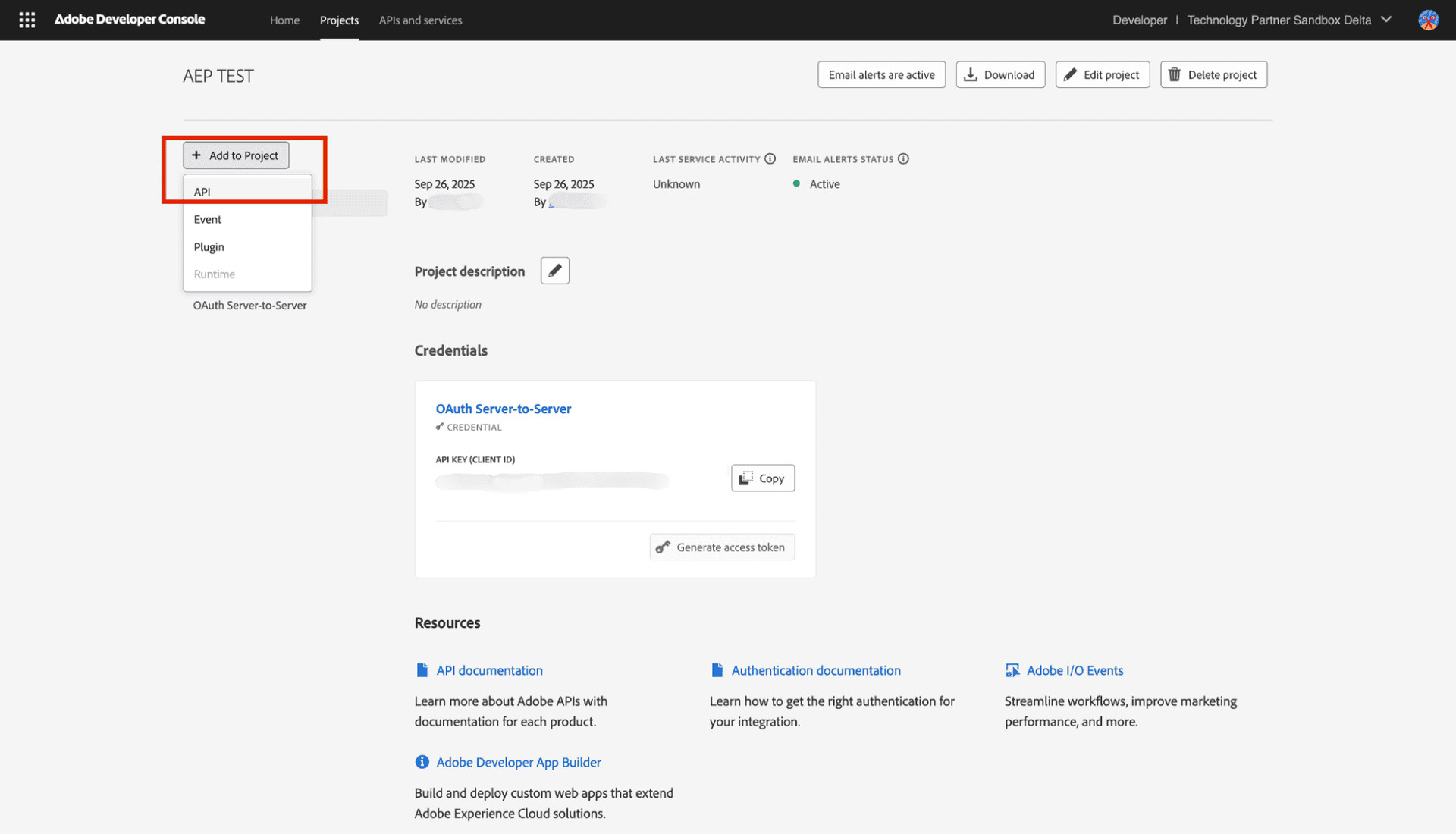
Select API
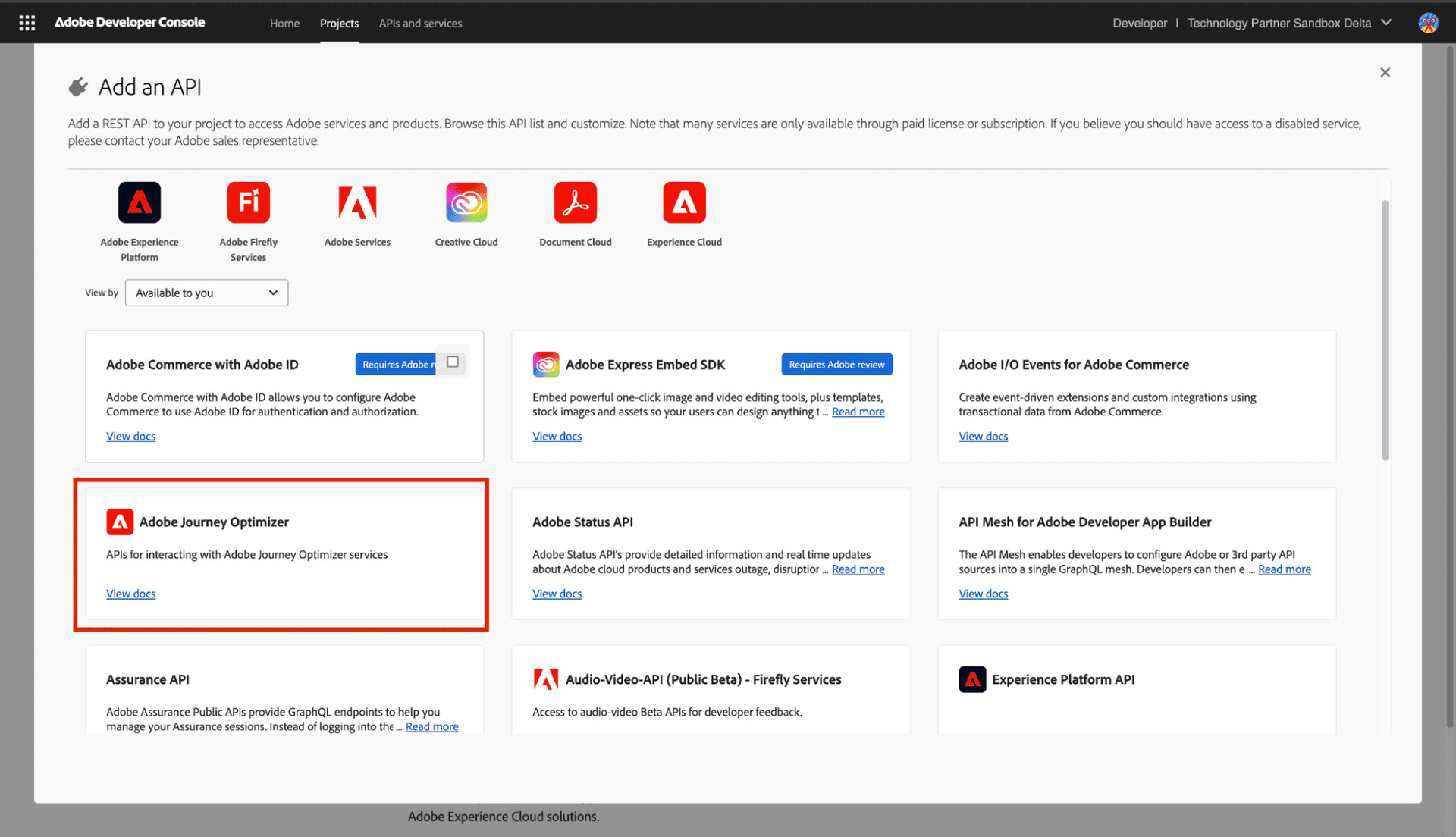
Adobe Journey Optimizer
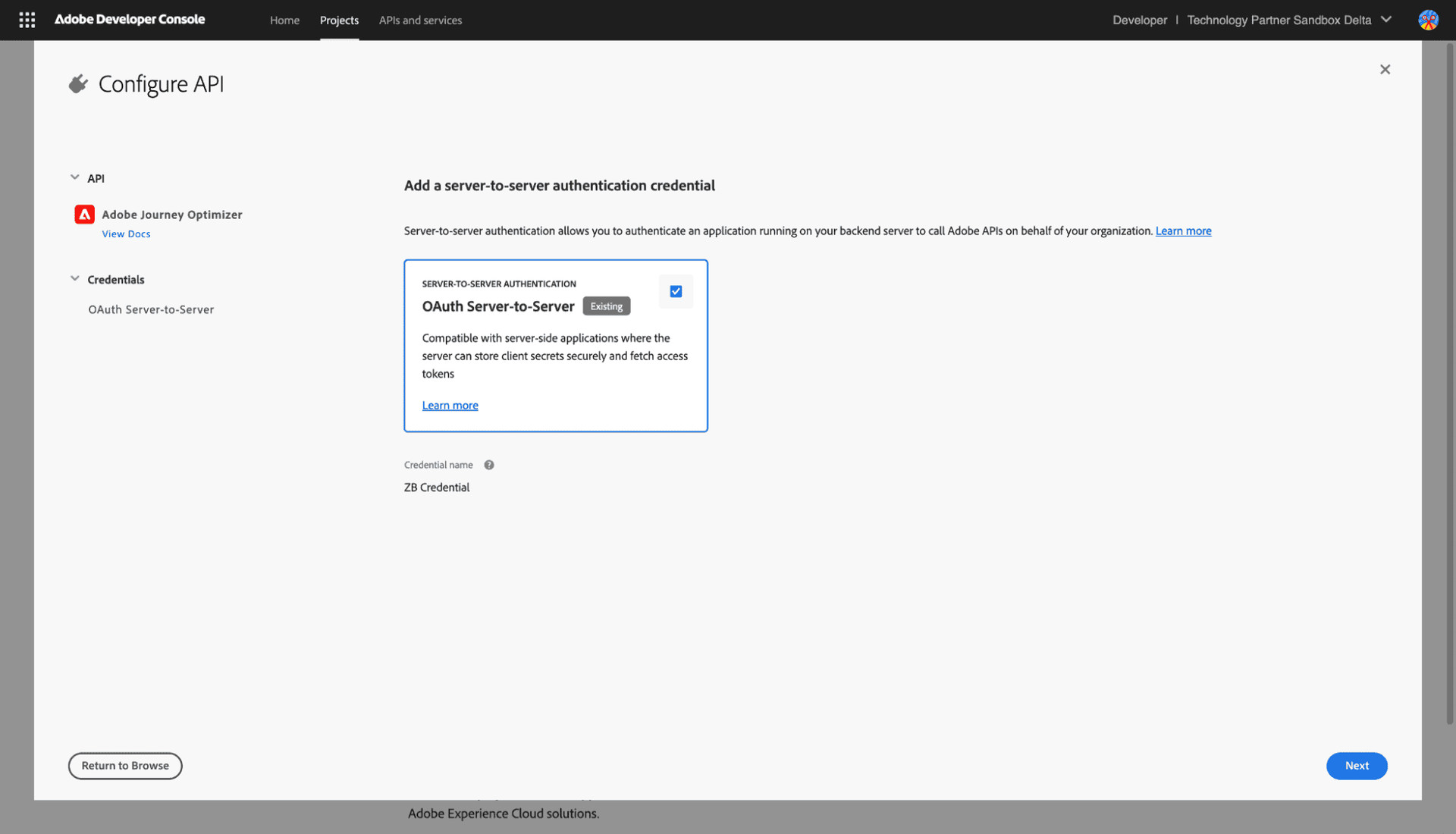
Select Server-to-Server Authentication and click Next
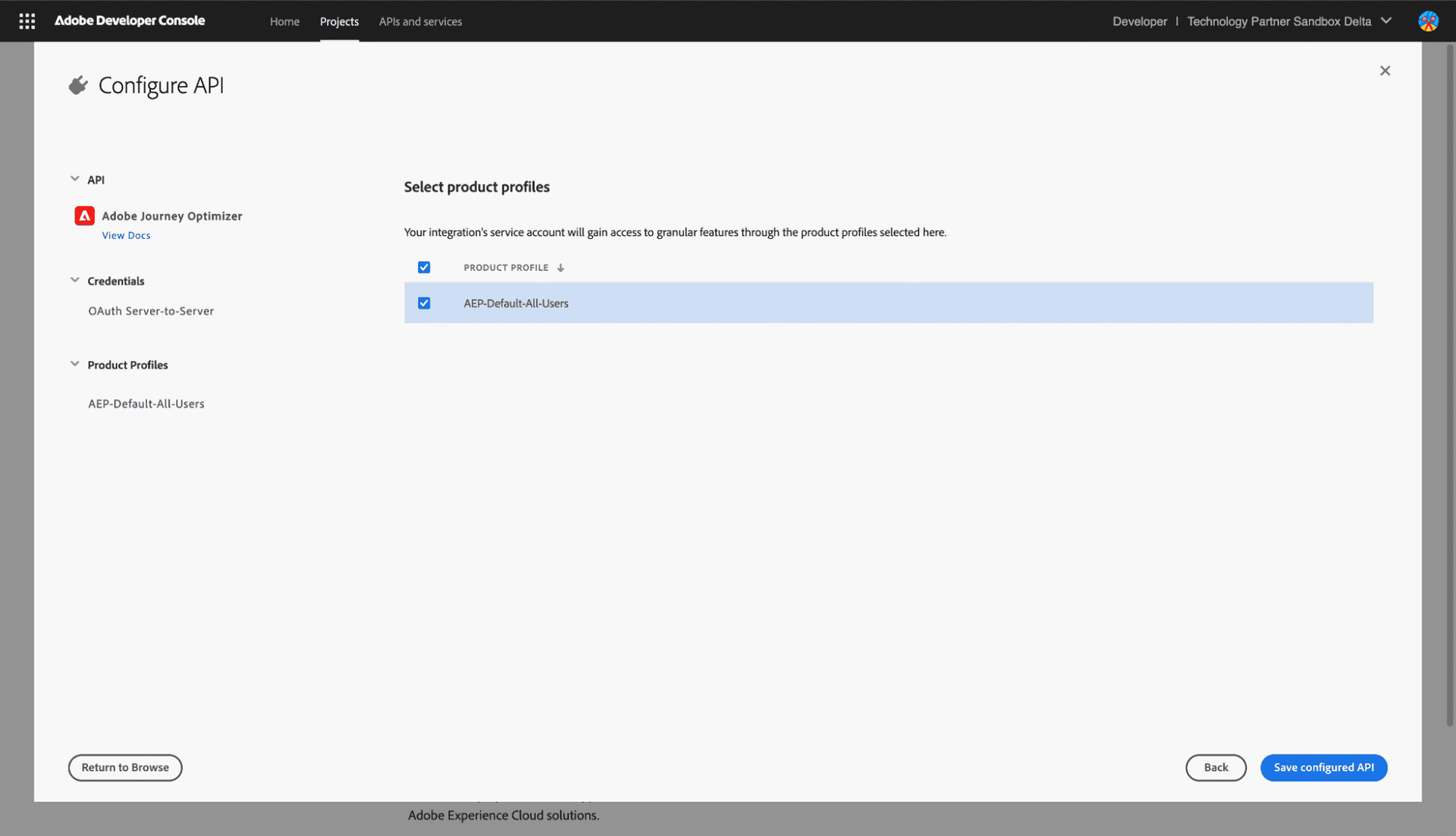
Select the product profile
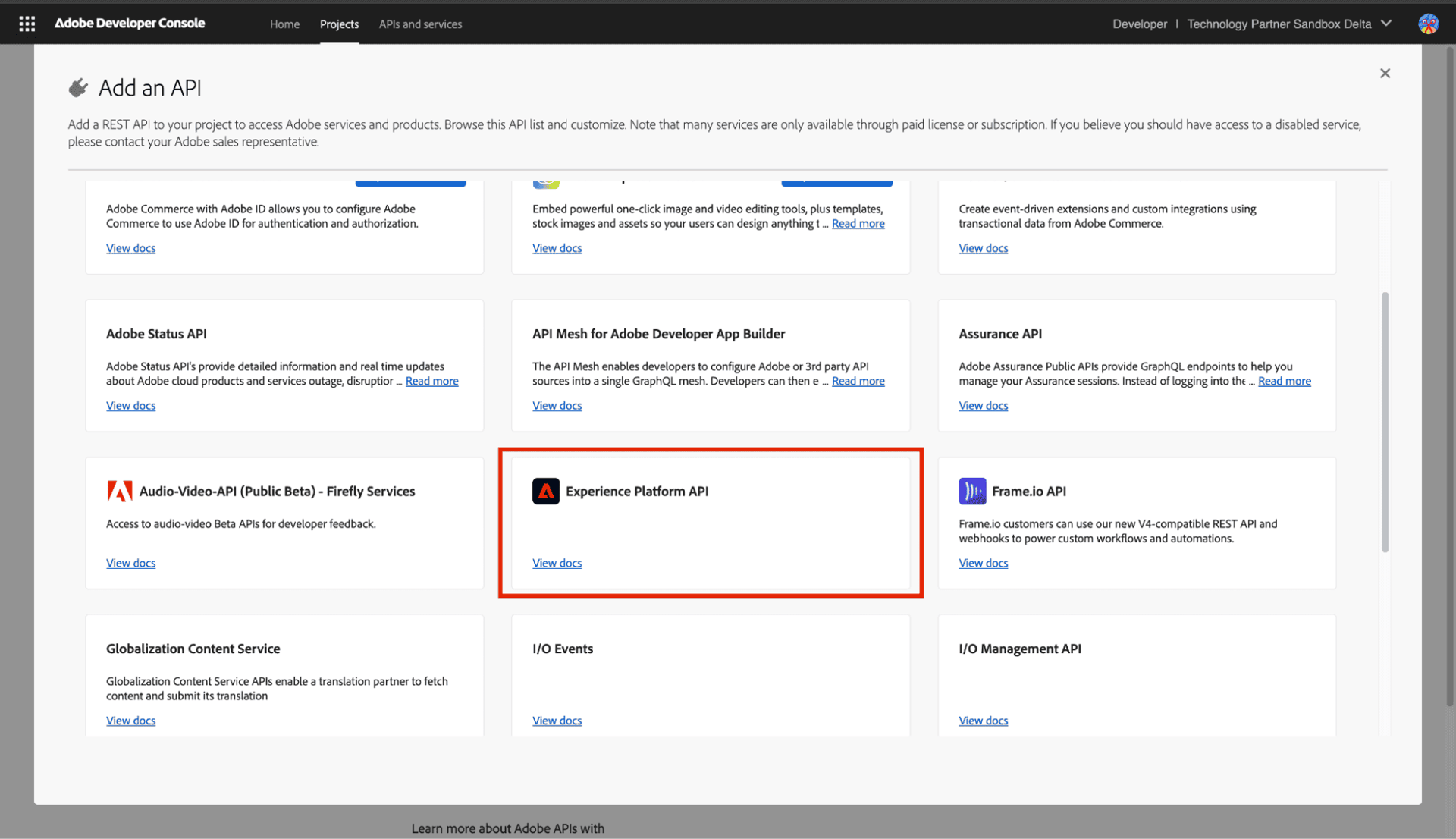
Experience Platform API
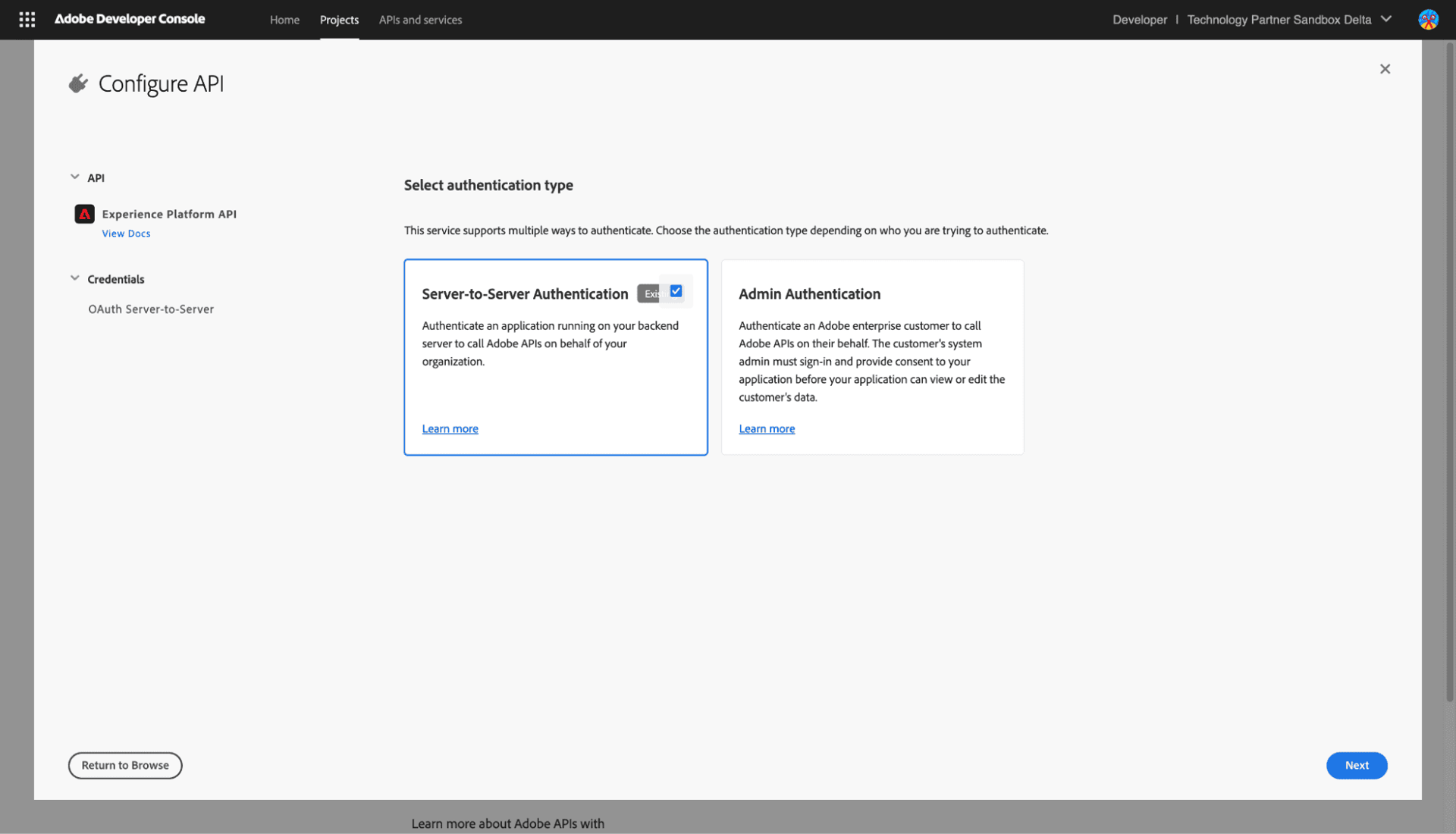
Select Server-to-Server Authentication and click Next
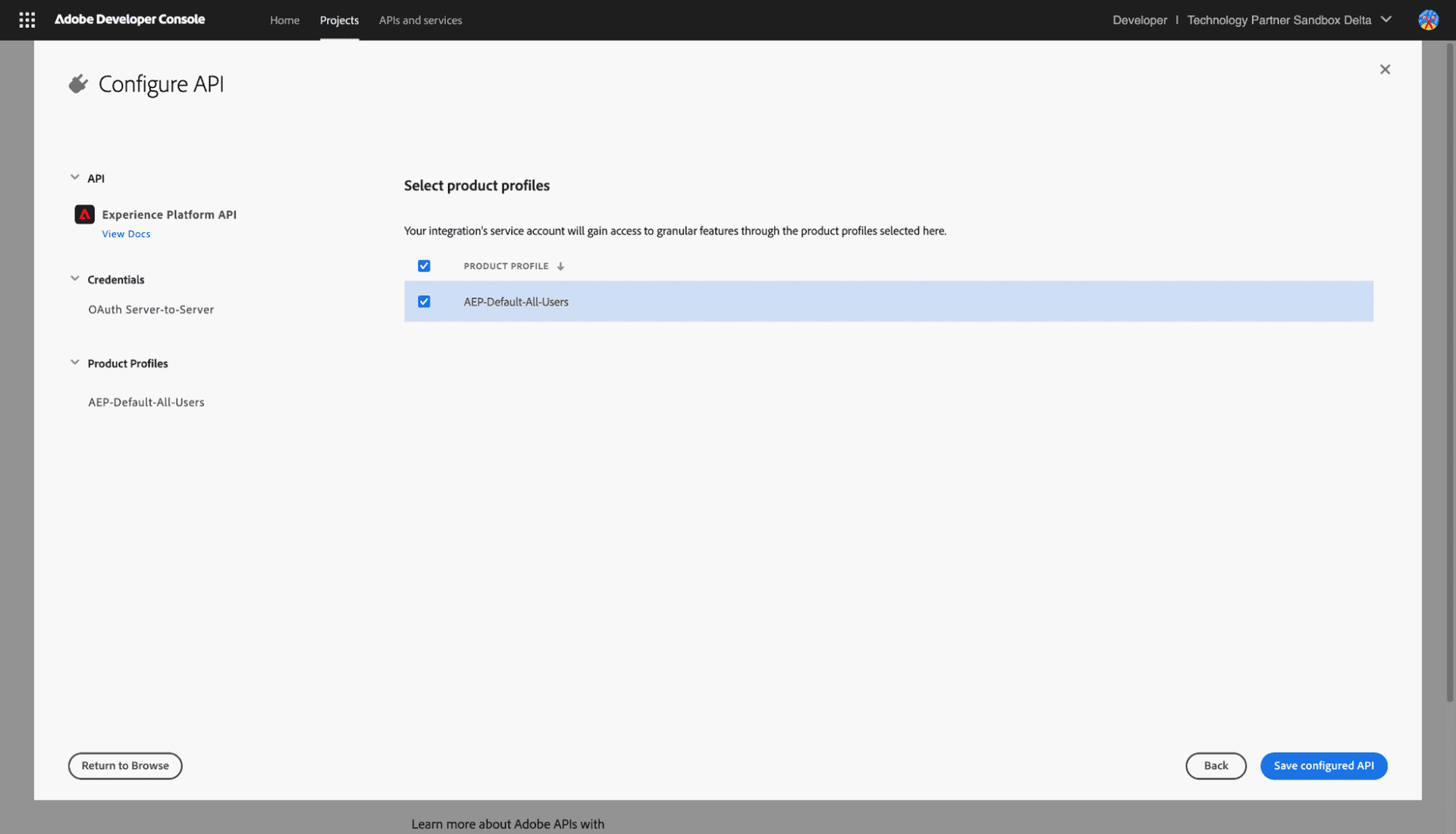
Select the product profile
Once they are connected, navigate to the project you created in Credentials, from here you will take the necessary data to connect the integration to Zerobounce.
1) Client ID
2) Client Secret
3) Organization ID
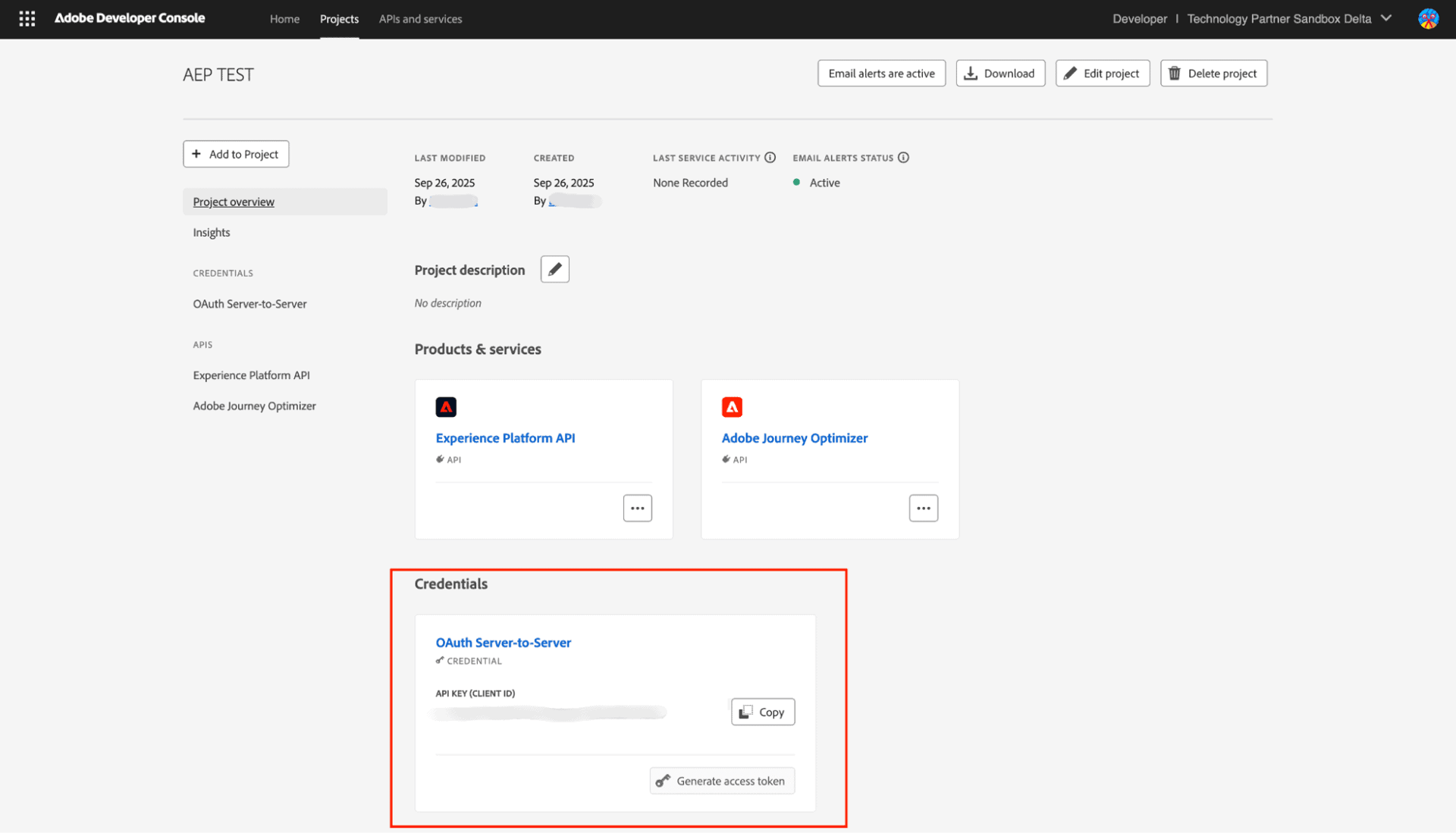
Project Credentials
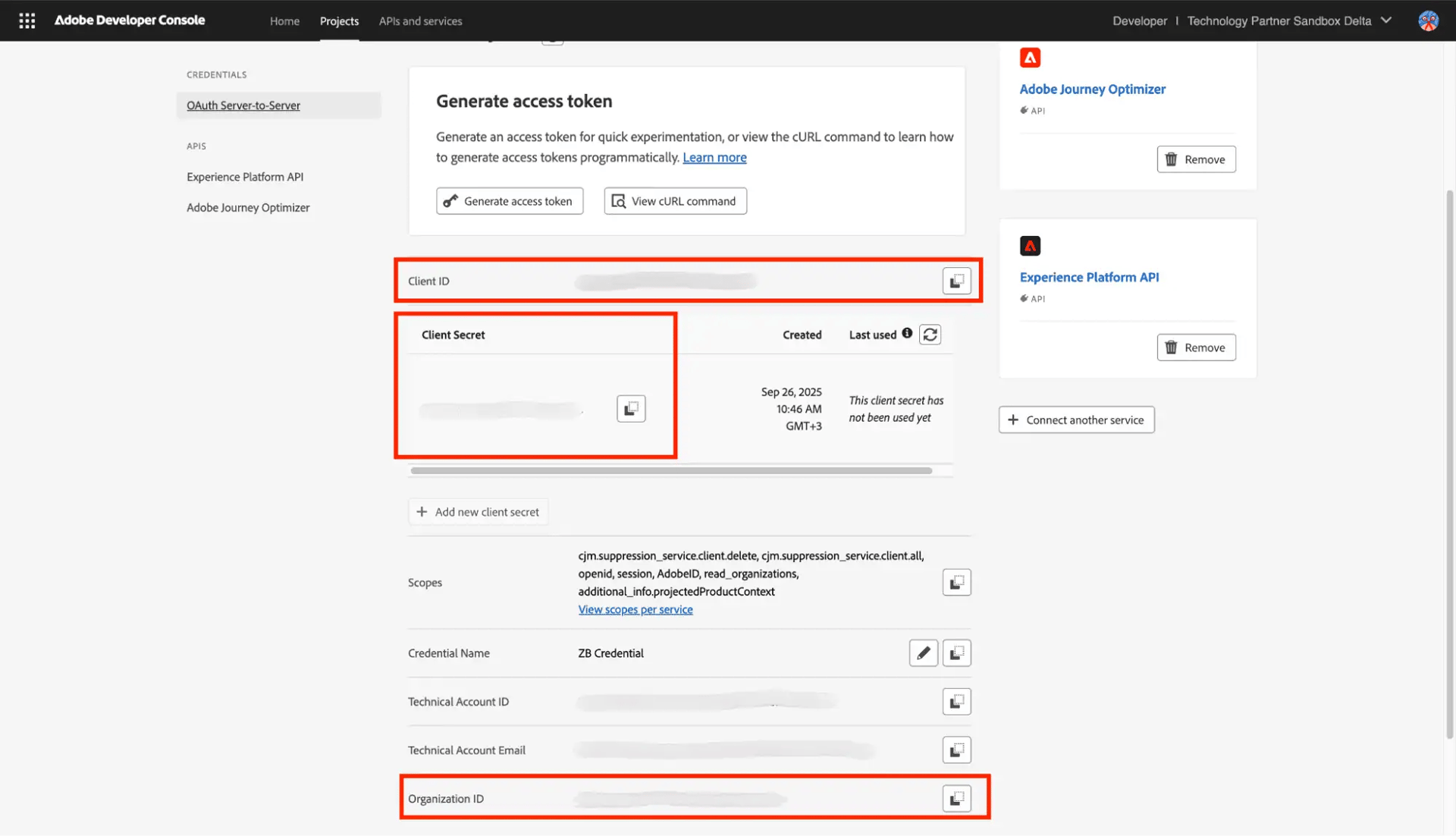
Credentials
Step 2:
Go to https://www.zerobounce.net/members/signin and sign in with your ZeroBounce account. After that go on the menu on the left and click Integrations.
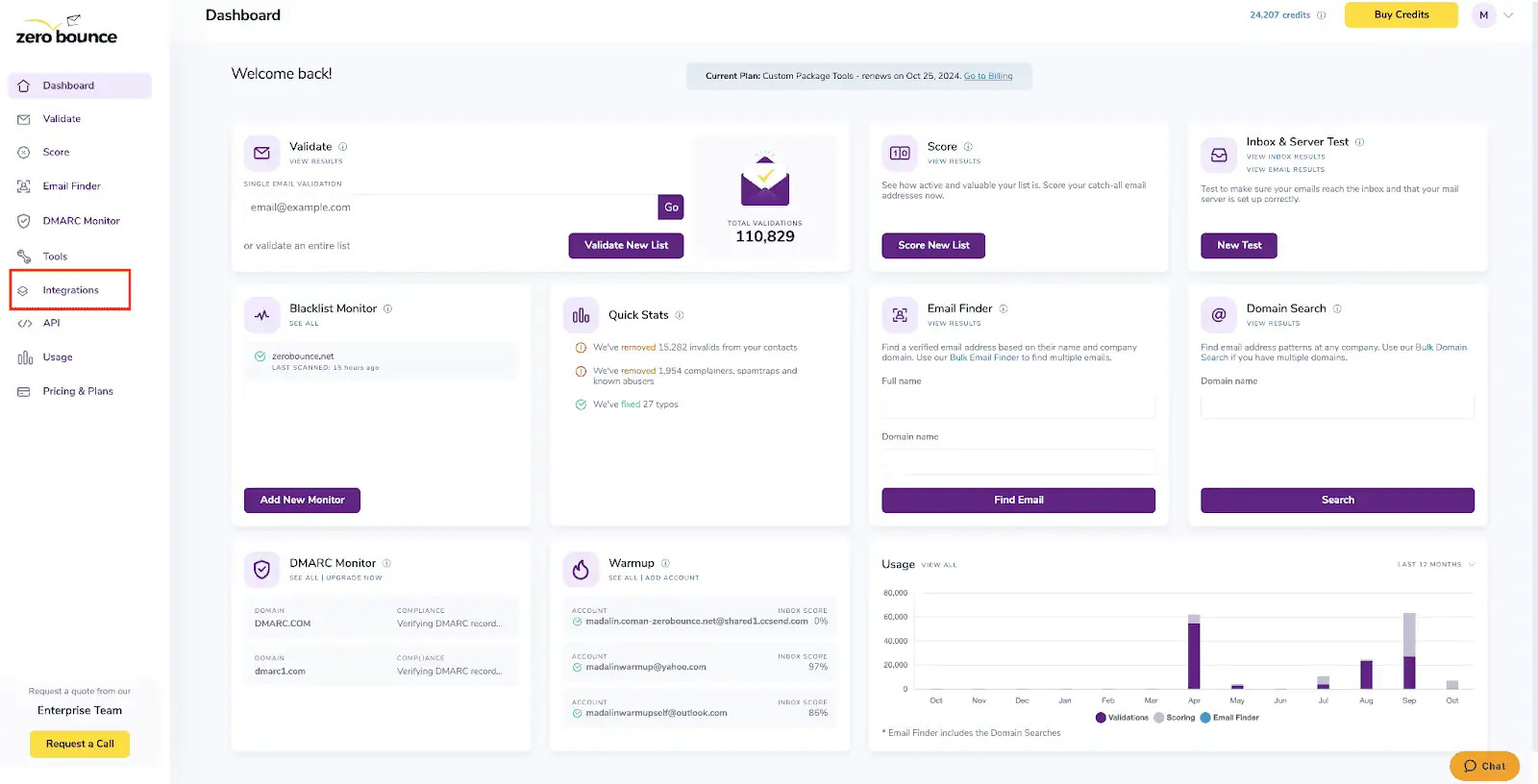
ZeroBounce Dashboard
Step 3:
On the Integrations page select Adobe Journey from the Integration List.
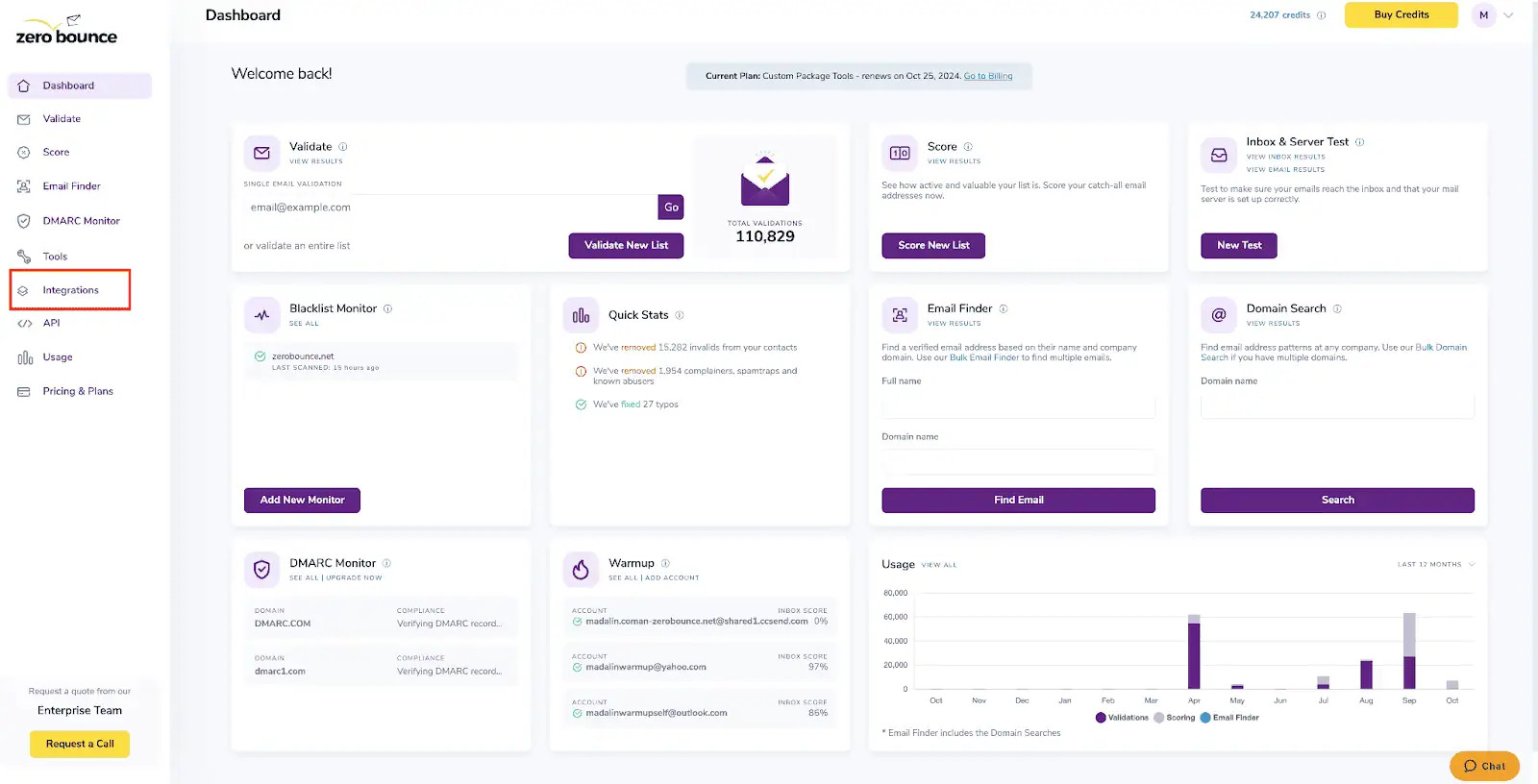
ZeroBounce Integrations Dashboard
Step 4:
To connect the integration, you need to enter the required details from your project in Adobe Developer Console
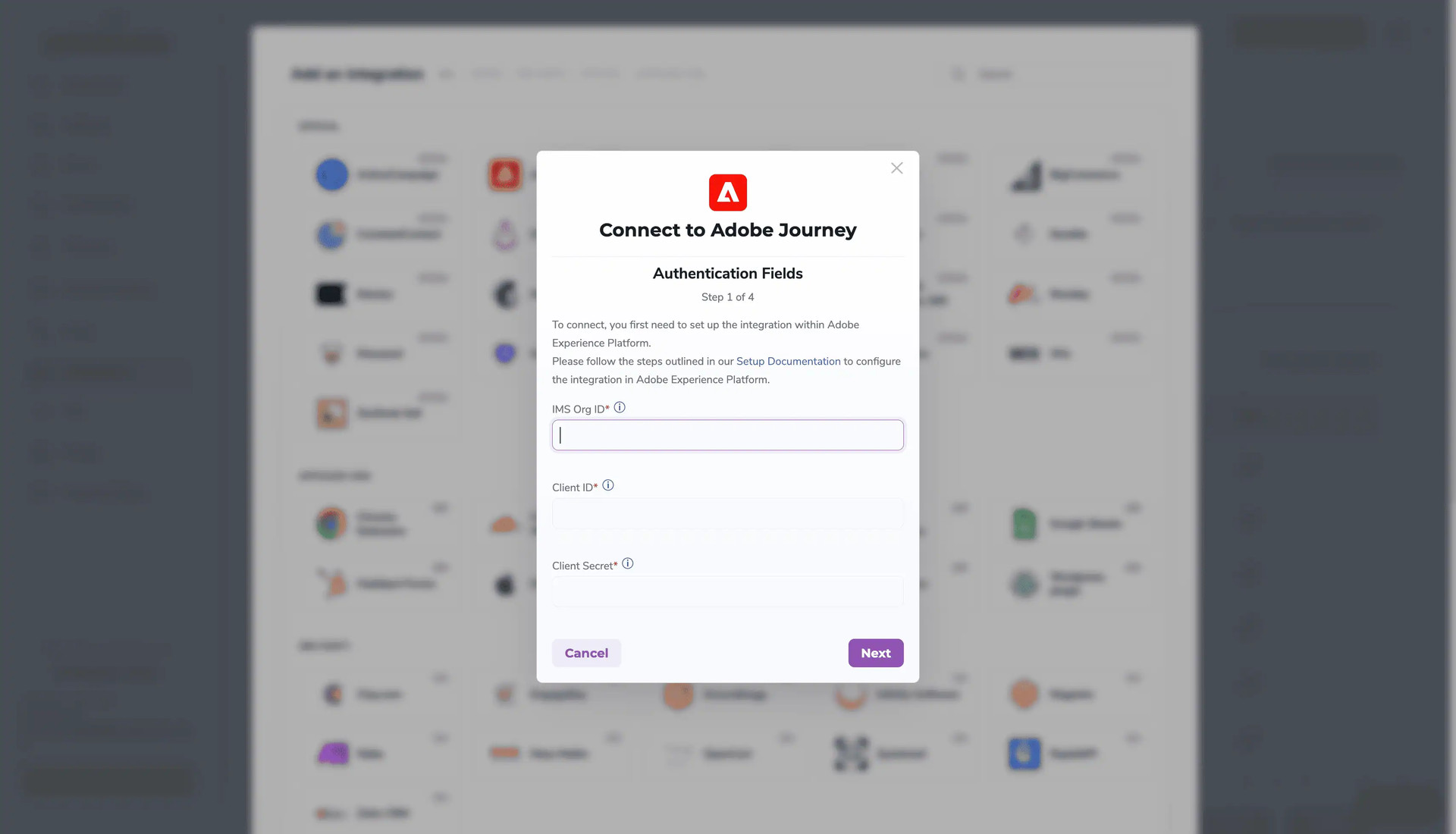
Redirect pop-up modal
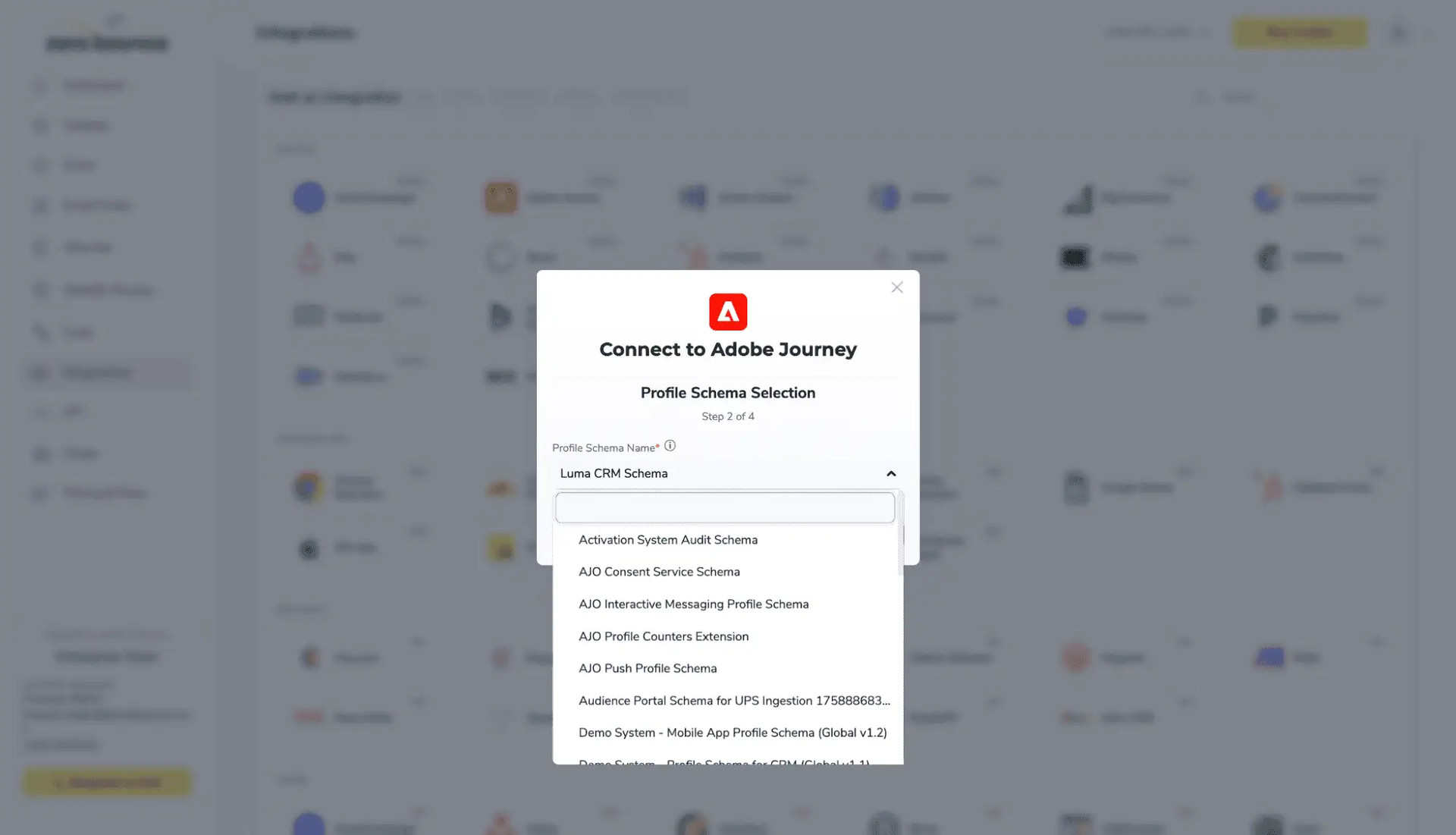
Choose the profile schema you prefer.
Step 5:
Choose one or more lists to validate/score. Click the validate or score button to start the process. Depending on how many emails you have to process it could take a few minutes to pull the lists and add them to our processing queue.

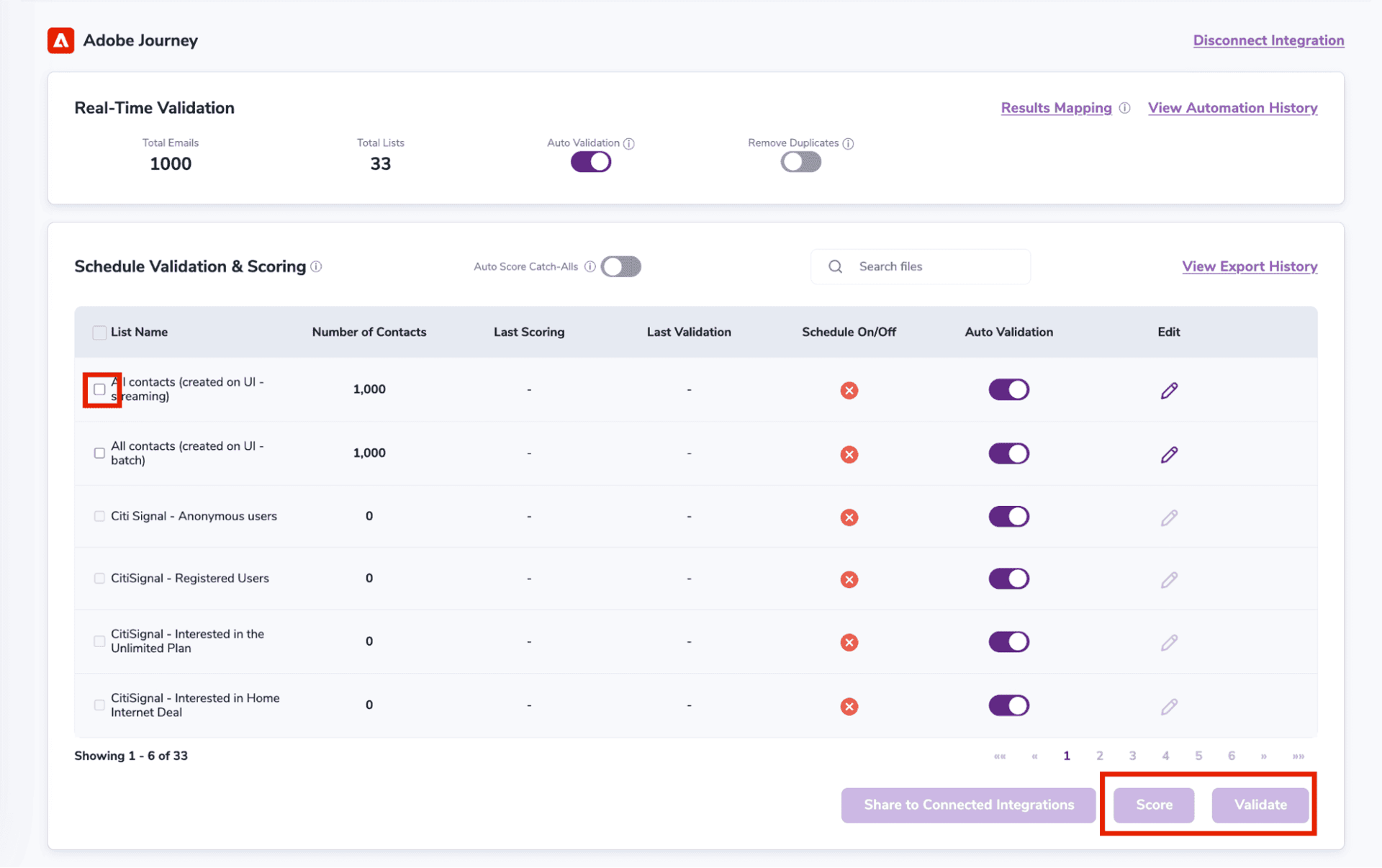
After successful integration, you will be able to view your lists in your ZeroBounce Dashboard.
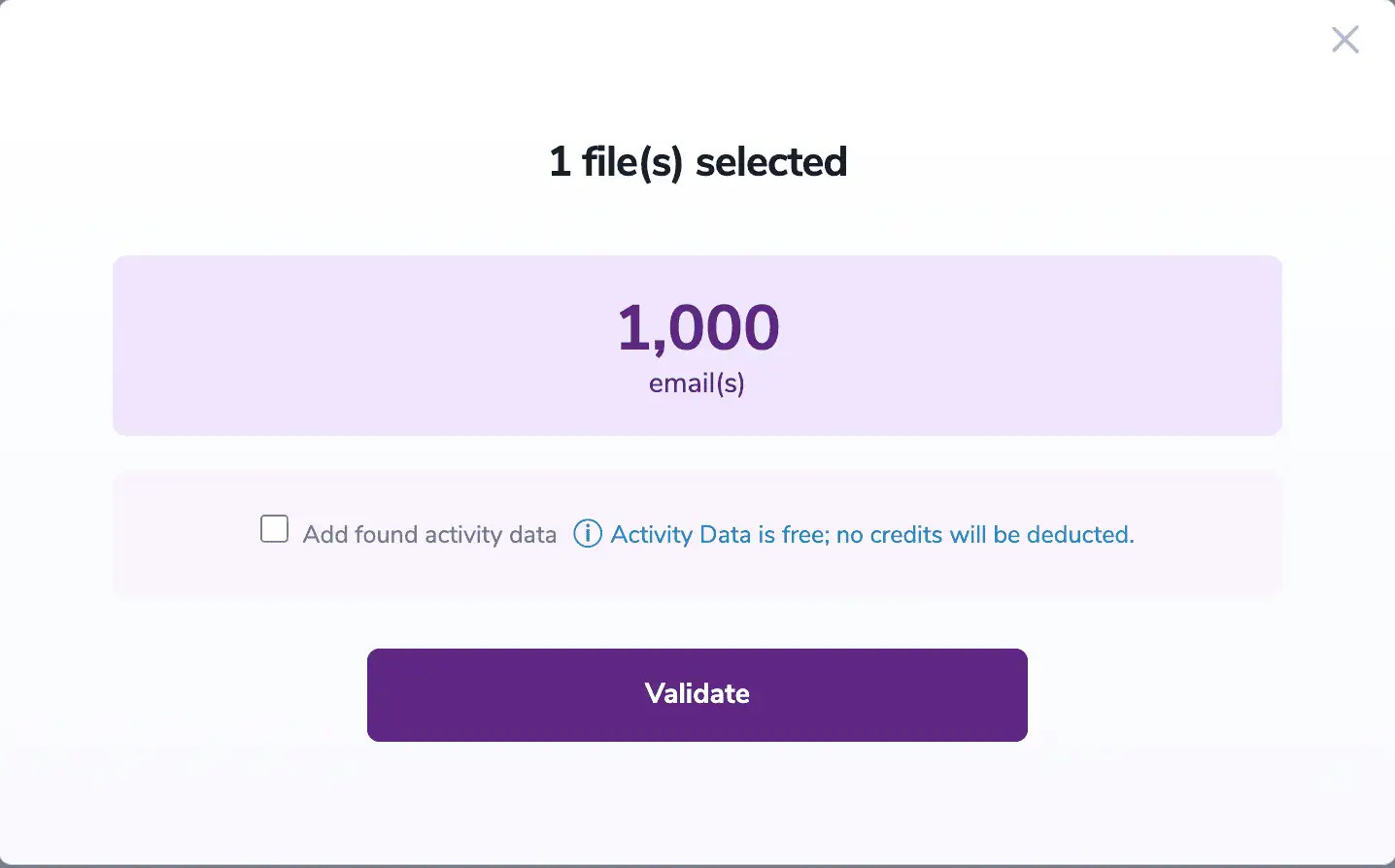
Validation Pop-up
On validate you will be presented with a popup with one option that can assist your validation process:
ZeroBounce Activity Data - uses interaction data to identify emails that have been opened, clicked, forwarded, or unsubscribed. The matching process is performed in-house through ZeroBounce's infrastructure, and your data is not transferred or shared with any third parties.
Step 5:
The following tags will be automatically created in your integration with the first automatically validation/scoring results export
These tags are essential for maintaining up-to-date and accurate contact information, allowing for better management and engagement with your contacts.
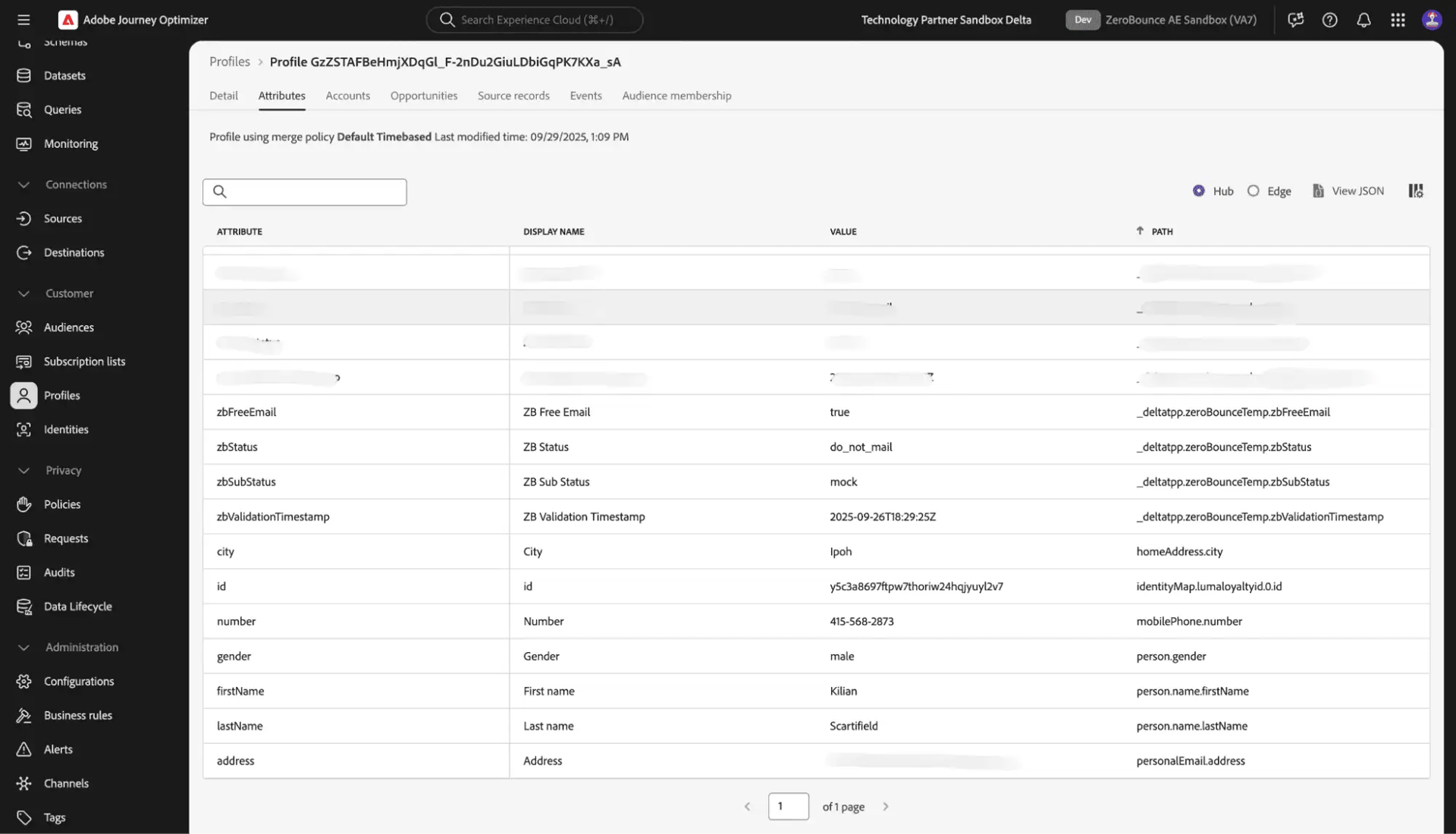
Essential attributes for maintaining up-to-date and accurate contact information on Adobe Journey Optimizer
