ZeroBounce Logo

Docs

Language Icon
  • Sign In
  • Sign Up Free

Languages

ZeroBounce ImageGetting Started
ZeroBounce ImageEmail List Validation
ZeroBounce ImageA.I. Email Scoring
ZeroBounce ImageEmail Finder
ZeroBounce ImageDomain Search
ZeroBounce ImageActivity Data
ZeroBounce ImageMulti-file upload
ZeroBounce ImageIntegrations
ZeroBounce ImageActiveCampaign Integration
ZeroBounce ImageAdobe Journey Integration
ZeroBounce ImageAdobe Marketo Integration
ZeroBounce ImageAmazon S3 Integration
ZeroBounce ImageAmazon S3 Bulk API
ZeroBounce ImageAWeber Integration
ZeroBounce ImageBigCommerce Integration
ZeroBounce ImageChatGPT Integration
ZeroBounce ImageClay.com Integration
ZeroBounce ImageCloudFlare Worker Integration
ZeroBounce ImageConstant Contact Integration
ZeroBounce ImageCustomer.io Integration
ZeroBounce ImageDrip Integration
ZeroBounce ImageEmail Validator Browser Extension
ZeroBounce ImageGhost Integration
ZeroBounce ImageGoogle Sheets Integration
ZeroBounce ImageHubSpot Integration
ZeroBounce ImageHubSpot Forms Integration
ZeroBounce ImageInfinity Integration
ZeroBounce ImageIntegrations Contacts Monitoring, Scheduling and Sharing
ZeroBounce ImageIterable Integration
ZeroBounce ImageJS Widget
ZeroBounce ImageKlaviyo Integration
ZeroBounce ImageLinkedIn Integration
ZeroBounce ImageMailchimp Integration
ZeroBounce ImageMailerLite Integration
ZeroBounce ImageMicrosoft Dynamics Integration
ZeroBounce ImageMonday.com Integration
ZeroBounce ImageMoosend Integration
ZeroBounce ImageOutreach Integration
ZeroBounce ImagePipeDrive Integration
ZeroBounce ImageSalesforce Integration v1.39
ZeroBounce ImageSFTP/FTP Integration
ZeroBounce ImageSFTP/FTP Bulk API
ZeroBounce ImageUnbounce Integration
ZeroBounce ImageWix Integration
ZeroBounce ImageWordPress/WooCommerce Plugins
ZeroBounce ImageZapier Integration
ZeroBounce ImageZendesk Sell Integration
ZeroBounce ImageZoho Integration
ZeroBounce ImageUsage Reports
ZeroBounce ImageYour ZeroBounce Account
ZeroBounce ImageEmail Validation API
ZeroBounce ImageEmail Finder API
ZeroBounce ImageDomain Search API
ZeroBounce ImageA.I. Scoring API
ZeroBounce ImageActivity Data API
ZeroBounce ImageList Evaluator API
ZeroBounce ImageApi Dashboard
ZeroBounce ImageAPI Wrappers
ZeroBounce ImageAPI Migration
ZeroBounce ImageFAQ
ZeroBounce ImageSecuring Your Account
ZeroBounce ImageAbout ZeroBounce
ZeroBounce ImageDeliverability Tools
ZeroBounce ImageStatus Page
  • Email Validation Homepage
  • Separator
  • Docs
  • Separator
  • API Integrations
  • Separator
  • JS Widget
API Integrations

JS Widget Integration Documentation

Prerequisites

To use the JS Widget, your website must have a form that meets the following requirements:

  1. Include an email type field with the class: "zb-email".
  2. Define the class "zb-email" with the following styles:
    • width: 100%;
    • box-sizing: border-box;
  3. Wrap the email input in a div with the styles:
    • position: absolute;
    • display: inline-block;

Check the example below for more details:

ZeroBounce Image

Make sure you do not add any inline styles to the email input, as they will be removed by the widget.

How to use the ZeroBounce JS Widget integration

Step 1:

Go to https://www.zerobounce.net/members/signin and sign in with your ZeroBounce account.
Go to the left-side menu and click Integrations.
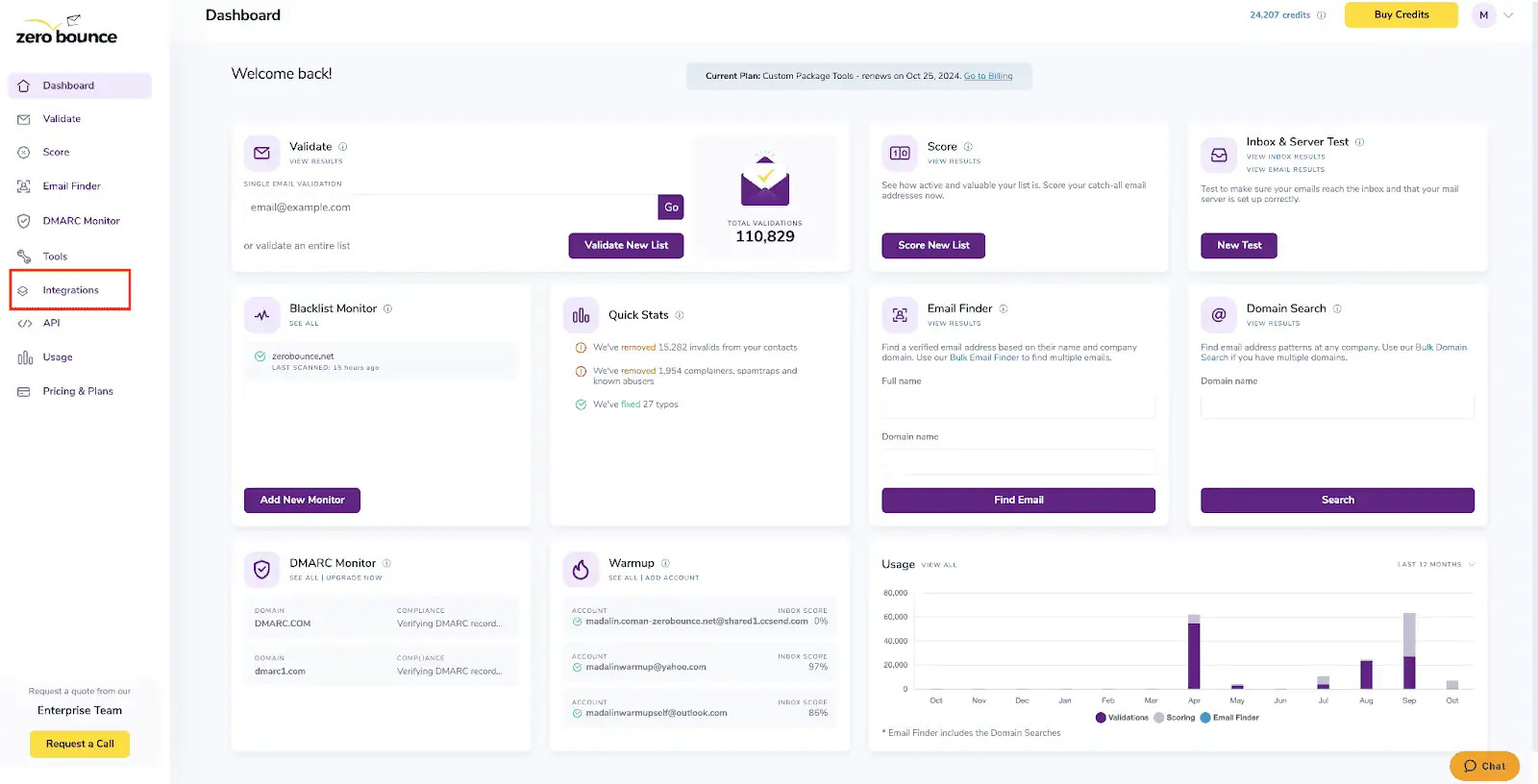
The ZeroBounce dashboard with the Integrations menu highlighted on the left.

Step 2:

On the Integrations page, select JS Widget from the Integration List. You can find it under Apps/Add-Ons.
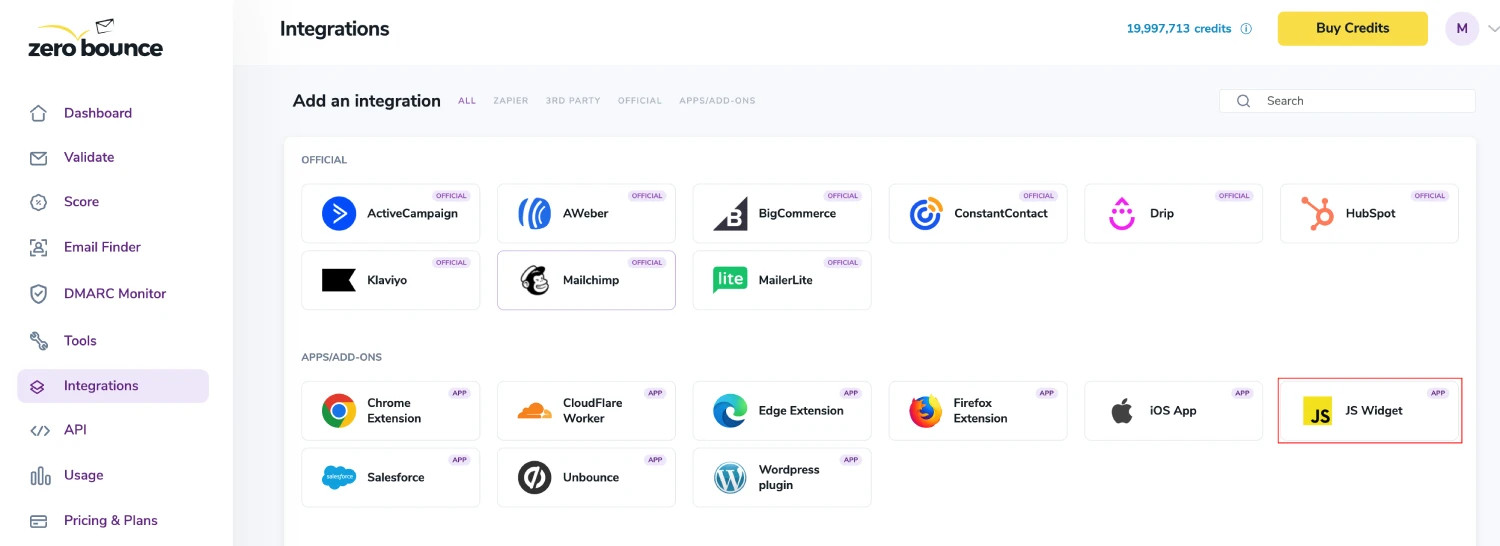
The ZeroBounce Integrations menu with ‘JS Widget’ highlighted under Apps & Add-Ons.

Step 3:

Enter your website URL in the field that reads “Enter your JS Widget domain name.”
Then, click New Public API Key to generate an API key linked to the domain you entered.
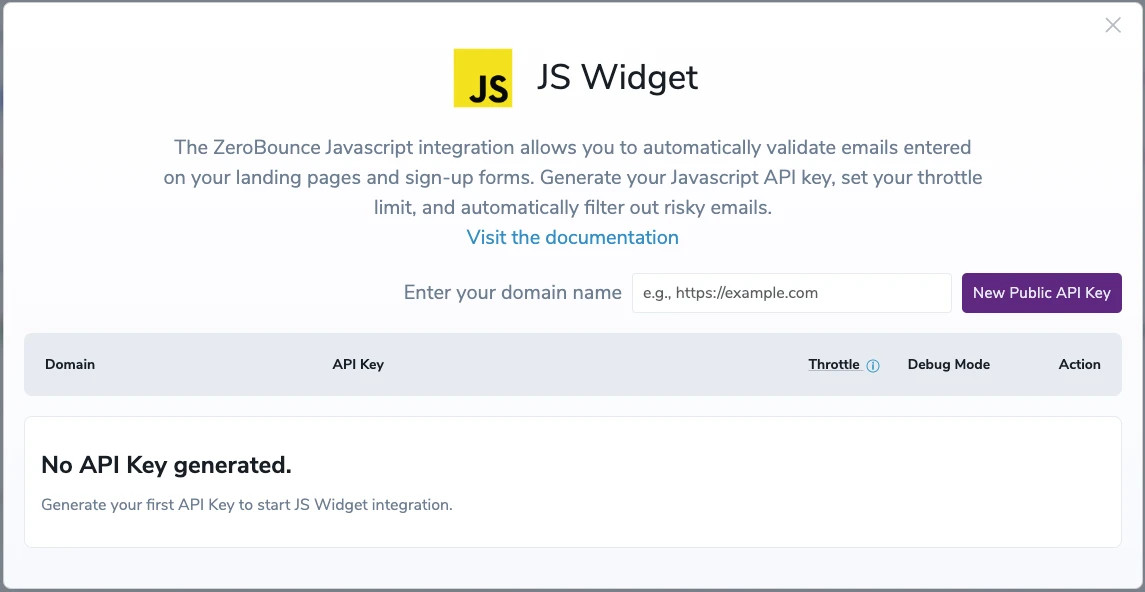
The ZeroBounce JS Widget integration menu with no API key. You can enter a domain in the blank field and click ‘New Public API key.’
ZeroBounce Image

Use only the domain to generate the API Key (e.g., https://test.mywebsite.com). Make sure that the URL starts with ‘ https:// ’. Also, ensure there is no ‘ / ‘ at the end of the URL. Failure to do so will result in validation issues.

Step 4:

In this section, you can manage your configurations:
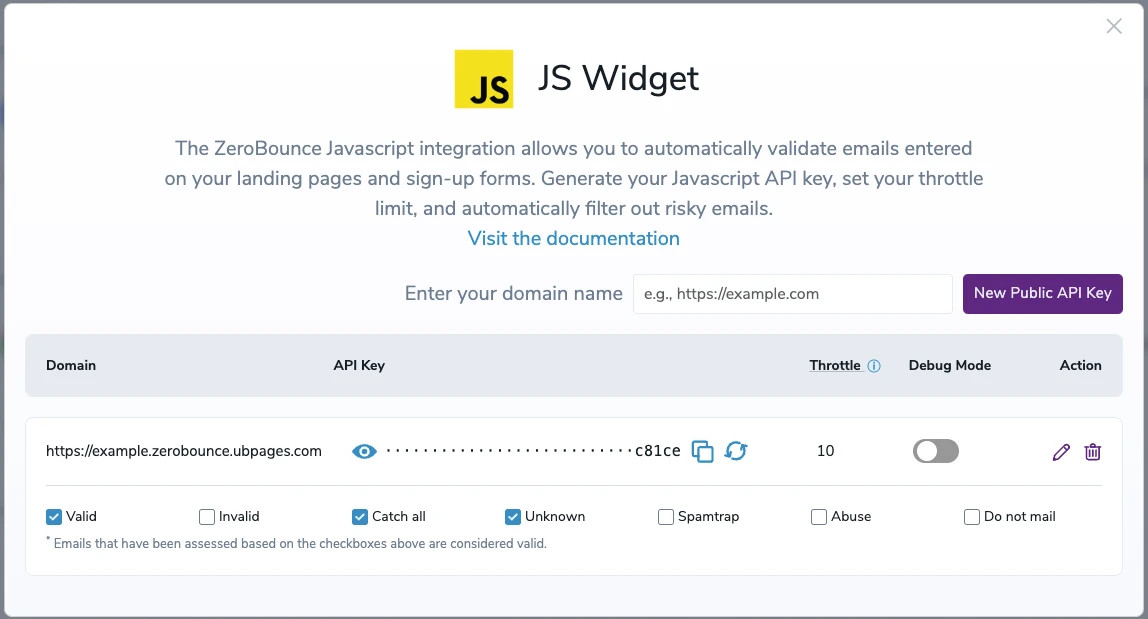
  • Edit URL and Throttle
    • URL - If the URL is changed, ensure that the script is placed on the correct JS Widget page.
    • Throttle - This is the number of email validation attempts per hour that you will allow on your form.
  • Change statuses
    • Select the checkboxes that represent the validation criteria you want to designate as "valid" for your use case. Unselected checkboxes indicate that the associated criteria won’t be considered valid.
  • Generate a new API Key
  • Show/Hide API Key
  • Copy API Key
  • Debug Mode
  • Delete
The ZeroBounce JS widget with default settings for the domain ‘https://example.com.’
ZeroBounce Image

Debug mode removes validation limits, but it's best not to keep it active for too long to safeguard your validation services against abuse.

The next section provides some advanced settings for your widget:

  • When the timeout limit is reached:
    • Block all - The validation process will cease, and the form cannot be submitted. The user will get an error, and the submit button will be disabled.
    • Allow all - The validation process will be bypassed, and the form submission will be allowed.
    • For both cases, no credits are deducted since both actions prevent the validation process.
  • When the throttle limit is reached:
    • Block all - The validation process will cease, and the form cannot be submitted. The user will get an error, and the submit button will be disabled.
    • Allow all - The validation process will be bypassed, and the form submission will be allowed.
    • For both cases, no credits are deducted since both actions prevent the validation process.
  • When validation is unsuccessful:
    • Block all - The form submission is not allowed, and the user will get an error message.
    • Allow all and record entry - The form submission will succeed regardless of the validation status, and the validation result will be available in a hidden input field with the ID "zbone_valid." - this information is not for the end user but for the client who implements the jswidget to track emails used on the form.
    • For both of these options, credits are deducted as the validation process still occurs even when the user is unaware (for Allow all and record entry).
  • What style type we implement:
    • Default - This provides you with our default widget design, as shown below under More Information.
    • Custom - This allows you to customize the widget’s style with the three available options: HTML ID, Valid Message, and Invalid Message.
    • All errors presented to end users will depend on the option selected here. To get more comprehensive information about the error, we recommend using the custom error message. This way, the error will be a text message with explicit information about the error.
ZeroBounce Image

The order of validation for these limits is as follows: Timeout -> Throttle -> Validation success/unsuccessful
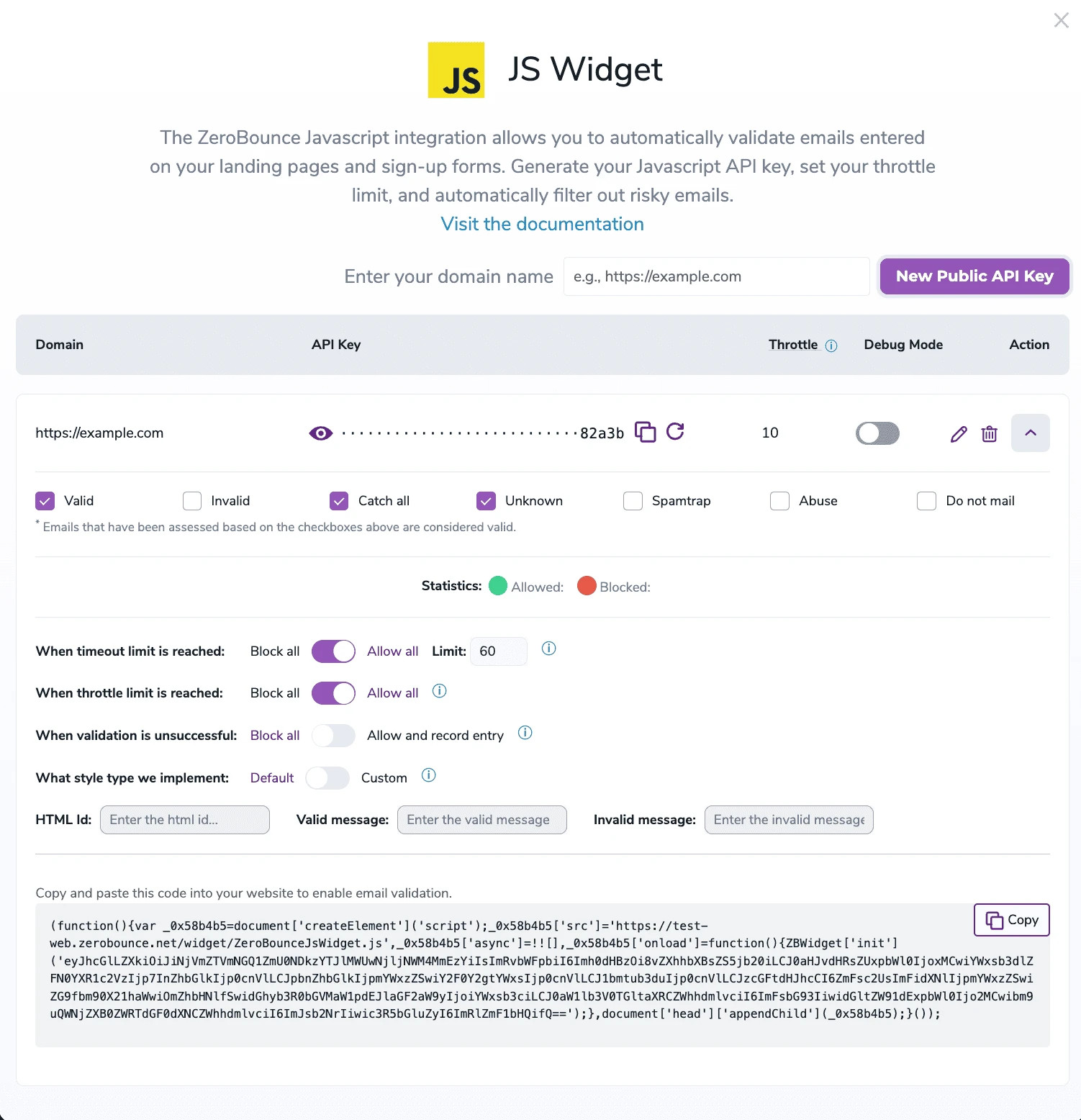
The ZeroBounce JS Widget integration menu in edit mode with the domain ‘https://example.com’ and an obscured API key with the final characters ‘3116e.’ It also includes Throttle, Action, and 7 validation categories.
ZeroBounce Image

Every setting modification will update the code provided with the JS Widget integration. The user must always use the latest code generated on the go.

Step 5:

It’s recommended that you integrate the provided code snippet before closing the body tag. This implementation can be applied globally across your website or selectively targeted to specific pages where forms are present. Additionally, ensure that email input fields are appropriately configured with the specified attributes mentioned in Prerequisites: type="email" and class="zb-email".

ZeroBounce Image

Prior to utilizing the script, it’s crucial to ensure that you are operating within the appropriate environment. If your API key was generated on zerobounce.net, it’s imperative to reference the documentation and resources available on zerobounce.net exclusively. This adherence to the specific source is pivotal for seamless and efficient operation.

More information

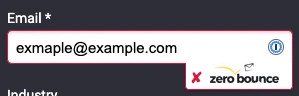
The following images illustrate how a valid and an invalid email will be displayed.
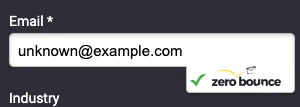
A form with the field ‘email,’ which shows a valid email ‘unknown@example.com.’A form with the field ‘email,’ which shows an invalid email ‘exmaple@example.com.’
ZeroBounce Image

Certain cases will allow the form to be submitted even if the email is invalid:

  • if the ZeroBounce user account used to generate the API key has an insufficient credit balance
  • if the throttle limit is exceeded. The throttle is set by default to 10 per hour and can be changed in the JS Widget integration screen (see Step 4)

Emails that are considered valid include those categorized as catch-all, unknown and valid.