

Integration
Losing time validating invalid and risky email addresses collected via your Contact Form 7 signups? There’s a faster and safer way. Install the ZeroBounce + Contact Form 7 integration to validate users’ email addresses directly within the form.
Save yourself the hassle of manually validating stacks of emails. Install the ZeroBounce + Contact Form 7 integration to save time and validate emails as forms are submitted.
Forms attract fake signups, which cause multiple problems. Fake signups are a security risk. Even if a fake signup poses no threat, it distorts performance metrics and will tank your sender reputation if you contact it. Keep them off your list altogether by validating email addresses in real time with the ZeroBounce + Contact Form 7 integration.
Few things ruin sender reputations faster than contacting invalid and risky email addresses. Validating email addresses in Contact Form 7 keeps them off your list. Keeping your list clean and sending campaigns to valid emails will improve your sender reputation.
You won’t need to write a single line of code to install ZeroBounce + Contact Form 7 integration. As long as you know your way around WordPress/WooCommerce, you’ll find it easy to set up. You can start validating emails within Contact Form 7 today.
Head to plugins in WordPress and search for the Contact Form 7 plugin. Install and activate it, then create and configure your form.
Download the ZeroBounce plugin, and configure your settings to choose which types of email addresses your forms will accept.
No more lists of emails to validate. Contact Form 7 will validate users’ email addresses in real time when they submit forms.
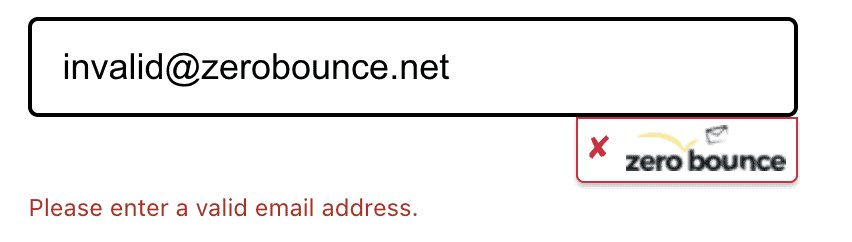
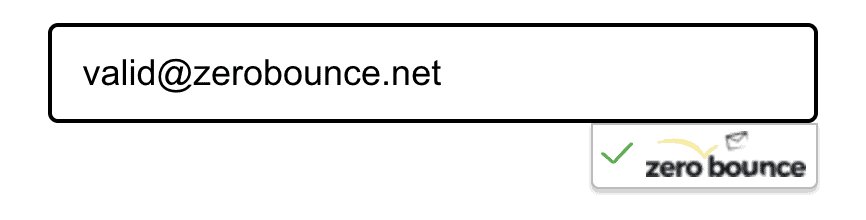
The user outcome depends on the status of the email address they enter into Contact Form 7:
You need a fully operational WordPress installation to use the integration. Check out the ZeroBounce + Contact Form 7 installation guide to get set up.



















ZeroBounce + Contact Form 7 integration validates a user’s email address within the form. It runs a series of checks to validate the email address supplied in the form. If the email passes verification, the form is submitted. If the email address doesn’t pass the verification, the form isn’t submitted. The user will also be shown an error message, which you can customize.
You can validate as many emails as you need. It costs one ZeroBounce credit per validation. A ZeroBounce Freemium account gives you 100 free credits a month, which don’t expire. You can buy credits on a Pay-As-You-Go plan or join ZeroBounce ONE™ if you need more. Check out our pricing page to compare plans.
It’s up to you which email status codes you accept. We recommend that you only accept “Valid,” “Catch-All,” and “Unknown” statuses. You can choose which ones you wish to accept when you configure your ZeroBounce plugin. Check out our Status Codes documentation to learn more.
No, you’ll find the installation easy if you know your way around WordPress/WooCommerce. You don’t need to write a single line of code. All you need is an operational WordPress installation and to install the Contact Form 7 and ZeroBounce plugins. Check out our ZeroBounce + Contact Form 7 installation guide to learn how to get set up.
Yes, you can. We strongly recommend that you customize the error message as it impacts your user experience. Configure it in ZeroBounce’s plugin settings. It’s key to remember that audiences are diverse. It ruins the customer experience if they can’t read your information.
All you need is a fully operational WordPress installation and a Freemium/premium ZeroBounce account. Download the Contact Form 7 and ZeroBounce plugins, and you’re good to go.
Yes, both the Contact Form 7 and ZeroBounce plugins are free.