ZeroBounce Logo

Docs

Language Icon
  • Sign In
  • Sign Up Free

Languages

ZeroBounce ImageGetting Started
ZeroBounce ImageEmail List Validation
ZeroBounce ImageA.I. Email Scoring
ZeroBounce ImageEmail Finder
ZeroBounce ImageDomain Search
ZeroBounce ImageActivity Data
ZeroBounce ImageMulti-file upload
ZeroBounce ImageIntegrations
ZeroBounce ImageActiveCampaign Integration
ZeroBounce ImageAdobe Journey Integration
ZeroBounce ImageAdobe Marketo Integration
ZeroBounce ImageAmazon S3 Integration
ZeroBounce ImageAmazon S3 Bulk API
ZeroBounce ImageAWeber Integration
ZeroBounce ImageBigCommerce Integration
ZeroBounce ImageChatGPT Integration
ZeroBounce ImageClay.com Integration
ZeroBounce ImageCloudFlare Worker Integration
ZeroBounce ImageConstant Contact Integration
ZeroBounce ImageCustomer.io Integration
ZeroBounce ImageDrip Integration
ZeroBounce ImageEmail Validator Browser Extension
ZeroBounce ImageGhost Integration
ZeroBounce ImageGoogle Sheets Integration
ZeroBounce ImageHubSpot Integration
ZeroBounce ImageHubSpot Forms Integration
ZeroBounce ImageInfinity Integration
ZeroBounce ImageIntegrations Contacts Monitoring, Scheduling and Sharing
ZeroBounce ImageIterable Integration
ZeroBounce ImageJS Widget
ZeroBounce ImageKlaviyo Integration
ZeroBounce ImageLinkedIn Integration
ZeroBounce ImageMailchimp Integration
ZeroBounce ImageMailerLite Integration
ZeroBounce ImageMicrosoft Dynamics Integration
ZeroBounce ImageMonday.com Integration
ZeroBounce ImageMoosend Integration
ZeroBounce ImageOutreach Integration
ZeroBounce ImagePipeDrive Integration
ZeroBounce ImageSalesforce Integration v1.39
ZeroBounce ImageSFTP/FTP Integration
ZeroBounce ImageSFTP/FTP Bulk API
ZeroBounce ImageUnbounce Integration
ZeroBounce ImageWix Integration
ZeroBounce ImageWordPress/WooCommerce Plugins
ZeroBounce ImageZapier Integration
ZeroBounce ImageZendesk Sell Integration
ZeroBounce ImageZoho Integration
ZeroBounce ImageUsage Reports
ZeroBounce ImageYour ZeroBounce Account
ZeroBounce ImageEmail Validation API
ZeroBounce ImageEmail Finder API
ZeroBounce ImageDomain Search API
ZeroBounce ImageA.I. Scoring API
ZeroBounce ImageActivity Data API
ZeroBounce ImageList Evaluator API
ZeroBounce ImageApi Dashboard
ZeroBounce ImageAPI Wrappers
ZeroBounce ImageAPI Migration
ZeroBounce ImageFAQ
ZeroBounce ImageSecuring Your Account
ZeroBounce ImageAbout ZeroBounce
ZeroBounce ImageDeliverability Tools
ZeroBounce ImageStatus Page
  • Email Validation Homepage
  • Separator
  • Docs
  • Separator
  • API Integrations
  • Separator
  • Clay.com Integration
API Integrations

Clay.com Email Verification Integration

Clay.com is a lead-generation outbound platform that helps businesses build and enrich lead lists, write high-converting, personalized emails, and leverage the power of AI for content creation.

Clay.com makes it simple to connect your company’s CRM, social media profiles, scraping tools, and email services. Their impressive list of prospecting integrations now includes ZeroBounce’s email validationⓘ service so that you can automatically validate new leads.

Prerequisites

To use ZeroBounce email validationⓘ, you’ll require a Clay.com account at a minimum. Clay.com provides an API key for all users, and you can validate an email address at the cost of 1 Clay Credit.

If you have an existing ZeroBounce account, you can save your Clay Credits and use your ZeroBounce credits instead. The instructions below will walk you through how to add and authenticate your ZeroBounce API key within your Clay.com account settings.

Step 1:

To add the ZeroBounce integration, sign in to your Clay.com account. You should automatically be redirected to ‘My Workspace.’

Step 2:

Navigate to any existing table that contains contacts with email addresses.

Then, select ‘Enrich Data’ from the top-right corner.
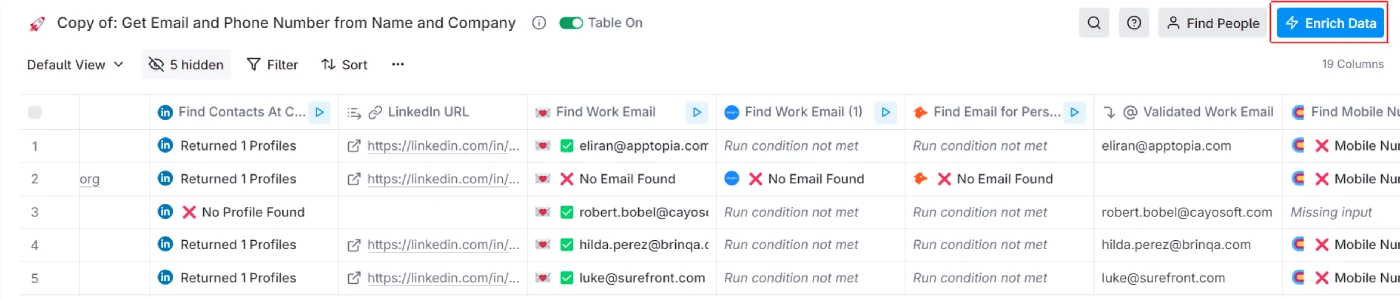
Data spreadsheet listing LinkedIn URLs, work emails, and validated work emails on Clay.com

Step 3:

In the left menu, go to ‘People.’ Select ‘Emails,’ then search for ‘Validate Email - ZeroBounce’ on the right.
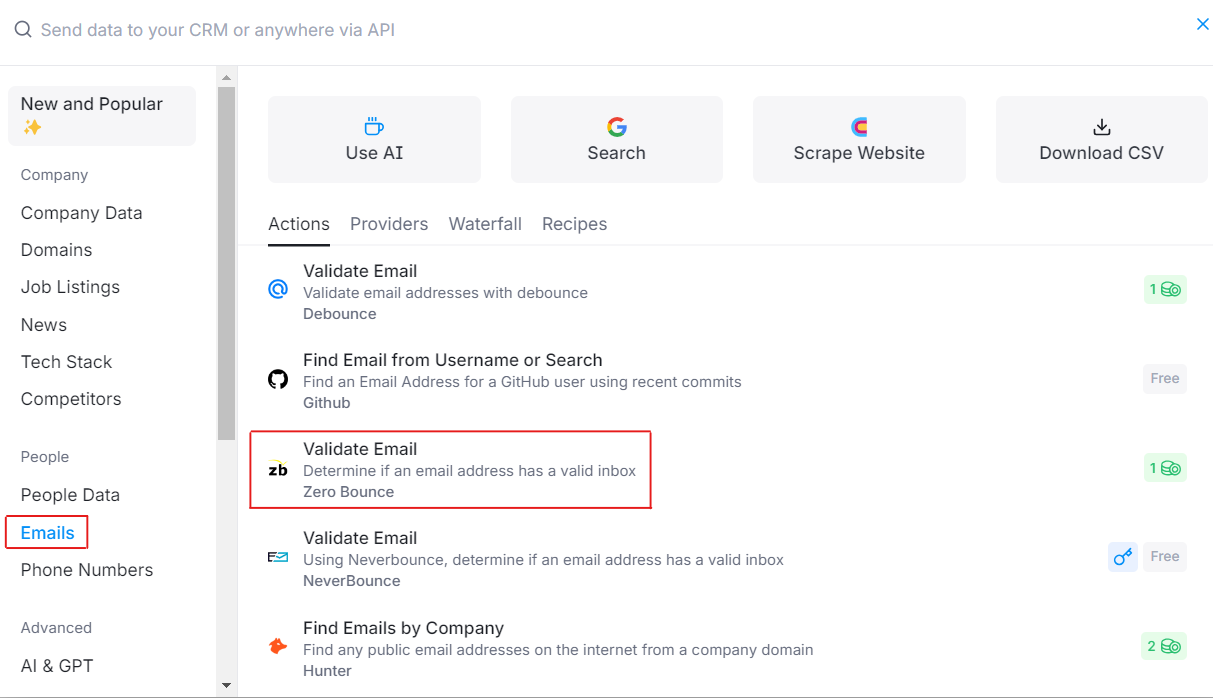
A list of Clay.com API features with the ZeroBounce Validate Email integration highlighted

Step 4:

You’ll need to select a ZeroBounce API key.

Note that the integration defaults to Clay.com’s API key. If you choose to use Clay.com’s ZeroBounce API key, each email address you validate will consume 1 Clay credit from your account.
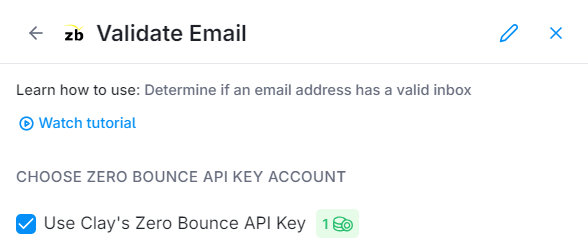
The ZeroBounce Validate Email integration on Clay.com with the option to use Clay’s API key selected

If you choose to use your own ZeroBounce API key, you will use your ZeroBounce credits for each email validationⓘ.

Step 5:

If you choose to use your own ZeroBounce API key, click the dropdown and select ‘Add an account.’
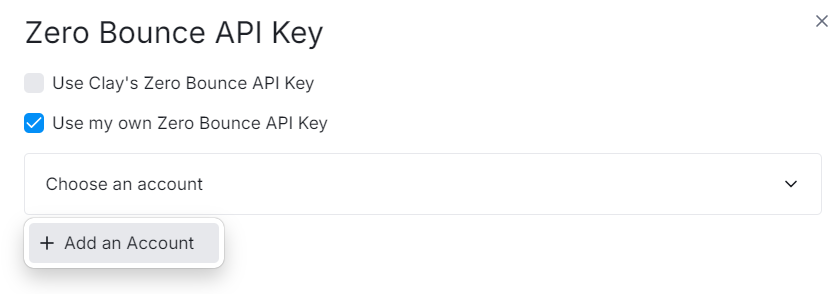
The ZeroBounce Clay.com integration with the option to use your own API key selected

Step 6:

Open a separate tab and sign in to your ZeroBounce account. You’ll need to retrieve your API key or create a new one by visiting your API settings.
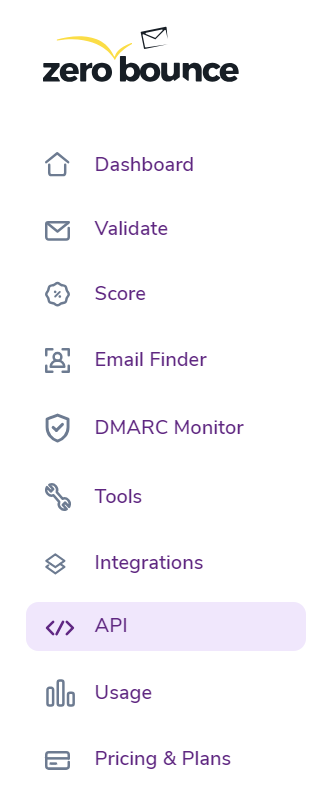
The ZeroBounce dashboard with the API menu highlighted

Then, copy your API key from the page.

A ZeroBounce master API key highlighted with red lines

Step 7:

Return to your Clay.com settings. Add your ZeroBounce API key to the field provided. Click ‘Authenticate.’
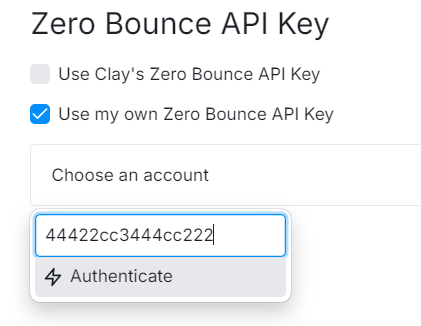
The ZeroBounce Clay.com integration with an example API key and the authenticate button beneath it

After authentication is complete, you’ll see your ZeroBounce account email in the dropdown. You can now use your ZeroBounce account to validate emails for new, incoming leads.

Step 8:

Finally, you’ll need to provide the necessary inputs to perform the validation.

In the same setup menu, navigate to ‘SETUP INPUTS.’
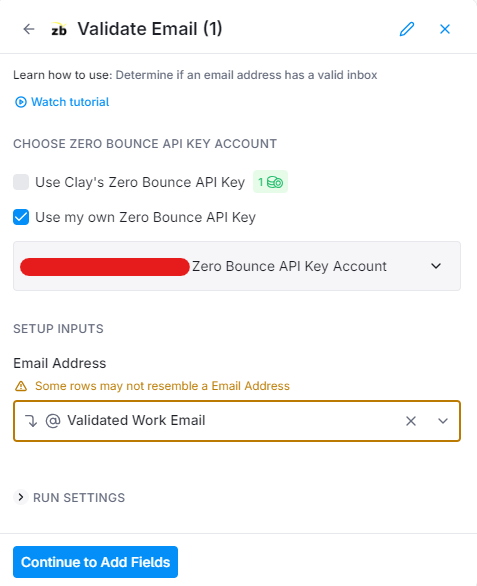
The ZeroBounce Clay.com integration setup menu with the ‘@email’ function selected within ‘Setup Inputs’

In this field, enter the value for the row that contains the email addresses you wish to validate. For example, if your row is titled ‘Email,’ add ‘Email’ to this field.

Then, click ‘Continue to Add Fields.’

Step 9:

Choose if you wish to create new columns and add appended data retrieved during the email validationⓘ process. If this data is available, it will populate in the new respective columns.
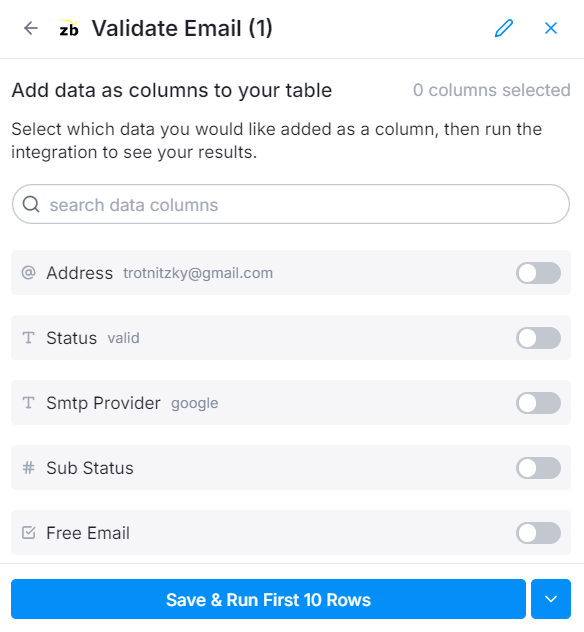
The ZeroBounce Validate Email integration’s column selection screen, including address, status, SMTP, sub-status, and free email

Then, click ‘Save & Run.’

The email validationⓘ process should run automatically. At the same time, a new column titled ‘Validate Email’ will appear in your table, along with the validation result for each email address.
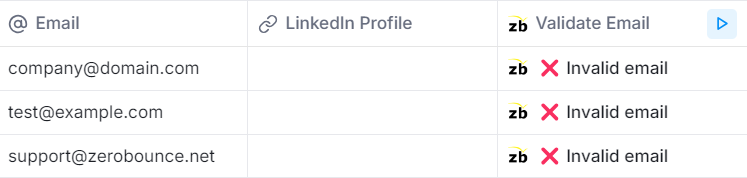
A simple Clay.com data table with three emails all found to be invalid by the ZeroBounce Validate Email API functionality

If you wish to rerun the validation process, click the play button in the same column.

If you have any issues or questions about the Clay.com integration, please contact the ZeroBounce support team, which is available 24/7.