ZeroBounce Logo

Docs

Language Icon
  • Sign In
  • Sign Up Free

Languages

ZeroBounce ImageGetting Started
ZeroBounce ImageEmail List Validation
ZeroBounce ImageA.I. Email Scoring
ZeroBounce ImageEmail Finder
ZeroBounce ImageDomain Search
ZeroBounce ImageActivity Data
ZeroBounce ImageMulti-file upload
ZeroBounce ImageIntegrations
ZeroBounce ImageActiveCampaign Integration
ZeroBounce ImageAdobe Journey Integration
ZeroBounce ImageAdobe Marketo Integration
ZeroBounce ImageAmazon S3 Integration
ZeroBounce ImageAmazon S3 Bulk API
ZeroBounce ImageAWeber Integration
ZeroBounce ImageBigCommerce Integration
ZeroBounce ImageChatGPT Integration
ZeroBounce ImageClay.com Integration
ZeroBounce ImageCloudFlare Worker Integration
ZeroBounce ImageConstant Contact Integration
ZeroBounce ImageCustomer.io Integration
ZeroBounce ImageDrip Integration
ZeroBounce ImageEmail Validator Browser Extension
ZeroBounce ImageGhost Integration
ZeroBounce ImageGoogle Sheets Integration
ZeroBounce ImageHubSpot Integration
ZeroBounce ImageHubSpot Forms Integration
ZeroBounce ImageInfinity Integration
ZeroBounce ImageIntegrations Contacts Monitoring, Scheduling and Sharing
ZeroBounce ImageIterable Integration
ZeroBounce ImageJS Widget
ZeroBounce ImageKlaviyo Integration
ZeroBounce ImageLinkedIn Integration
ZeroBounce ImageMailchimp Integration
ZeroBounce ImageMailerLite Integration
ZeroBounce ImageMicrosoft Dynamics Integration
ZeroBounce ImageMonday.com Integration
ZeroBounce ImageMoosend Integration
ZeroBounce ImageOutreach Integration
ZeroBounce ImagePipeDrive Integration
ZeroBounce ImageSalesforce Integration v1.39
ZeroBounce ImageSFTP/FTP Integration
ZeroBounce ImageSFTP/FTP Bulk API
ZeroBounce ImageUnbounce Integration
ZeroBounce ImageWix Integration
ZeroBounce ImageWordPress/WooCommerce Plugins
ZeroBounce ImageZapier Integration
ZeroBounce ImageZendesk Sell Integration
ZeroBounce ImageZoho Integration
ZeroBounce ImageUsage Reports
ZeroBounce ImageYour ZeroBounce Account
ZeroBounce ImageEmail Validation API
ZeroBounce ImageEmail Finder API
ZeroBounce ImageDomain Search API
ZeroBounce ImageA.I. Scoring API
ZeroBounce ImageActivity Data API
ZeroBounce ImageList Evaluator API
ZeroBounce ImageApi Dashboard
ZeroBounce ImageAPI Wrappers
ZeroBounce ImageAPI Migration
ZeroBounce ImageFAQ
ZeroBounce ImageSecuring Your Account
ZeroBounce ImageAbout ZeroBounce
ZeroBounce ImageDeliverability Tools
ZeroBounce ImageStatus Page
  • Email Validation Homepage
  • Separator
  • Docs
  • Separator
  • API Integrations
  • Separator
  • LinkedIn
API Integrations

LinkedIn Integration

The LinkedIn ZeroBounce integration is now available.

To integrate your LinkedIn account with ZeroBounce, follow these steps:

1. Access your LinkedIn account and navigate to the profile menu.

2. Select Settings & Privacy from the dropdown menu.
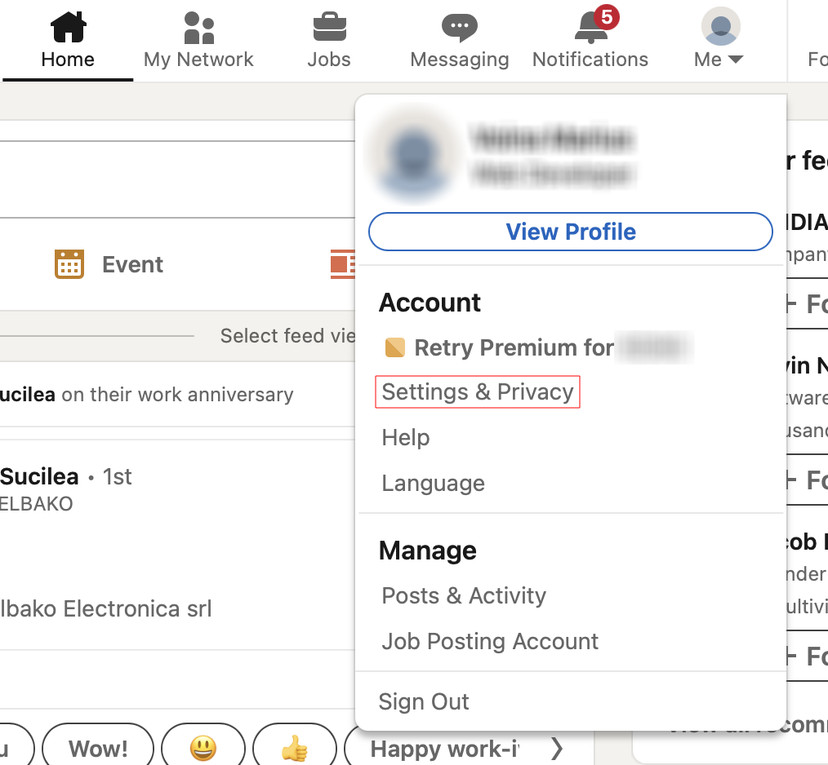
LinkedIn profile settings with "Settings & Privacy" highlighted

3. Within the Data Privacy section, click on Get a copy of your data.
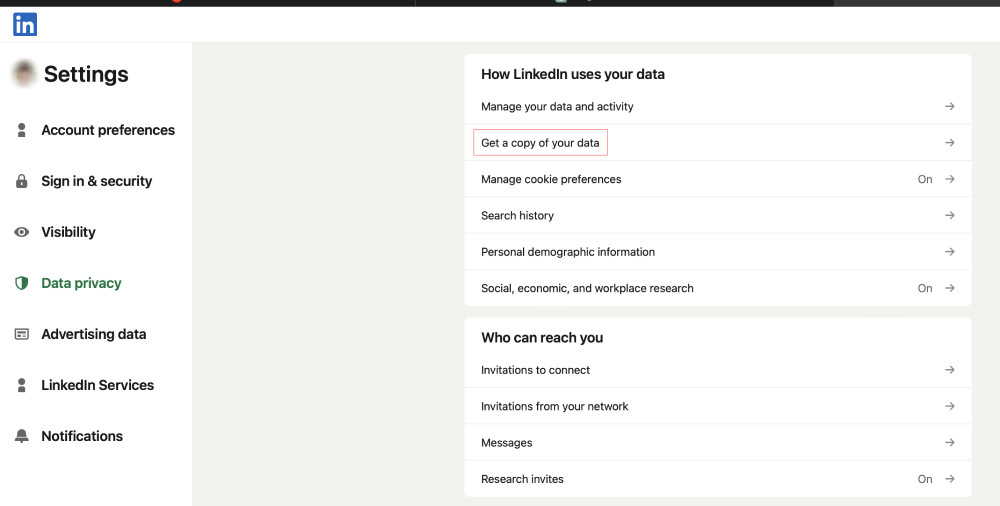
The Data privacy settings in LinkedIn with "Get a copy of your data" highlighted

4. Under 'Export your data,' check the box next to Connections. Then, click the Request archive button.
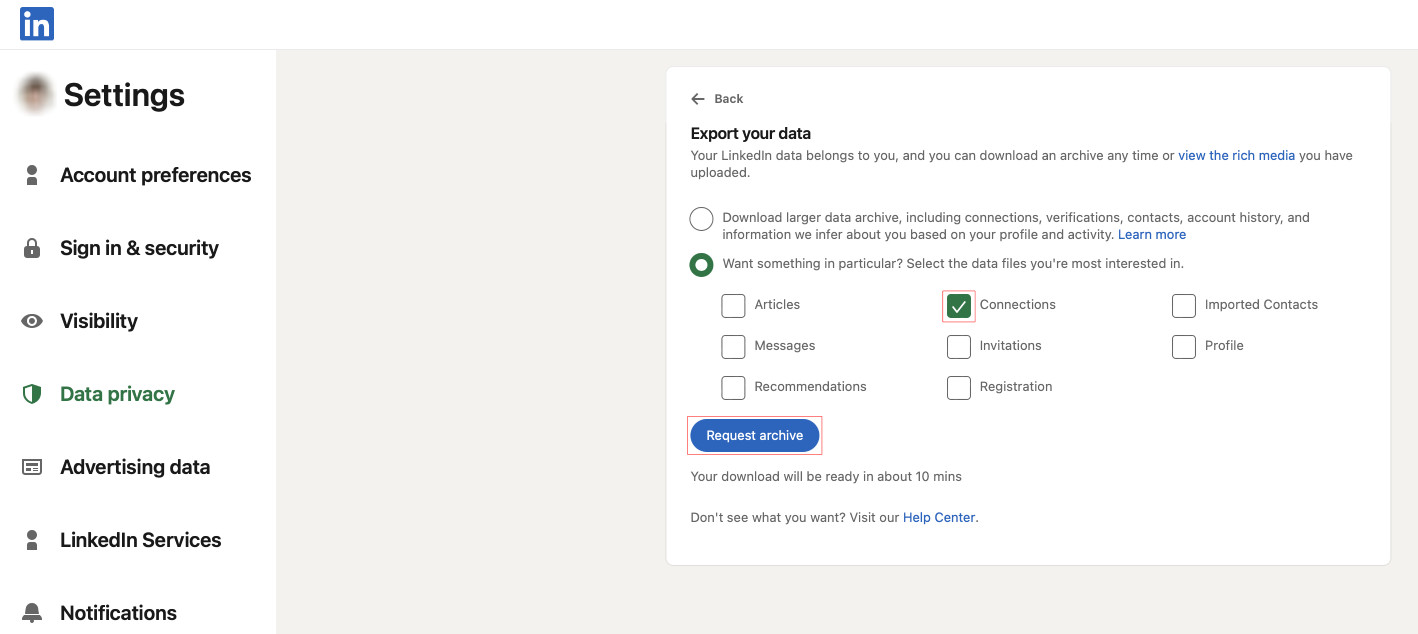
LinkedIn's "Export your data" menu with a checkmark next to "Connections" and the "Request archive" button highlighted

5. Await the email containing the download link. Upon receipt, promptly click on the provided link to access the download portal.
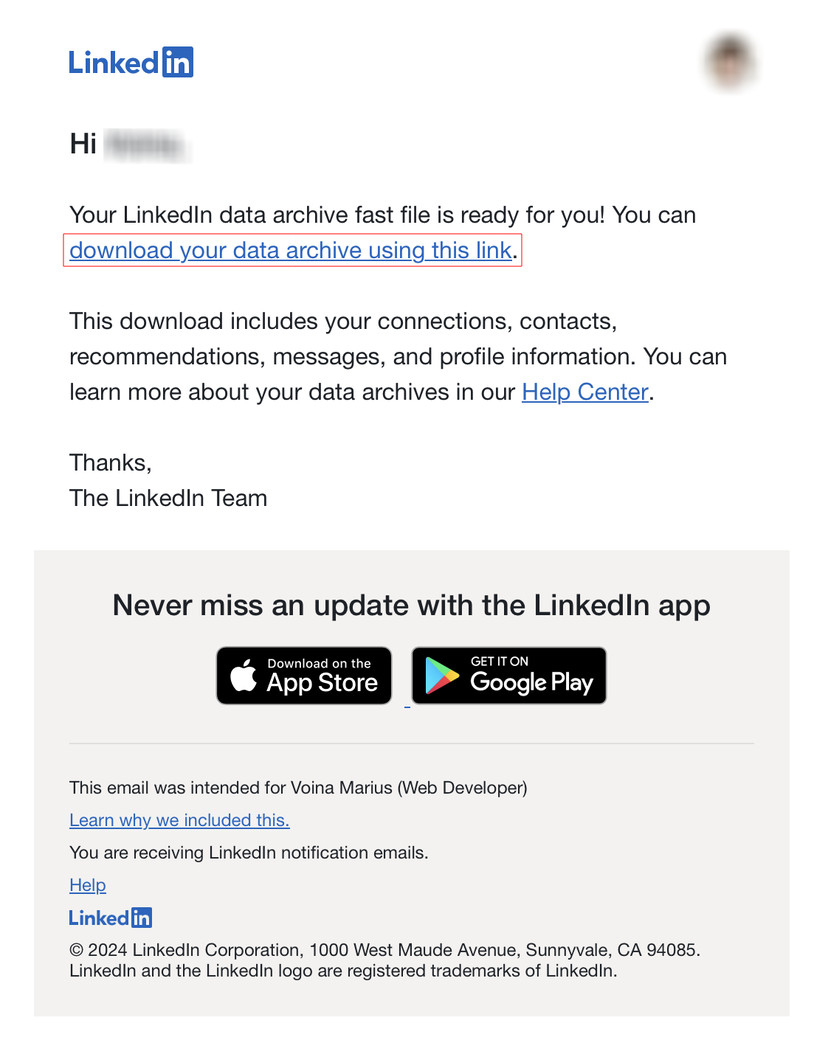
An email from LinkedIn that contains a link to download your account's data archive.

6. Initiate the download by clicking on the Download archive button. Then, you may resume the email finder process as usual.
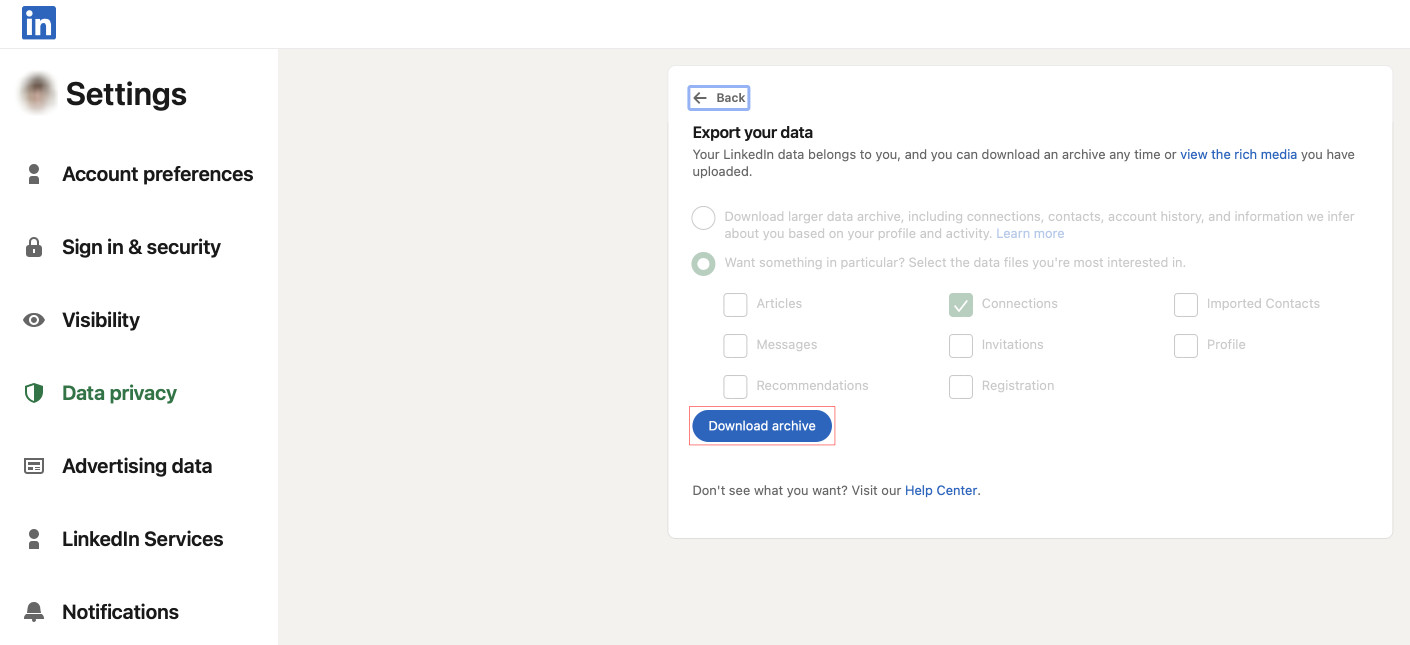
LinkedIn's "Export your data" menu with the "Download archive" button highlighted.

Access the "Bulk Email Finder" tool on ZeroBounce through this link.

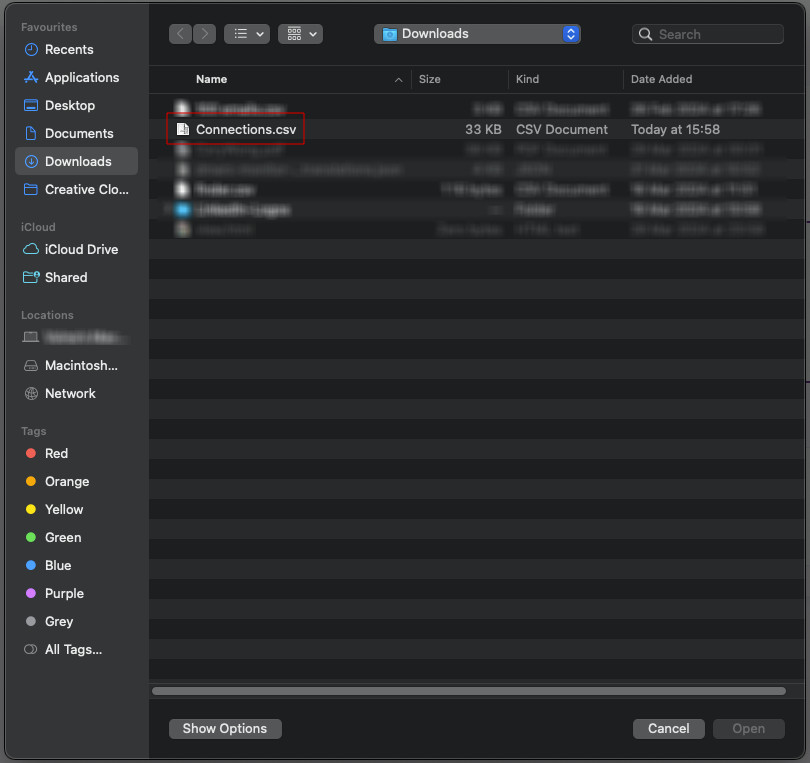
1. Once you're on the "Bulk Email Finder" page, find the option to upload your file. You'll need to upload your "Connections.csv" file, which you can export from LinkedIn.

"Bulk ,[object Object]," file upload screen.
Screenshot of a computer file finder interface with a highlighted 'Connections.csv' file.

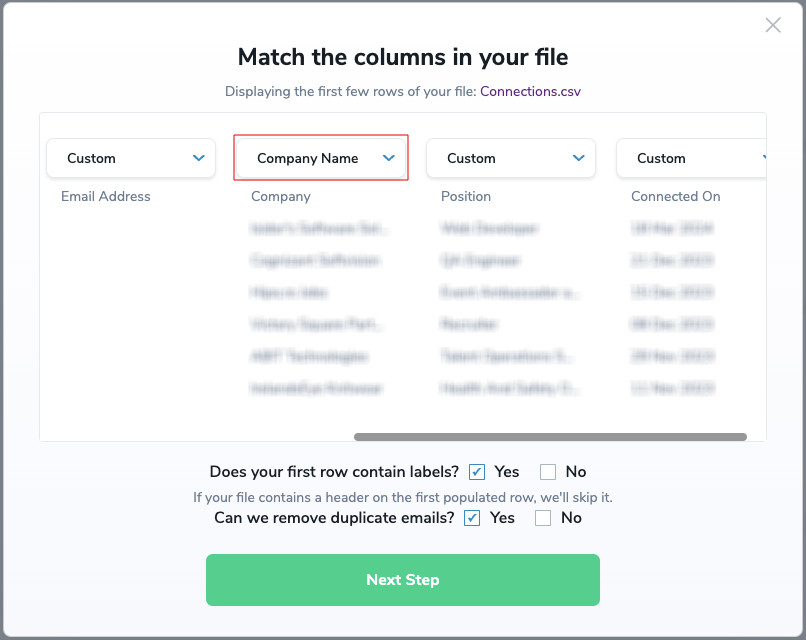
2. After uploading your file, you'll see a window where the column labeled "First Name" is automatically mapped to the field labeled "First Name", the column labeled "Last Name" is mapped to the field labeled "Last Name", and the column labeled "Company" is mapped to the field labeled "Company Name". Once these mappings are confirmed, click the "Next Step" button to proceed.
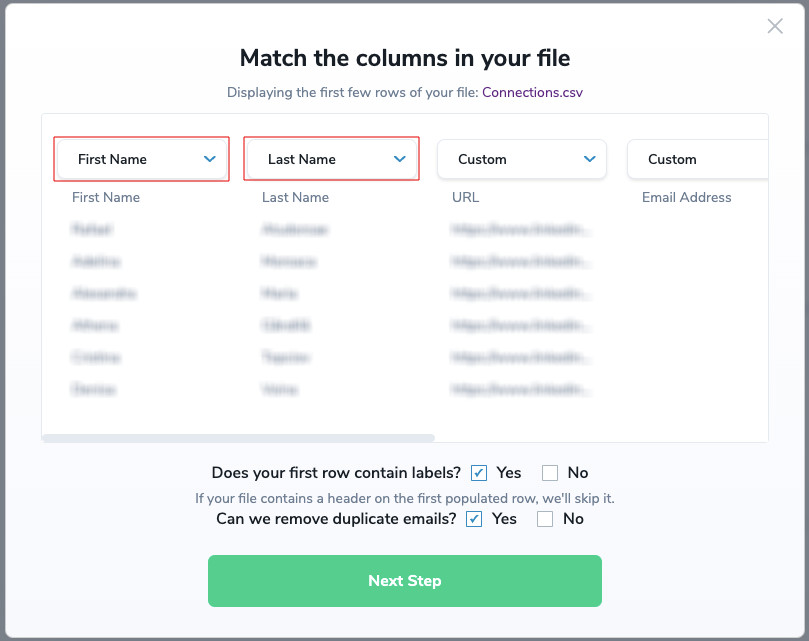
"Match the columns in your file" menu with the "First Name" and "Last Name" fields highlighted.
"Match the columns in your file" menu with the "Company Name" field highlighted.

3. On the following screen, click the "Find" button to start finding emails associated with your contacts. Depending on the size of your CSV file, this process may take some time as it scans through each contact to locate their email addresses.

Upload window of the bulk ,[object Object], file, where it displays the number of email addresses to find.

4. It's important to note that the page can be closed throughout the entire process. You can safely close the page and return later to check the status. ZeroBounce will continue working in the background to find the emails associated with your contacts.

"Bulk ,[object Object]," screen showing that the file is processing.

If you have any questions or need additional support for the LinkedIn ZeroBounce integration, please contact customer support. The team is available 24/7.