ZeroBounce Logo

Docs

Language Icon
  • Sign In
  • Sign Up Free

Languages

ZeroBounce ImageGetting Started
ZeroBounce ImageEmail List Validation
ZeroBounce ImageA.I. Email Scoring
ZeroBounce ImageEmail Finder
ZeroBounce ImageDomain Search
ZeroBounce ImageActivity Data
ZeroBounce ImageMulti-file upload
ZeroBounce ImageIntegrations
ZeroBounce ImageActiveCampaign Integration
ZeroBounce ImageAdobe Journey Integration
ZeroBounce ImageAdobe Marketo Integration
ZeroBounce ImageAmazon S3 Integration
ZeroBounce ImageAmazon S3 Bulk API
ZeroBounce ImageAWeber Integration
ZeroBounce ImageBigCommerce Integration
ZeroBounce ImageChatGPT Integration
ZeroBounce ImageClay.com Integration
ZeroBounce ImageCloudFlare Worker Integration
ZeroBounce ImageConstant Contact Integration
ZeroBounce ImageCustomer.io Integration
ZeroBounce ImageDrip Integration
ZeroBounce ImageEmail Validator Browser Extension
ZeroBounce ImageGhost Integration
ZeroBounce ImageGoogle Sheets Integration
ZeroBounce ImageHubSpot Integration
ZeroBounce ImageHubSpot Forms Integration
ZeroBounce ImageInfinity Integration
ZeroBounce ImageIntegrations Contacts Monitoring, Scheduling and Sharing
ZeroBounce ImageIterable Integration
ZeroBounce ImageJS Widget
ZeroBounce ImageKlaviyo Integration
ZeroBounce ImageLinkedIn Integration
ZeroBounce ImageMailchimp Integration
ZeroBounce ImageMailerLite Integration
ZeroBounce ImageMicrosoft Dynamics Integration
ZeroBounce ImageMonday.com Integration
ZeroBounce ImageMoosend Integration
ZeroBounce ImageOutreach Integration
ZeroBounce ImagePipeDrive Integration
ZeroBounce ImageSalesforce Integration v1.39
ZeroBounce ImageSFTP/FTP Integration
ZeroBounce ImageSFTP/FTP Bulk API
ZeroBounce ImageUnbounce Integration
ZeroBounce ImageWix Integration
ZeroBounce ImageWordPress/WooCommerce Plugins
ZeroBounce ImageZapier Integration
ZeroBounce ImageZendesk Sell Integration
ZeroBounce ImageZoho Integration
ZeroBounce ImageUsage Reports
ZeroBounce ImageYour ZeroBounce Account
ZeroBounce ImageEmail Validation API
ZeroBounce ImageEmail Finder API
ZeroBounce ImageDomain Search API
ZeroBounce ImageA.I. Scoring API
ZeroBounce ImageActivity Data API
ZeroBounce ImageList Evaluator API
ZeroBounce ImageApi Dashboard
ZeroBounce ImageAPI Wrappers
ZeroBounce ImageAPI Migration
ZeroBounce ImageFAQ
ZeroBounce ImageSecuring Your Account
ZeroBounce ImageAbout ZeroBounce
ZeroBounce ImageDeliverability Tools
ZeroBounce ImageStatus Page
  • Email Validation Homepage
  • Separator
  • Docs
  • Separator
  • API Integrations
  • Separator
  • Google Sheets
API Integrations

Email Validation Extension for Google Sheets

ZeroBounce now offers an extension through the Google Workspace Marketplace for Google Sheets. This add-on can validate your email list directly within Google Sheets.

All you’ll need is your ZeroBounce API key and a spreadsheet containing the email addresses you wish to validate.
Installing the ZeroBounce extension

  1. Go to a document within Google Sheets.
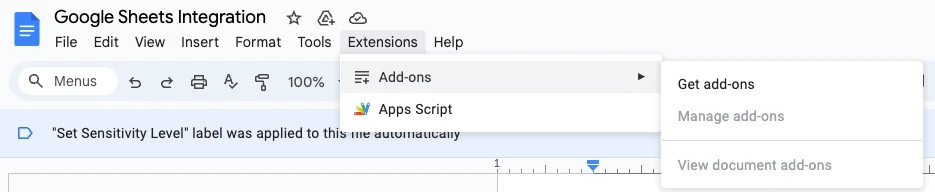
  2. Under Extensions, go to Add-ons and click Get add-ons.
    ZeroBounce Image
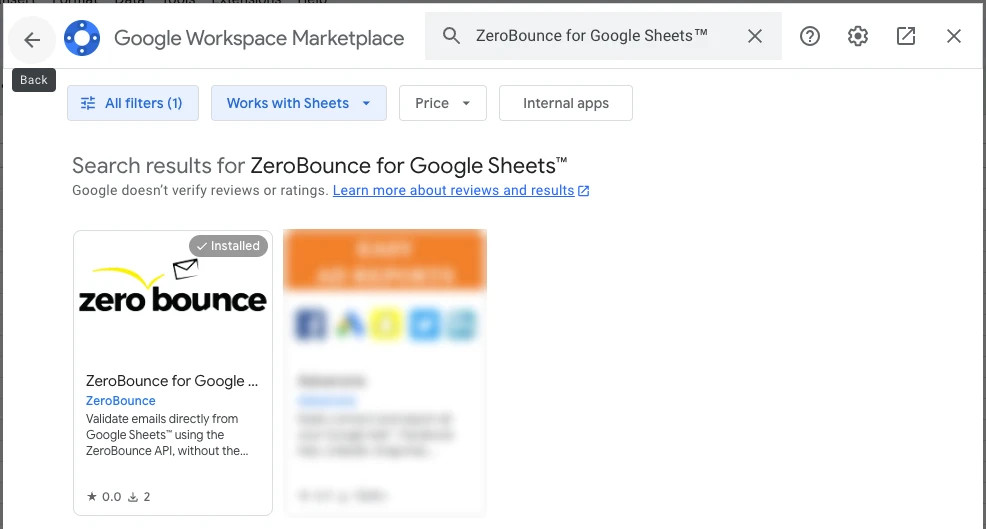
  3. Search for ZeroBounce in the search bar. Click on the add-on listing.
    ZeroBounce Image
  4. Select ZeroBounce extension and then click Install.
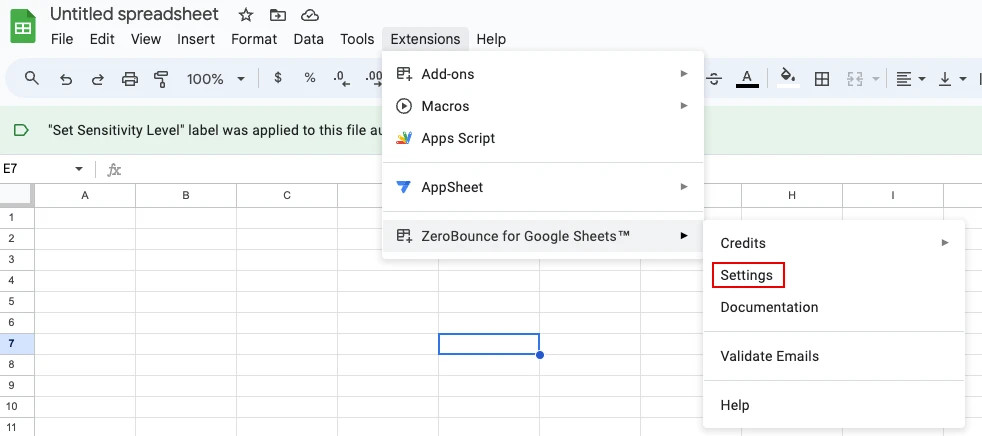
  5. Refresh Google Sheets. You will now see ZeroBounce Email Validator in the Extensions menu.
  6. Go to the ZeroBounce Email Validator menu and click on Settings.
    ZeroBounce Image
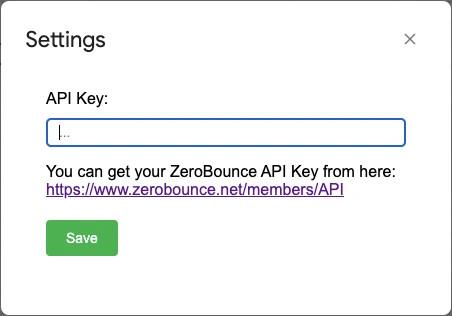
  7. In the API key field, enter your ZeroBounce API key.
    ZeroBounce Image

    If necessary, please visit the URL to obtain your API key.

  8. Click Save.

Once the extension verifies your API key, you can validate emails in Google Sheets.
How to validate emails in Google Sheets

  1. Go to the Sheet that contains the emails you wish to validate.
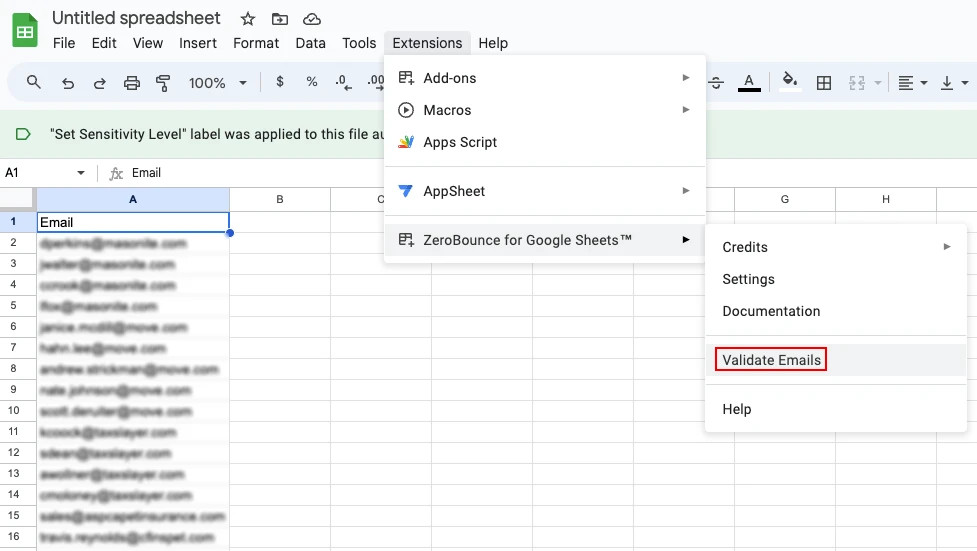
  2. Go to ZeroBounce Email Validator from the Extensions menu, and click on Validate Emails.
    ZeroBounce Image

    The extension will automatically detect which column contains your emails.

  3. A confirmation window will appear that reads “Are you sure you want to validate the emails?” Click Yes.

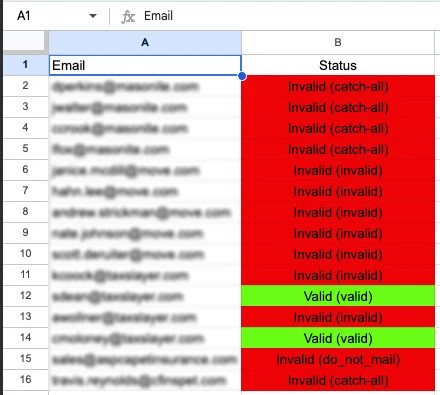
The extension will automatically create a new Status column next to the column containing your emails. This will not impact or remove any other existing columns.

As the ZeroBounce email validator begins to process your list, the status column will show the email as “Valid” in green or “Invalid” in red.
ZeroBounce Image

If the email address is invalid, it will also provide the email’s sub-status in parentheses, i.e., “Invalid (do_not_mail).”

Our documentation provides a full breakdown of our email validation status codes. You can access our documentation anytime by clicking on the extension and selecting “Documentation.”

If you previously used the extension and already have the Status column present, a new validation attempt will reset any existing status values. Then, the latest status for each email will appear in the same column.

Once finished, you’ll receive a notification in the bottom-right corner of the sheet that reads “Email Validationⓘ Finished.” The notice will also display how many credits were used and how many still remain in your account.

Checking your credit balance

To check on your ZeroBounce credit balance from Google Sheets
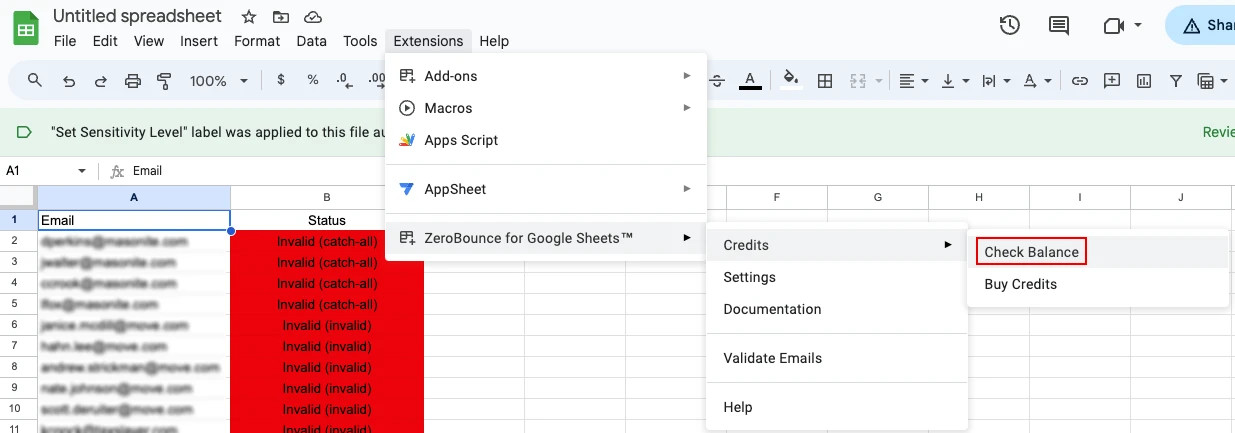
  1. Go to ZeroBounce Email Validator in the Google Sheets Extensions menu.
  2. Go to Credits and click Check Balance.
    ZeroBounce Image
  3. A pop-up window on the screen will tell you how many credits you have remaining.

Purchasing credits

You can also top off your ZeroBounce credit balance directly from the Google Sheets extension.
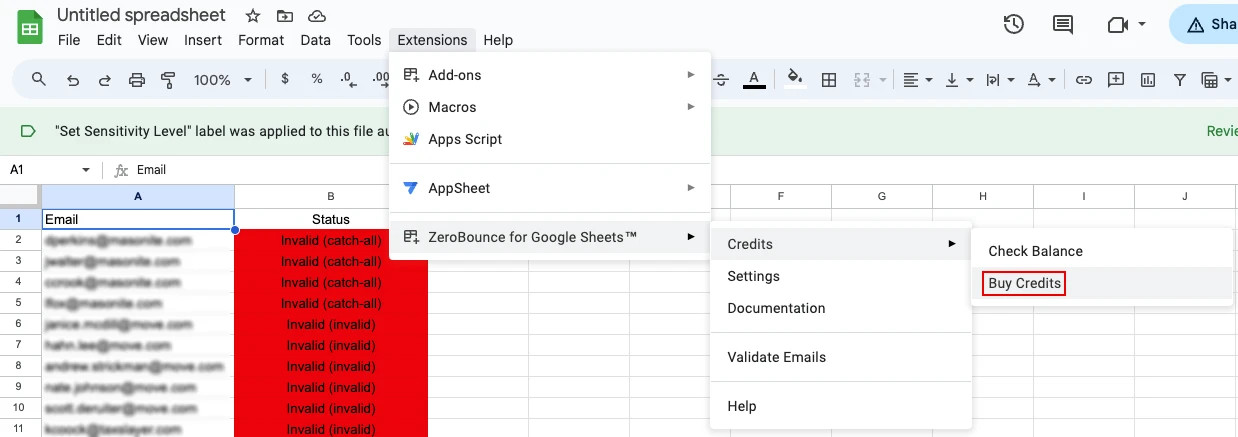
  1. Go to ZeroBounce Email Validator in the Google Sheets Extensions menu.
  2. Go to Credits and click Buy Credits.
    ZeroBounce Image
  3. A new page in your browser directs you to the Pricing & Plans page within your ZeroBounce dashboard.

Take advantage of the Google Sheets extension to easily validate your email list without visiting the ZeroBounce dashboard.

If you have any questions or need assistance setting up your extension, please contact our support team - available 24/7.