
Docs
Docs
Prerequisites
You must have an active Outreach account. If you do not have an account, you can create one at https://www.outreach.io/.
Step 1:
Go to https://www.zerobounce.net/members/signinand sign in with your ZeroBounce account. Find the 'Integrations' tab on the left side menu to select the Outreach integration.
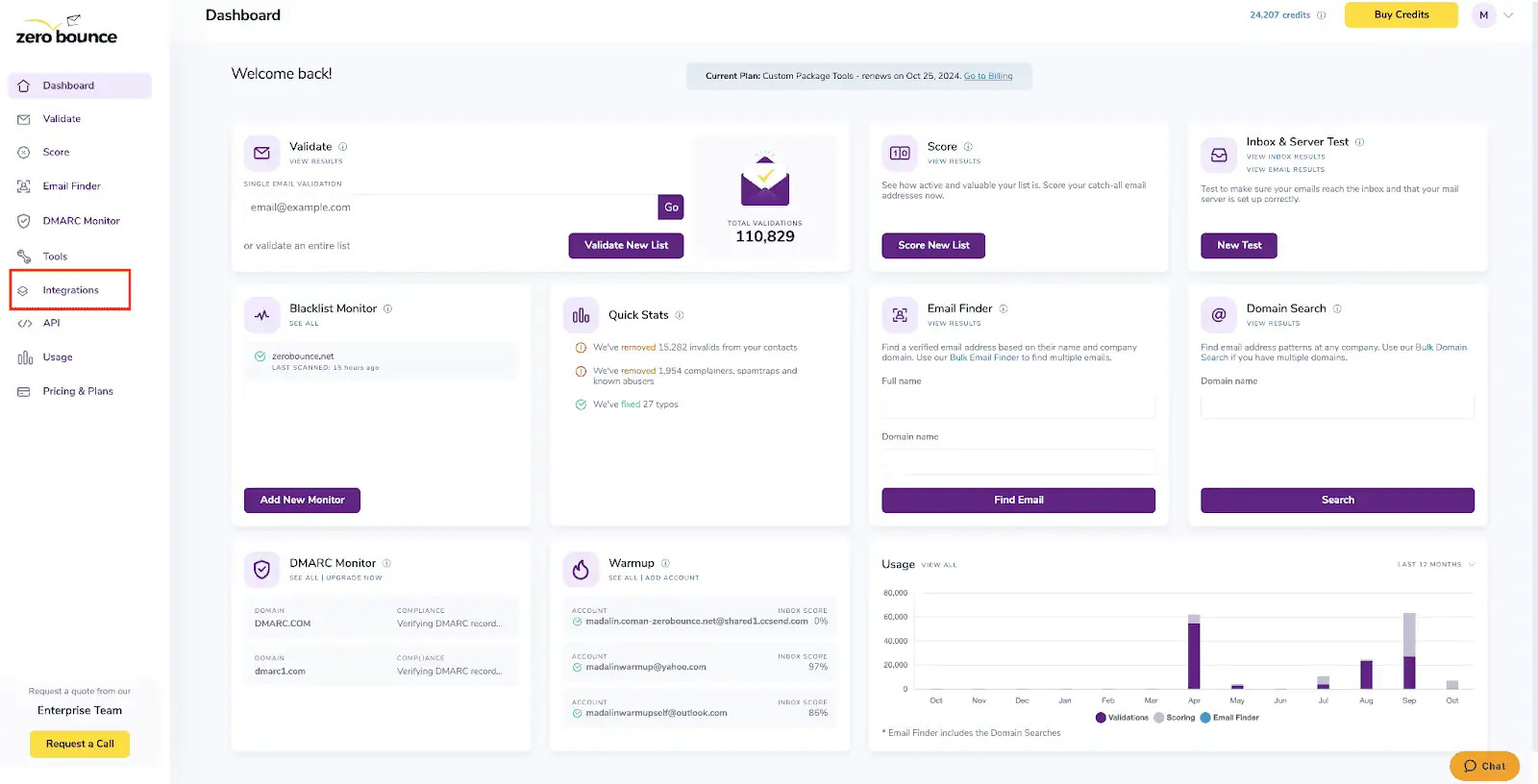
A popup greets you after selecting Outreach integration.
Step 2:
The popup describes the action. Click Connect to proceed.
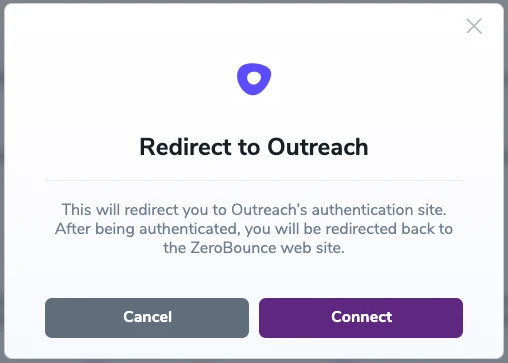
Step 3:
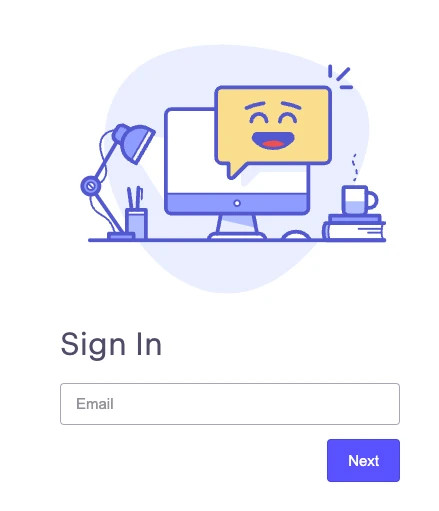
Authenticate with your Outreach email account or sign up.
Step 4:
After successful authentication, you will be seamlessly redirected to the ZeroBounce integrations page.
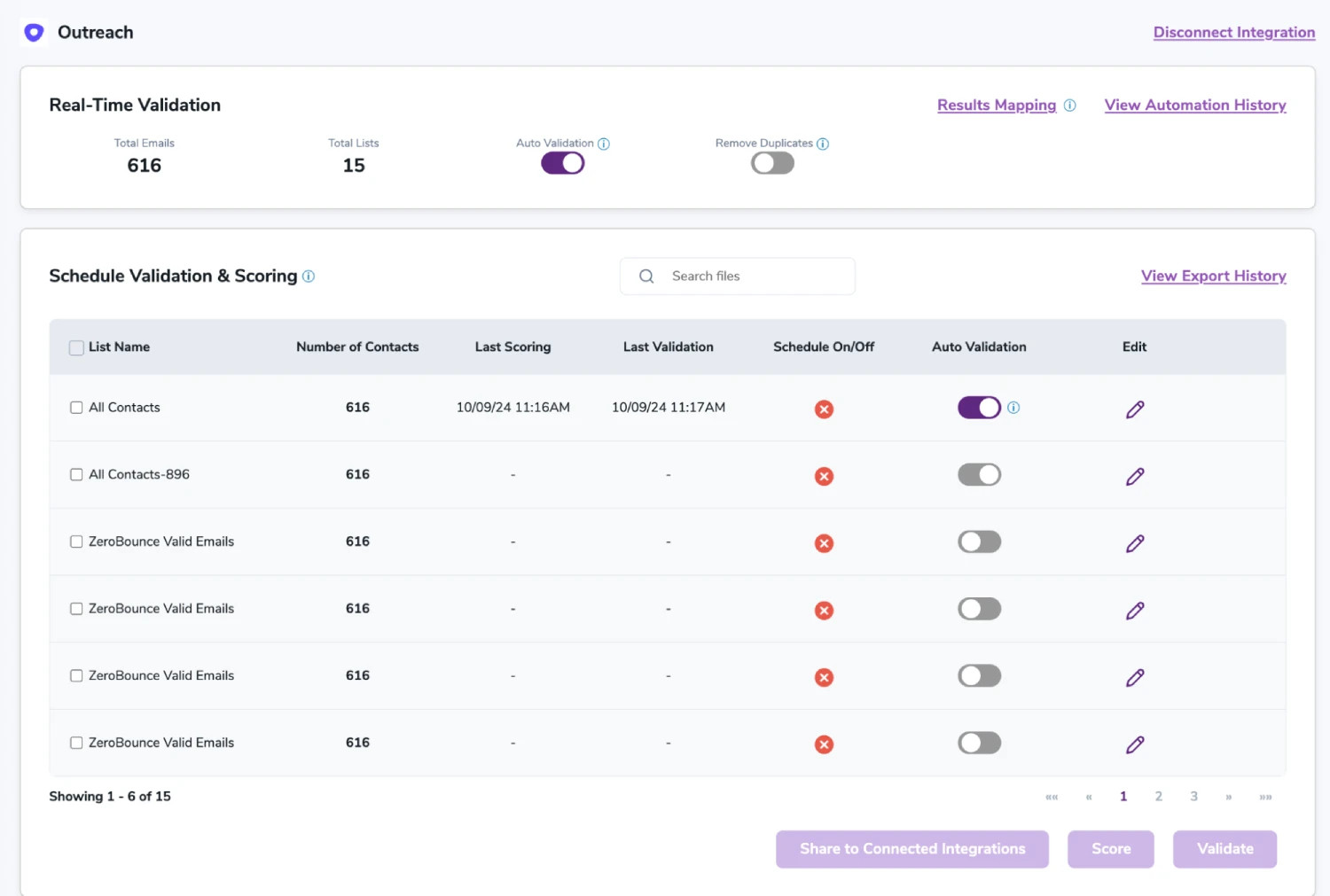
Once you have authorized access ZeroBounce will gather all of your email addresses for the account you selected during the authorization process.
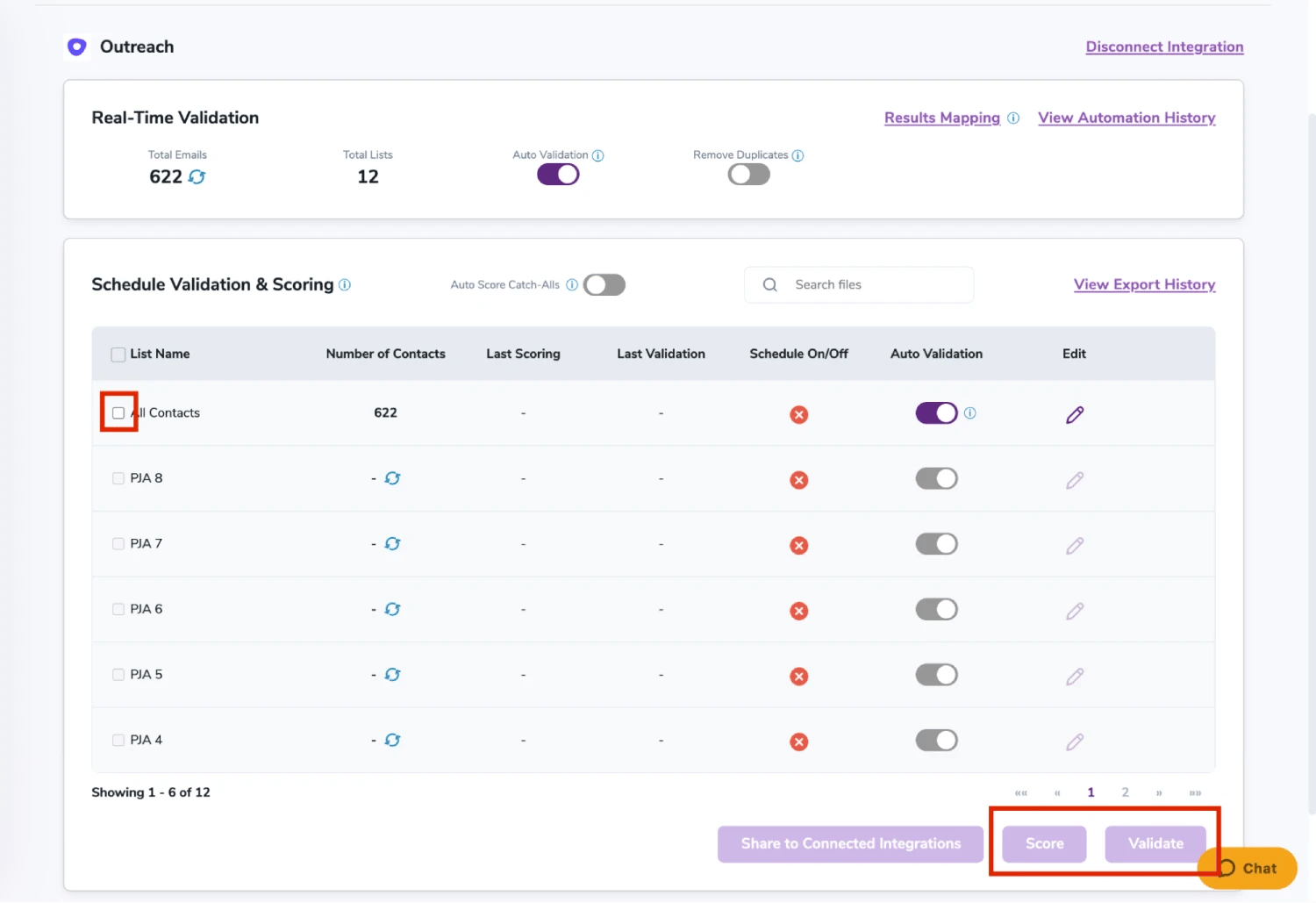
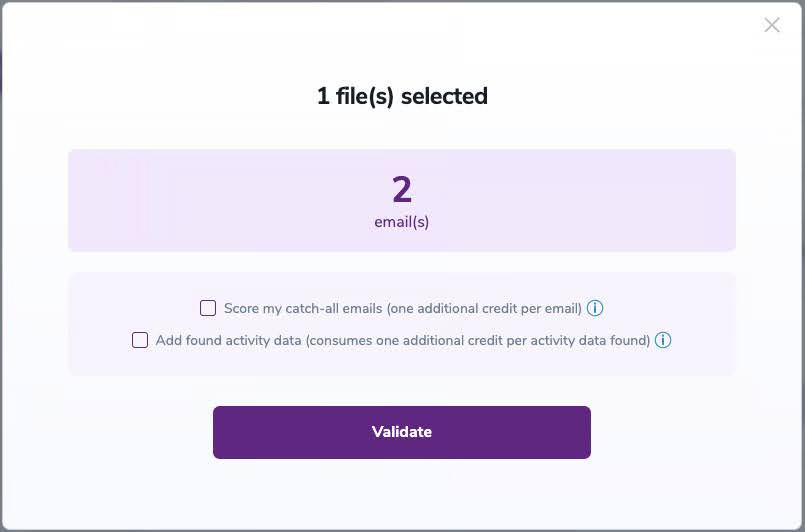
On validate you will be presented with a popup with two options that can assist your validation process:
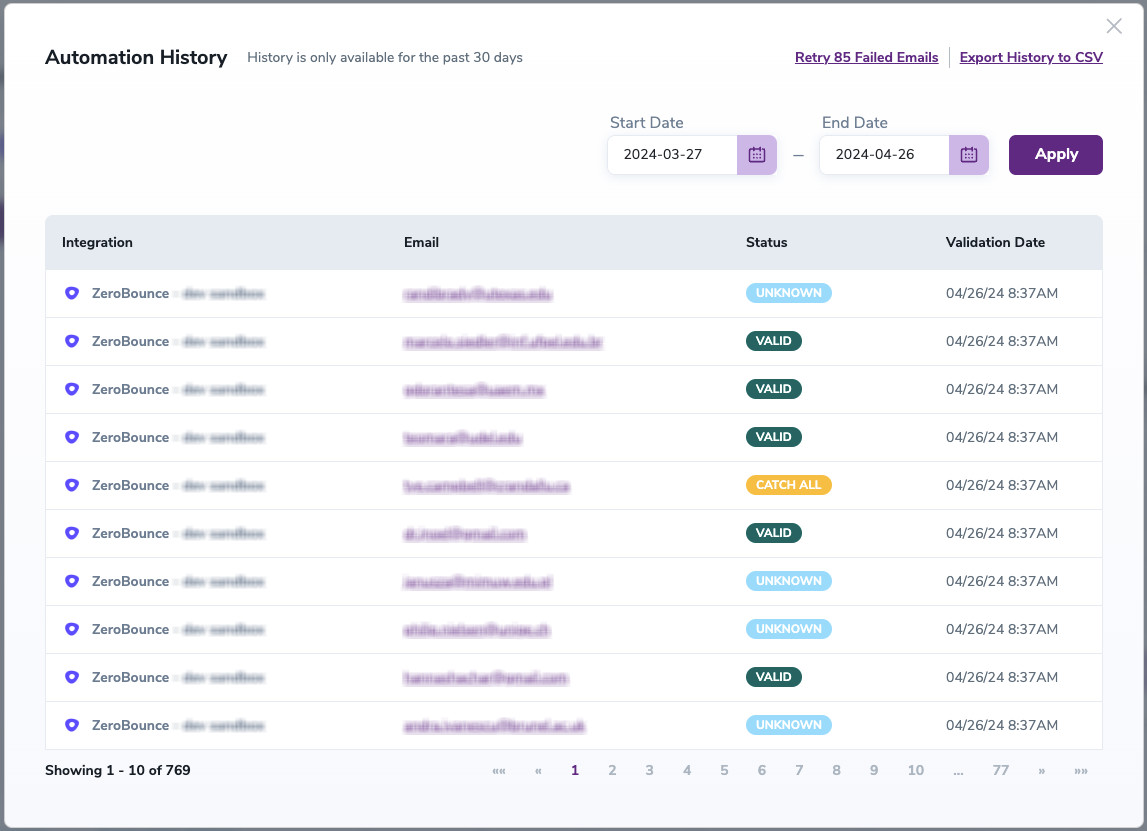
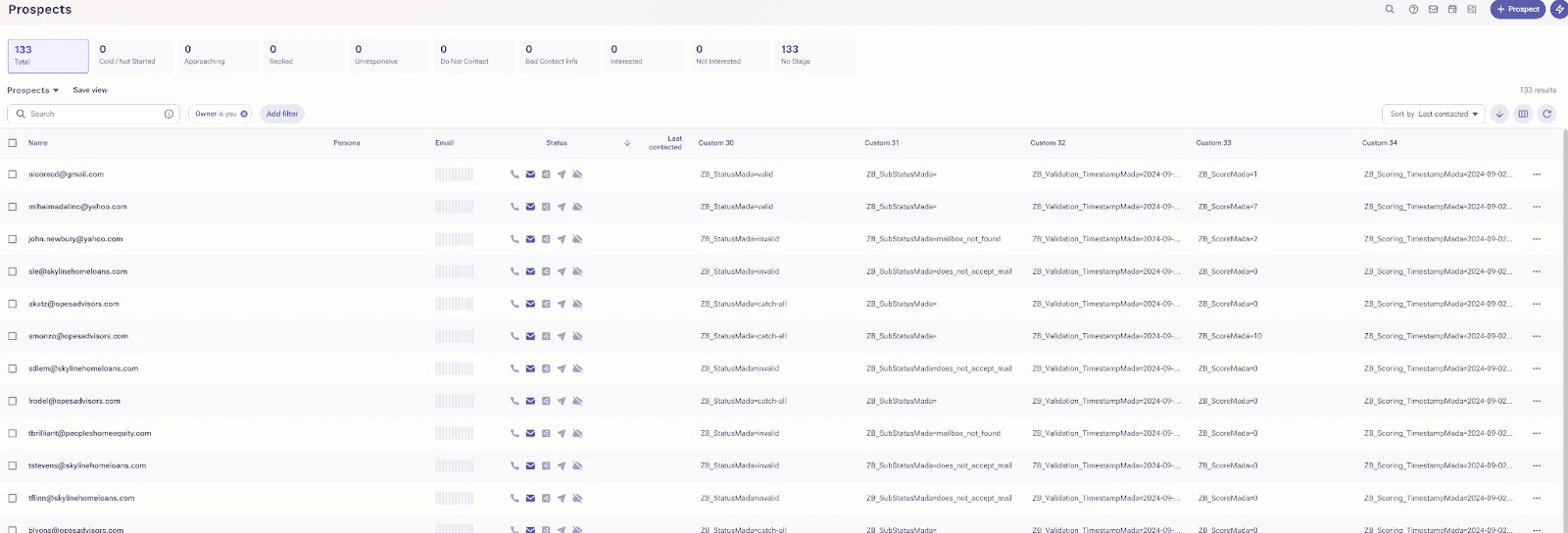
The following tags will be automatically created in your integration with the first automatically validation/scoring results export.
These tags are essential for maintaining up-to-date and accurate contact information, allowing for better management and engagement with your contacts.
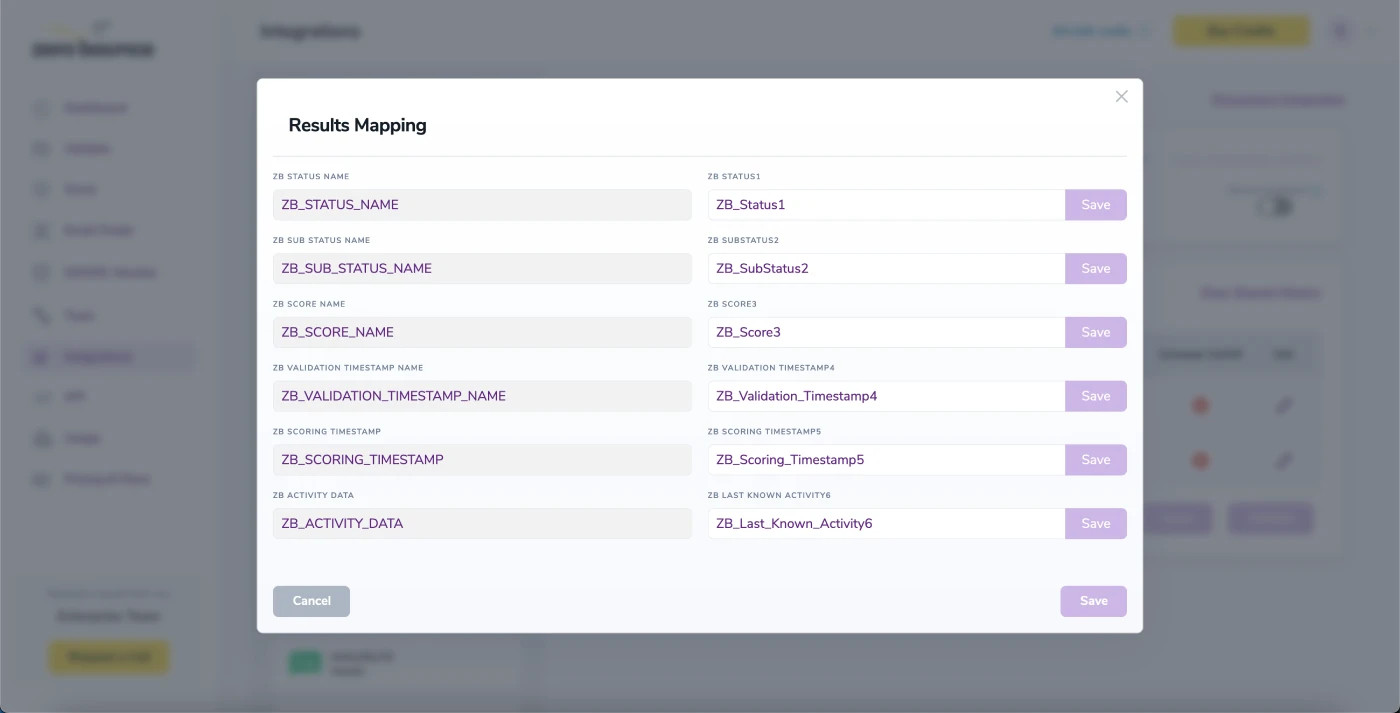
Results Mapping simplifies data management by allowing you to customize the names of validation or scoring result fields/tags when exporting to integrations, ensuring consistency.
With this feature, you’re able to validate any new contact added to your integration automatically. To do so, you must establish an integration with one of the compatible platforms. After doing this, select Integrations from the menu and select your integration. Once you’re there, go to the Real-Time Validation section, where you can toggle auto-validation ON.
With auto-validation enabled, ZeroBounce will automatically validate your new contacts once they are added to your integration, ensuring they are valid and deliverable.
When this feature is enabled, catch-all emailsⓘ are automatically scored each time a validation action is performed. This process consumes 1 credit per email. Please note that auto-scoring does not apply to emails added through auto-validation.
NOTE:
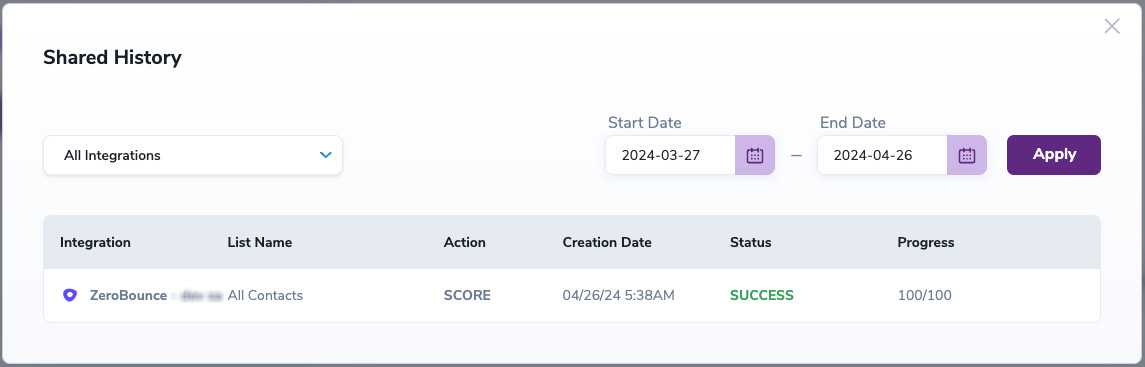
There is also the possibility to share your contacts between integrations, schedule scoring and validation or monitor your contacts to validate any new contact automatically. To learn more about this, check out this dedicated page: Integrations Contacts Monitoring, Scheduling and Sharing.
