
Docs
Docs
The ZeroBounce HubSpot integration allows you to seamlessly import your HubSpot email lists for email validationⓘ, real-time validationⓘ, and Email Scoringⓘ.
Prerequisites
You must have an active HubSpot account, a website to integrate HubSpot forms and an active ZeroBounce account.
If you do not have access to the mentioned accounts, you can create them using the following links:
Once you have access to HubSpot and ZeroBounce, proceed with the following steps:
Step 1:
Go to https://www.zerobounce.net/members/signin and sign in with your ZeroBounce account. Then, go to the left menu and click Integrations.
![The ZeroBounce members dashboard. The left menu includes ,[object Object], and Integrations.](https://www.zerobounce.net/cdn-cgi/image/fit=scale-down,format=auto,quality=90,width=1920,metadata=none/docs/assets_next_docs/docs/api-integrations/active-campaign/campaign-img-1-new.webp)
Step 2:
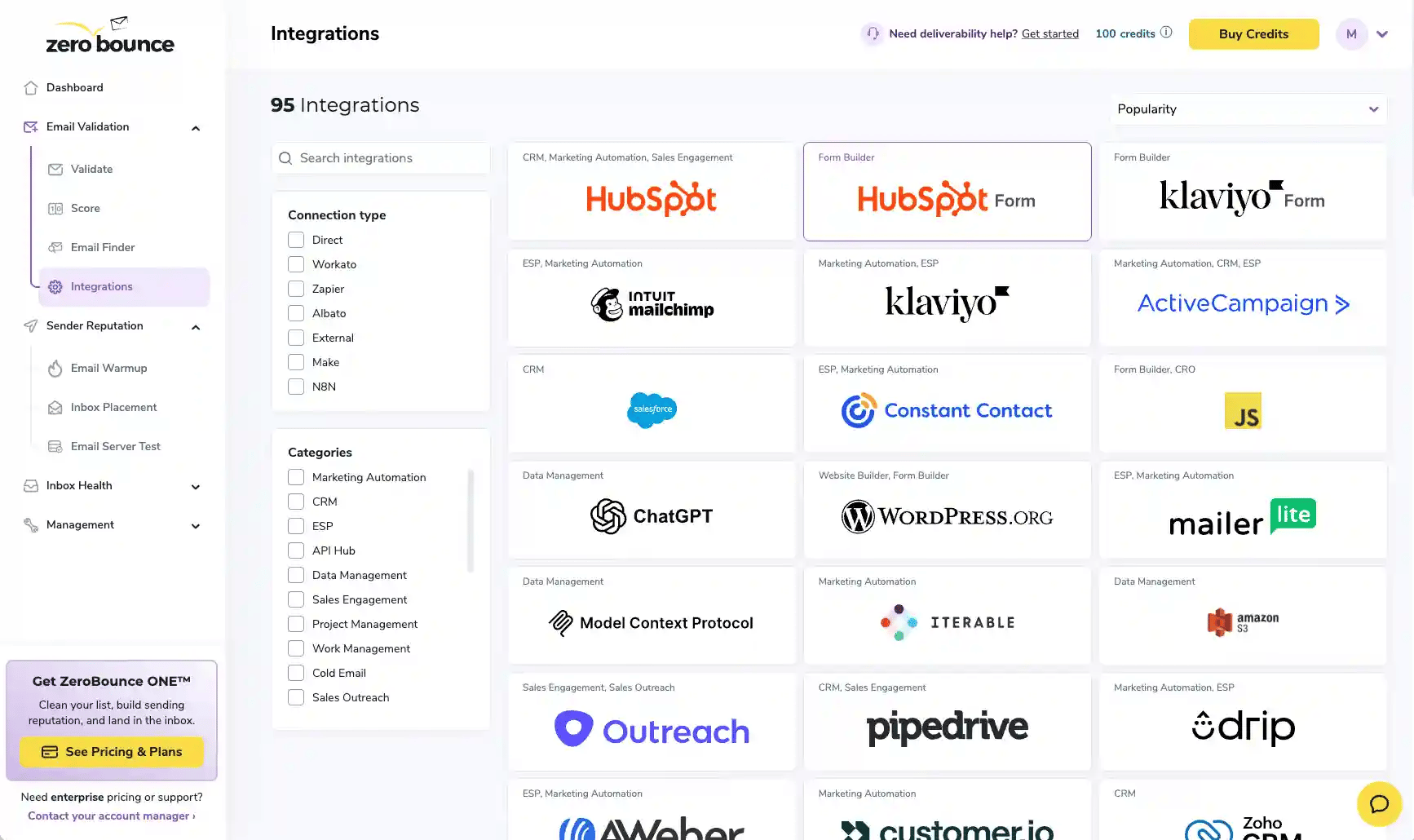
On the Integrations page select HubSpot Form from the Integration List.
Step 3:
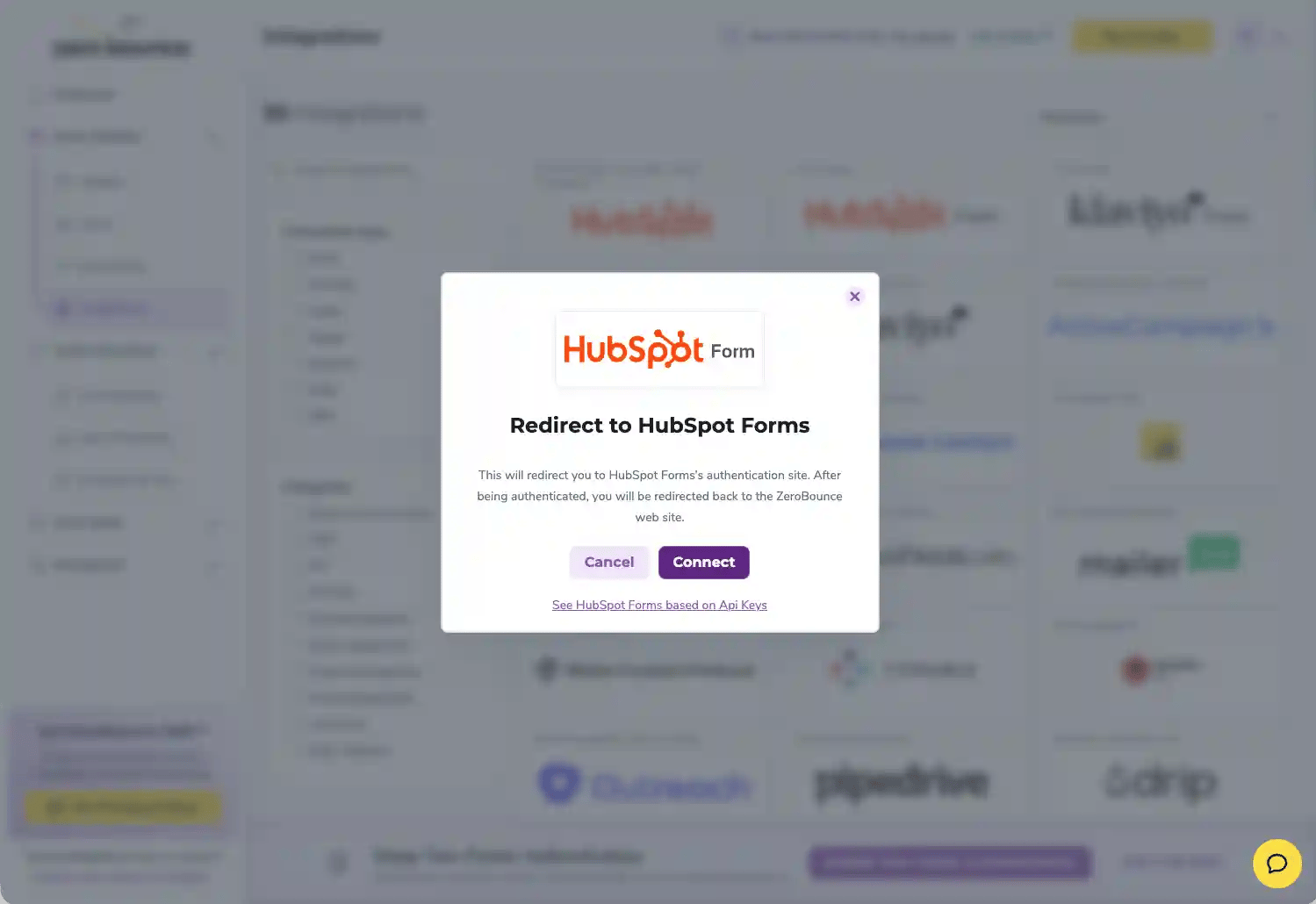
Click on the connect button In the HubSpot Form integration pop-up.
Step 4:
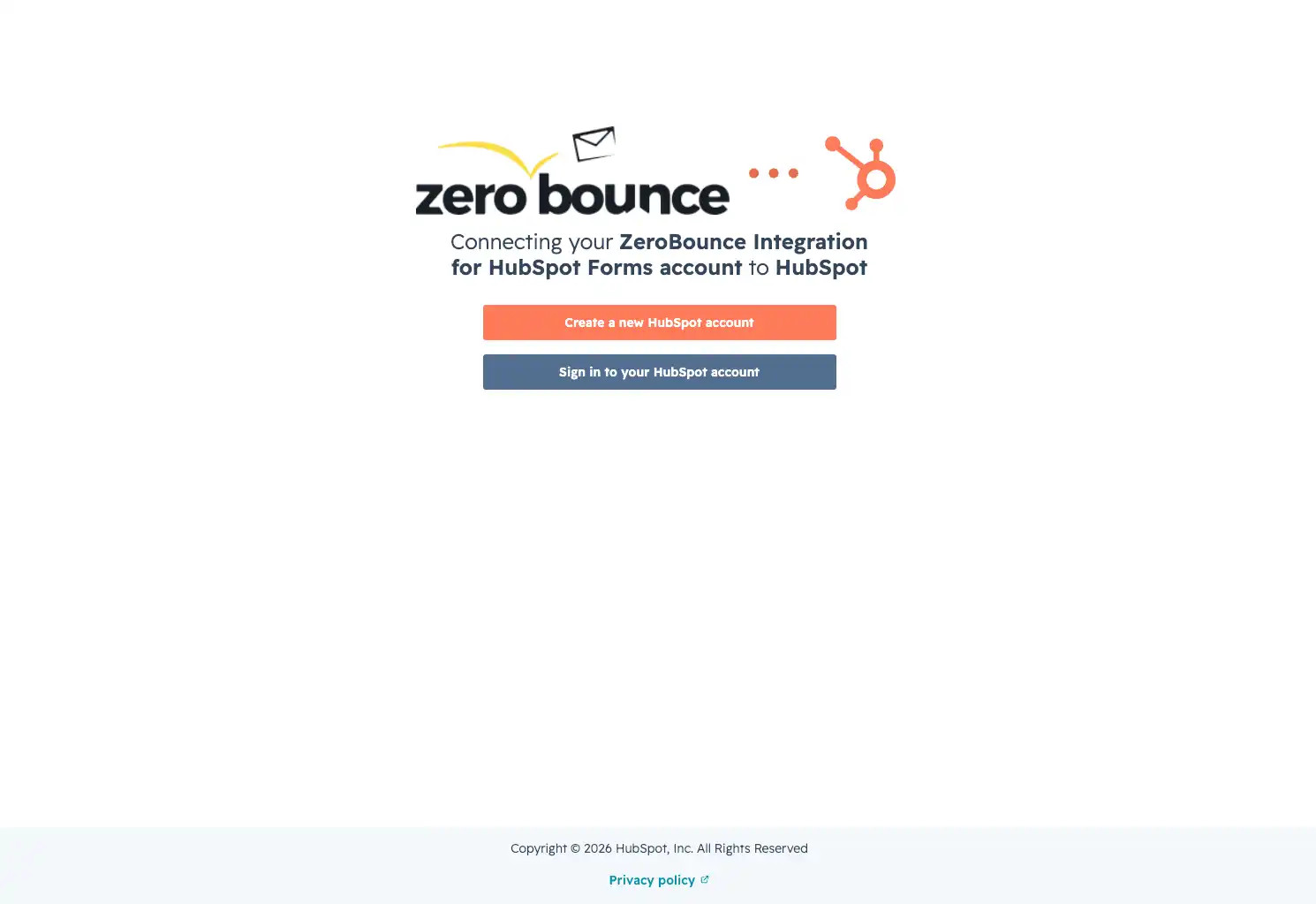
You will be prompted with a page which allows you to connect your ZeroBounce account to a new or existing HubSpot account.
Choose Sign in your HubSpot account to connect your ZeroBounce account to your HubSpot account.
Step 5:
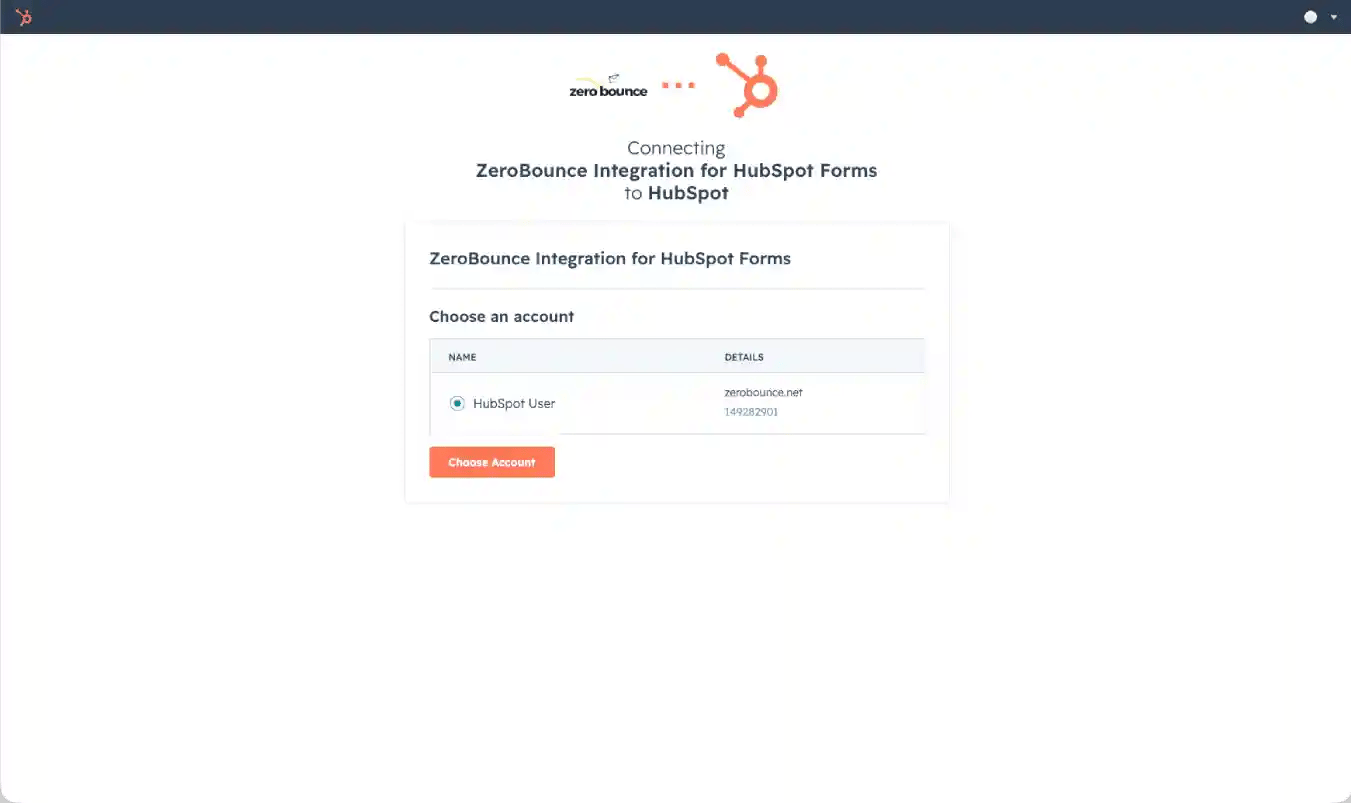
Sign in to your HubSpot account and select the account you wish to link and click the button Choose Account
Step 6:
Review the permissions required by the app and click Connect app
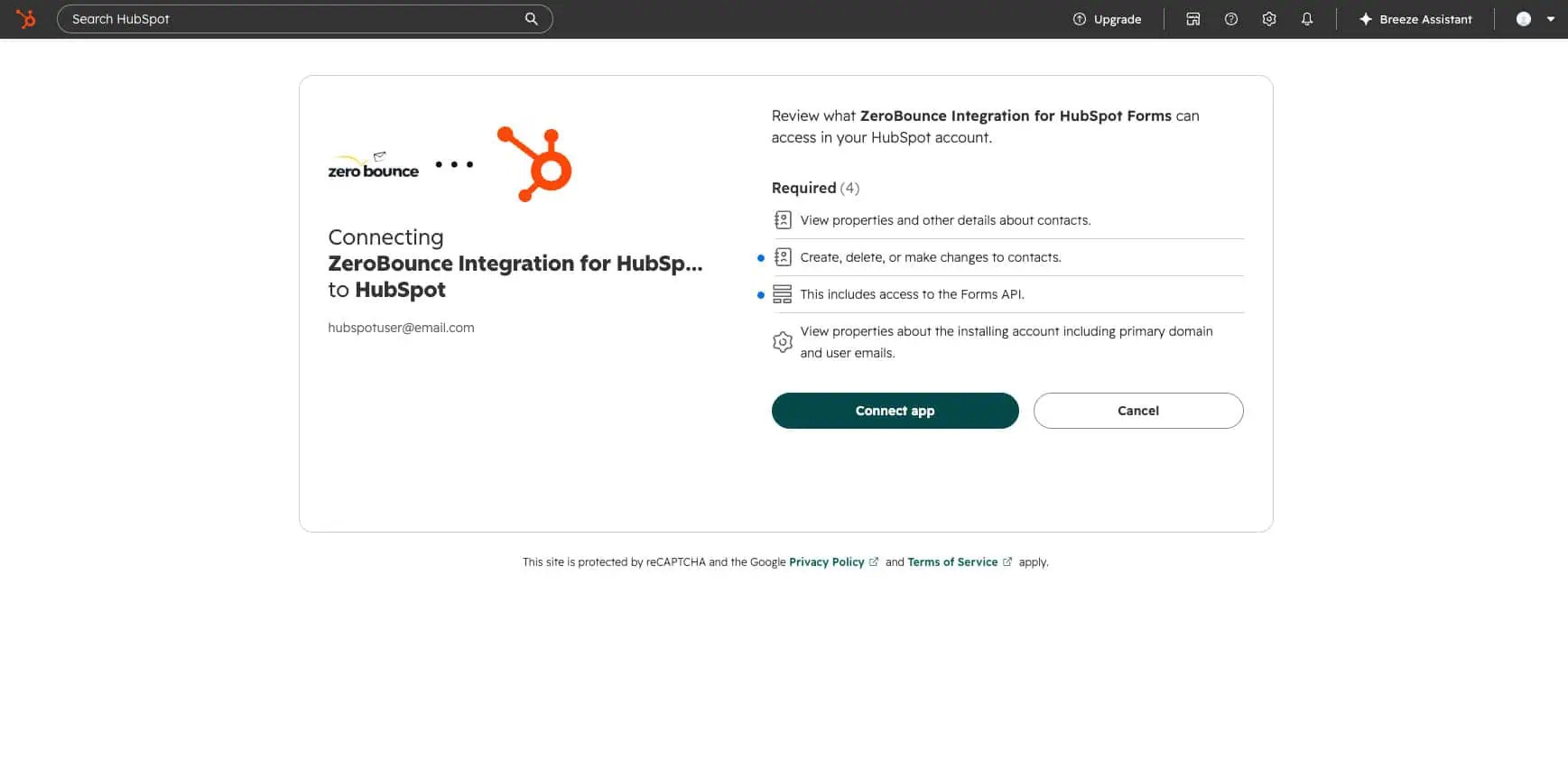
Step 7:
ZeroBounce Integration for HubSpot Forms is now installed in HubSpot and connected to your ZeroBounce account
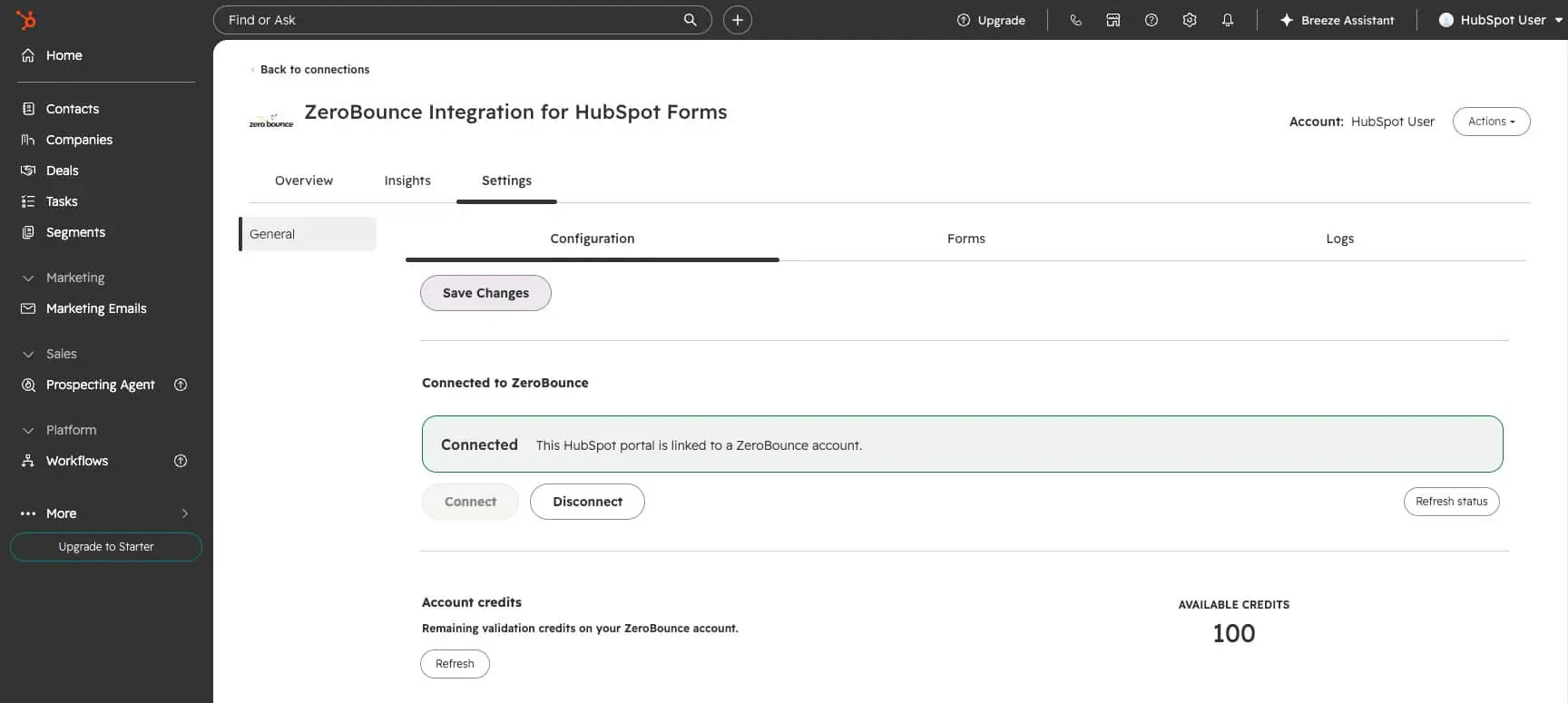
App settings use three tabs. Until ZeroBounce is connected, Forms and Logs are locked and Configuration controls are read-only.
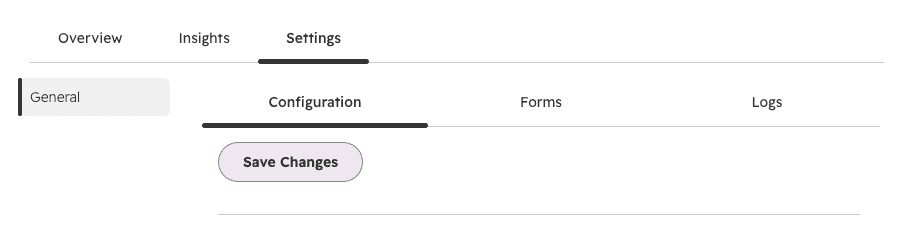
Save with Save Changes at the bottom. Unsaved edits are not applied to new embeds until you save, then copy a fresh embed snippet from the Forms tab.
Connect ZeroBounce
You must be connected before you can edit the rest of Configuration, open Forms, or open Logs.
Account credits
Shows Available credits on the linked ZeroBounce account. Use Refresh if you purchased credits and the number looks stale. Validation uses these credits.
Whitelist domains
Public form validation is allowed only from origins you list here.
If you embed the form on more than one hostname (apex and www, staging, and so on), add each origin.
General options
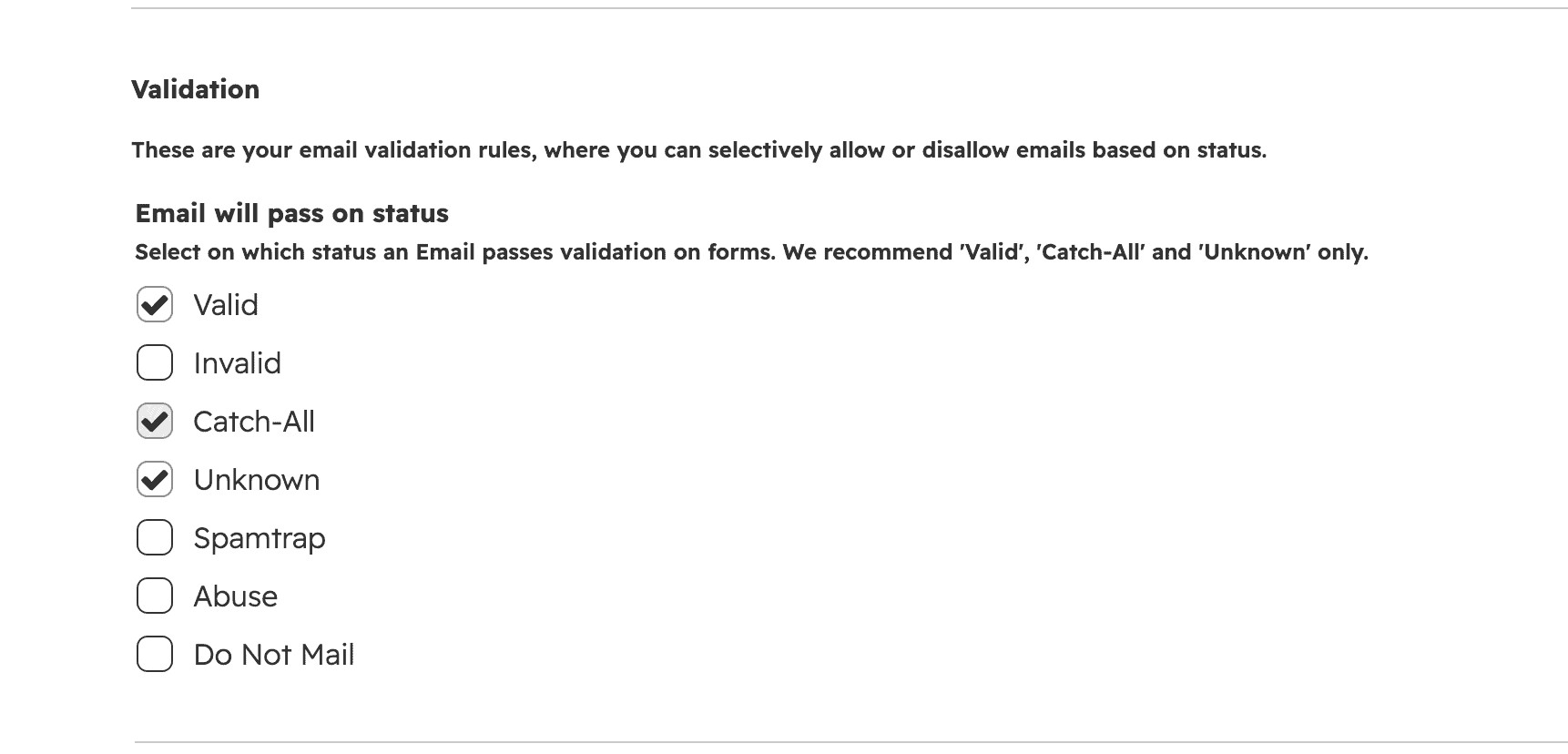
Validation
These options decide which ZeroBounce results pass and whether free-mail addresses are allowed.
Email will pass on status
Passable statuses you can select:
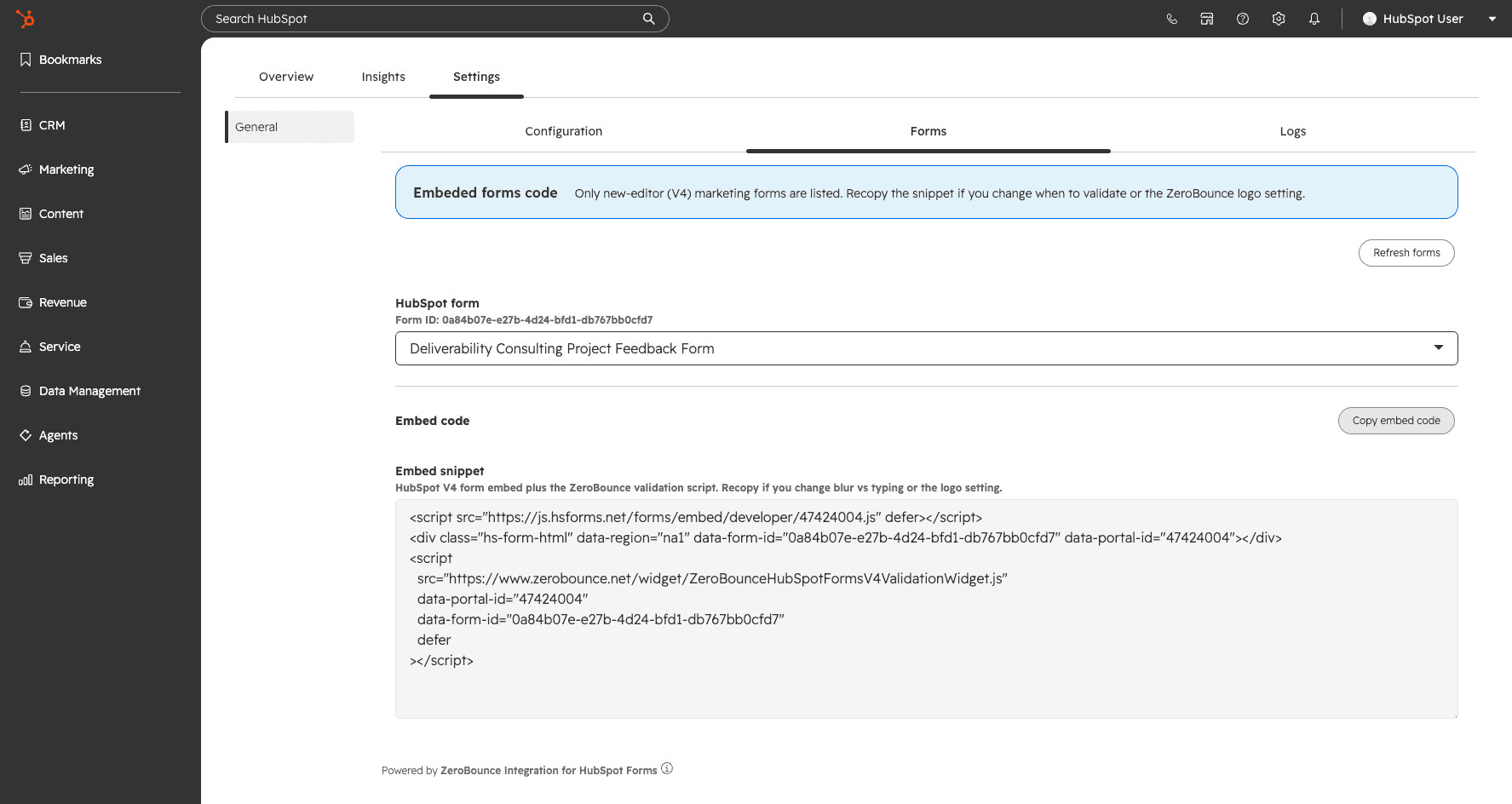
Use this tab after Configuration is saved.
If you change Configuration later, return here, copy the snippet again, and replace the old embed. The snippet includes your current validation settings.
Refresh forms reloads the V4 form list after you create a form in HubSpot.
If you see No V4 forms found, create a marketing form with the updated form editor (Marketing → Forms), then refresh. Legacy forms never appear here and cannot be validated by this app.
The embed is a HubSpot V4 developer embed (hs-form-html) plus the ZeroBounce V4 validation script. Do not mix this snippet with the legacy hbspt.forms.create / public API key widget.
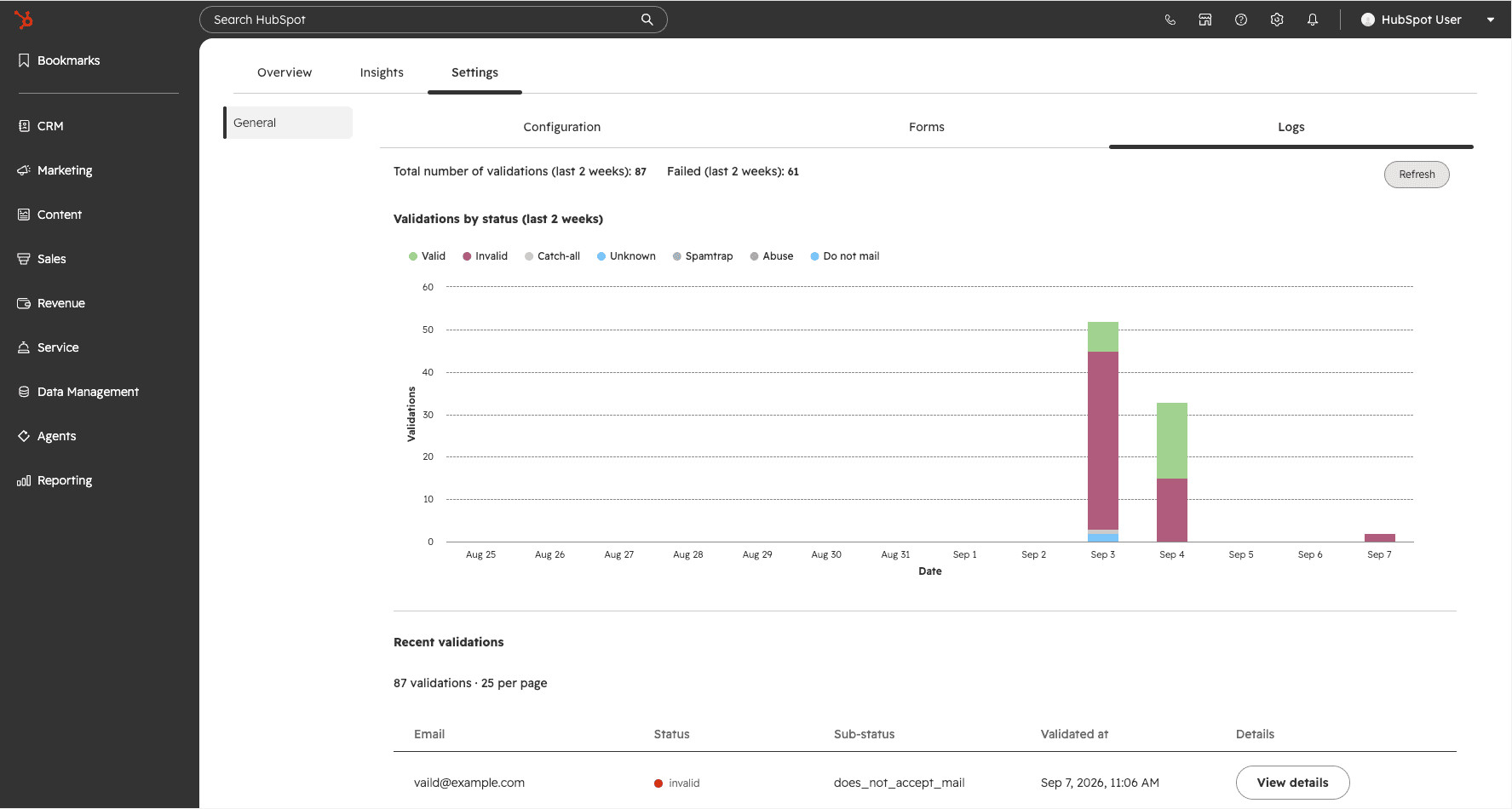
The Logs tab is available only while ZeroBounce is connected.
Refresh reloads charts and the recent list after you test a form.
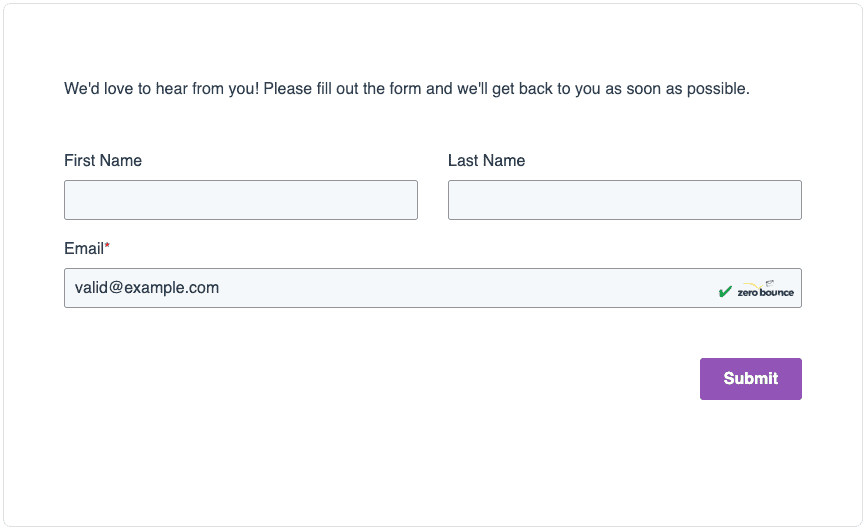
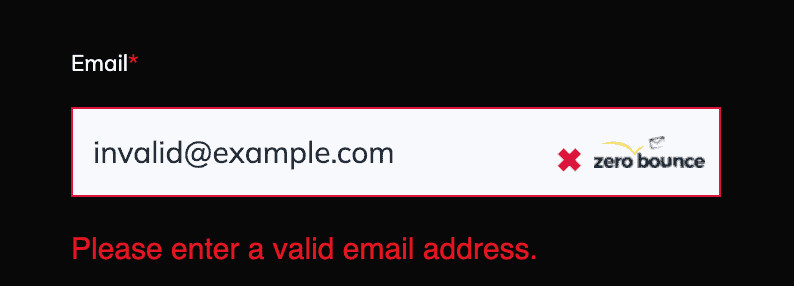
Validation runs in the visitor’s browser on the embedded V4 form, using the script from the Forms tab and the rules you saved on Configuration.
Visitor types an email
        │
        ├─ Validate on blur  → wait 350 ms after leaving the field
        └─ Validate after idle typing → wait 1–60 seconds after typing stops
        │
        ▼
Is this page origin on the whitelist?
        │ no → validation does not run for that page
        │ yes
        ▼
ZeroBounce validates the address (uses account credits)
        │
        ├─ Typo check (if enabled) → show typo message + suggested correction
        ├─ Free-email block (if enabled) → fail free-mail addresses
        └─ Status vs “Email will pass on status”
                │
                ├─ Status is selected  → email passes; visitor can submit
                └─ Status is not selected → email fails; custom invalid message
What “pass” means
ZeroBounce classifies the address (Valid, Invalid, Catch-All, Unknown, and so on). The form allows submit only when that status is checked under Email will pass on status.
Example: if you keep the recommended set (Valid, Catch-All, Unknown), a result of Invalid or Spamtrap blocks submit and shows your invalid error message.
Timing
Blur (default): validation starts 350 milliseconds after the email field loses focus.
Idle: validation starts after the visitor stops typing for the idle delay (1–60 seconds).
You cannot enable both at once.
Whitelist
The widget only validates when the page origin matches an entry in Whitelist domains. Add https://www.yourdomain.com (and any other hosts you use) before you test on the live site.
Throttle and debug mode
Each successful validation attempt counts toward the hourly throttle. When the limit is reached, further attempts are limited until the hour resets. Debug mode removes that cap for testing.
Credits
Each live validation can use ZeroBounce credits (cached repeats may not). Watch Account credits on the Configuration tab. If credits run out, validation cannot classify new addresses until you add credits.
Logo
If Show ZeroBounce logo is on, the logo appears on the form. Turning it off requires ZeroBounce One.
