
Docs
Docs
Prerequisites
You must have a valid Zoho CRM account with appropriate access to your Contacts and Lists.
If you do not have an account, then you can create one at https://www.zoho.com/crm/.
Step 1:
Go to https://www.zerobounce.net/members/signin and sign in with your ZeroBounce account. After that go on the menu on the left and click on Integrations.
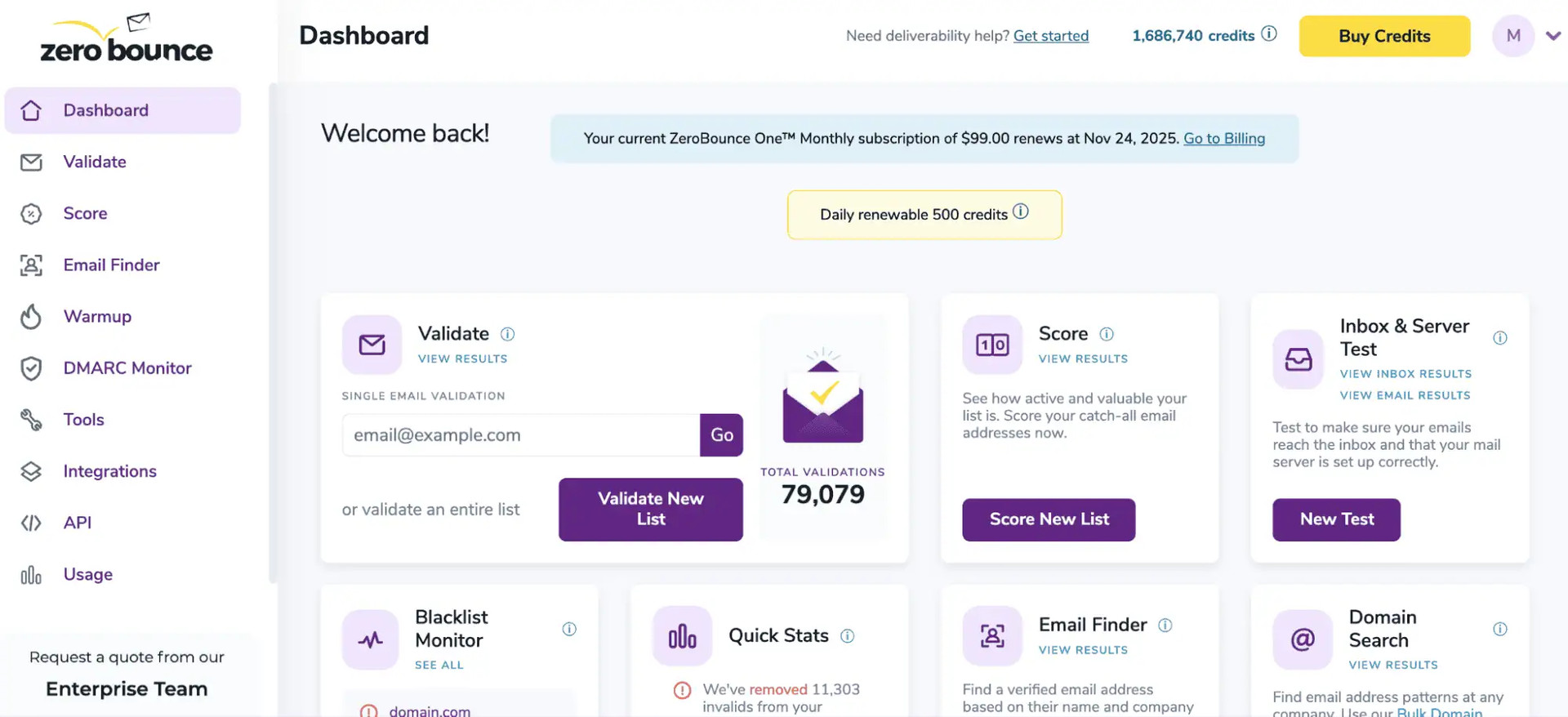
ZeroBounce Dashboard
Step 2:
On the Integrations page select Zoho from the Integration List. It is on our Official panel.
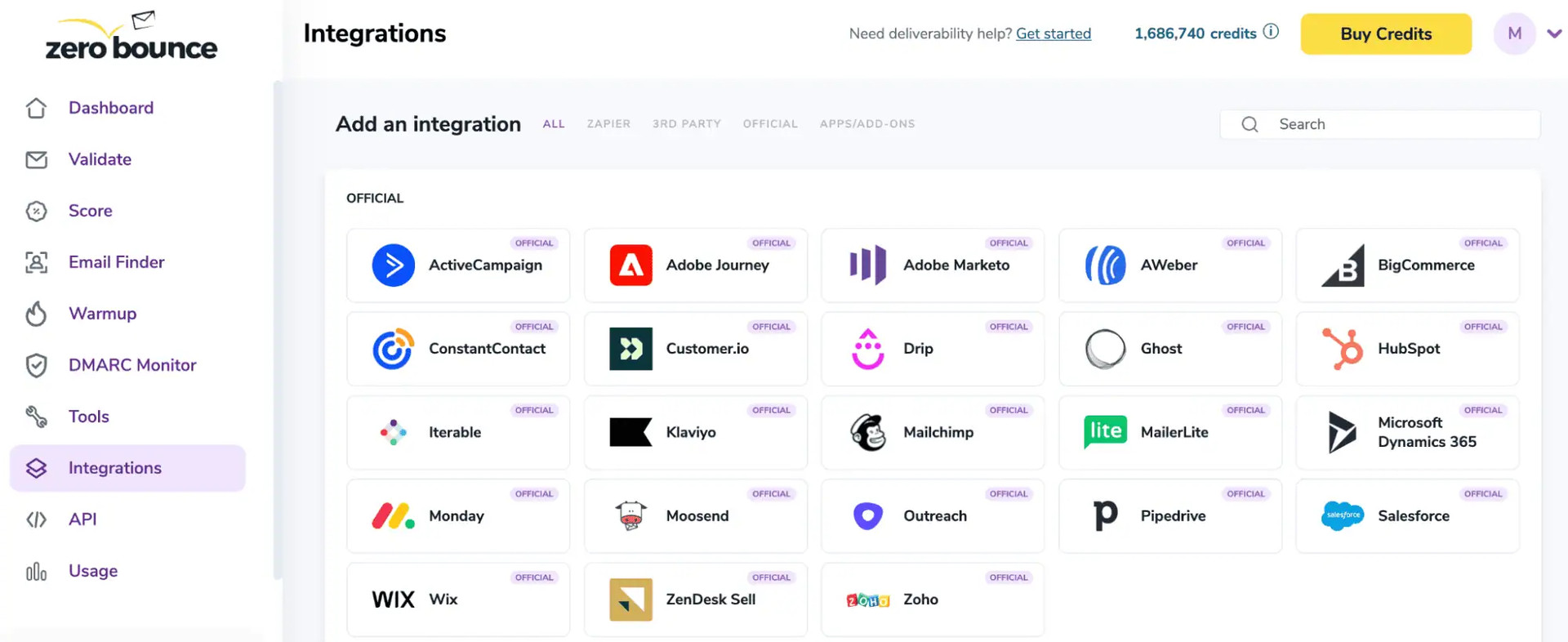
ZeroBounce Integrations Dashboard
Step 3:
Click Connect to redirect to Zoho's authentication site.
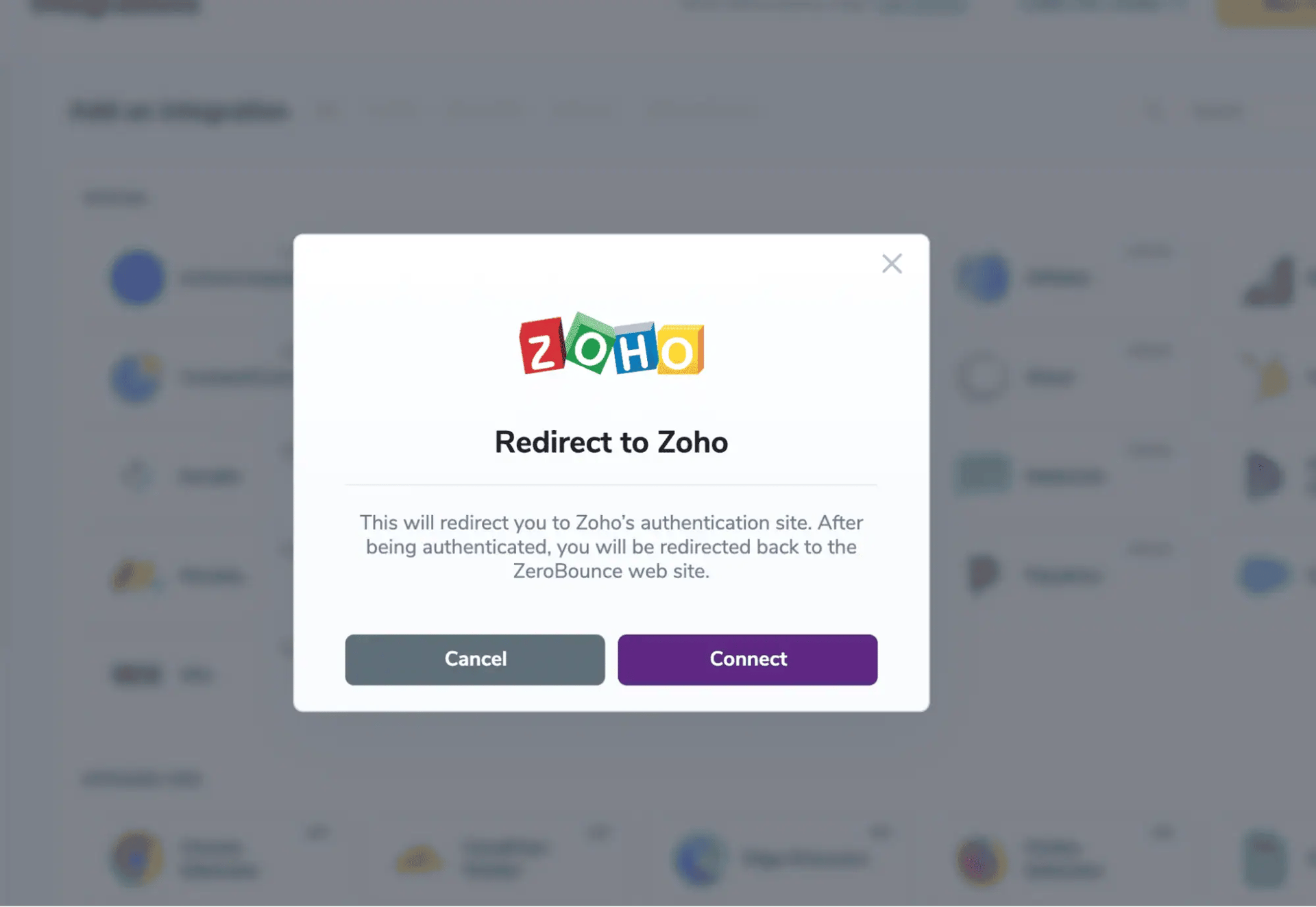
Redirect pop-up modal
Step 4:
On the Zoho Sign In page you will enter your Zoho email address and password to login.
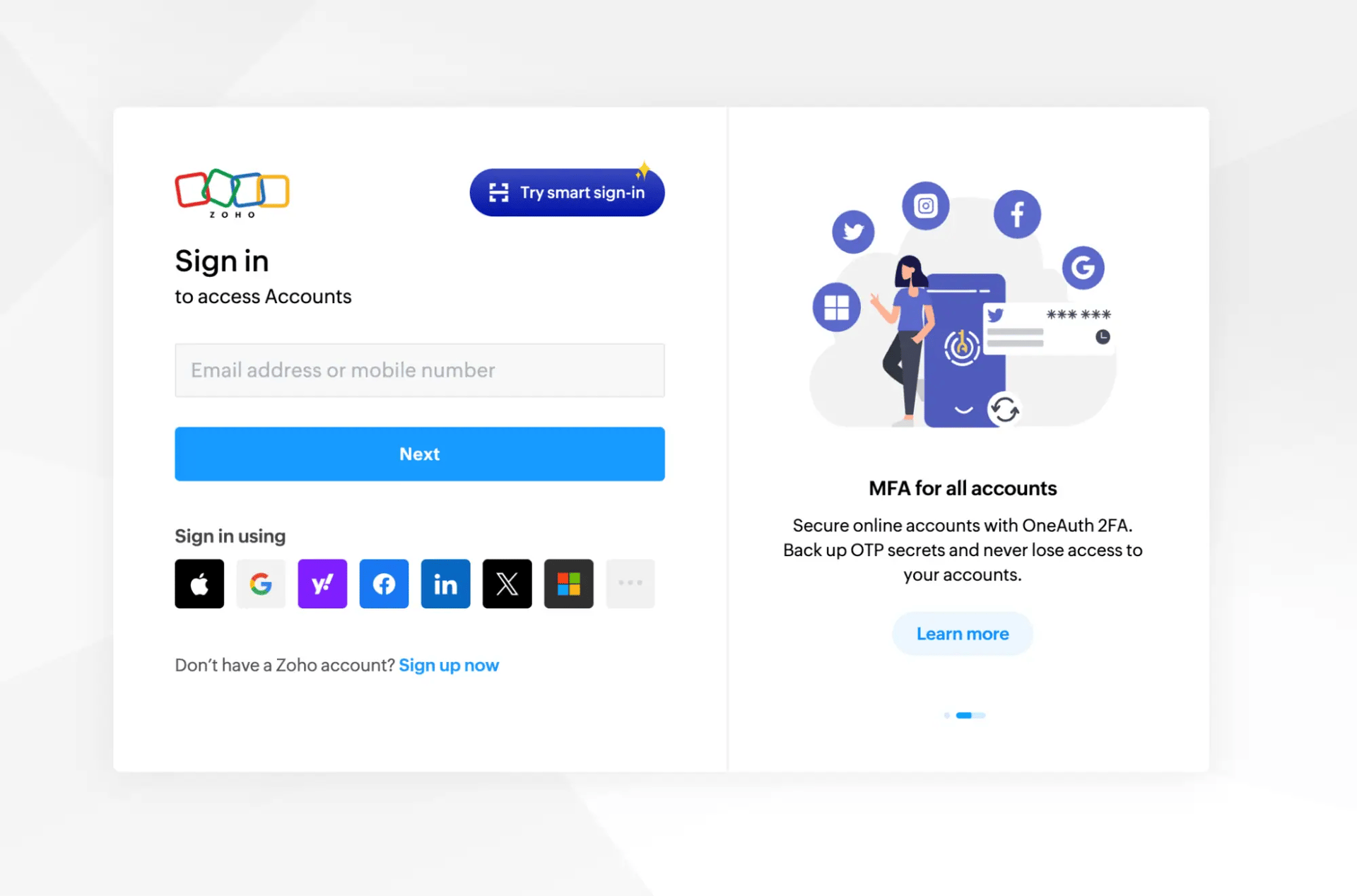
Zoho login page
Step 5:
Once you enter your username and password you may be asked which account to authorize access. Choose an account you want to validate emails with and click Choose Account.
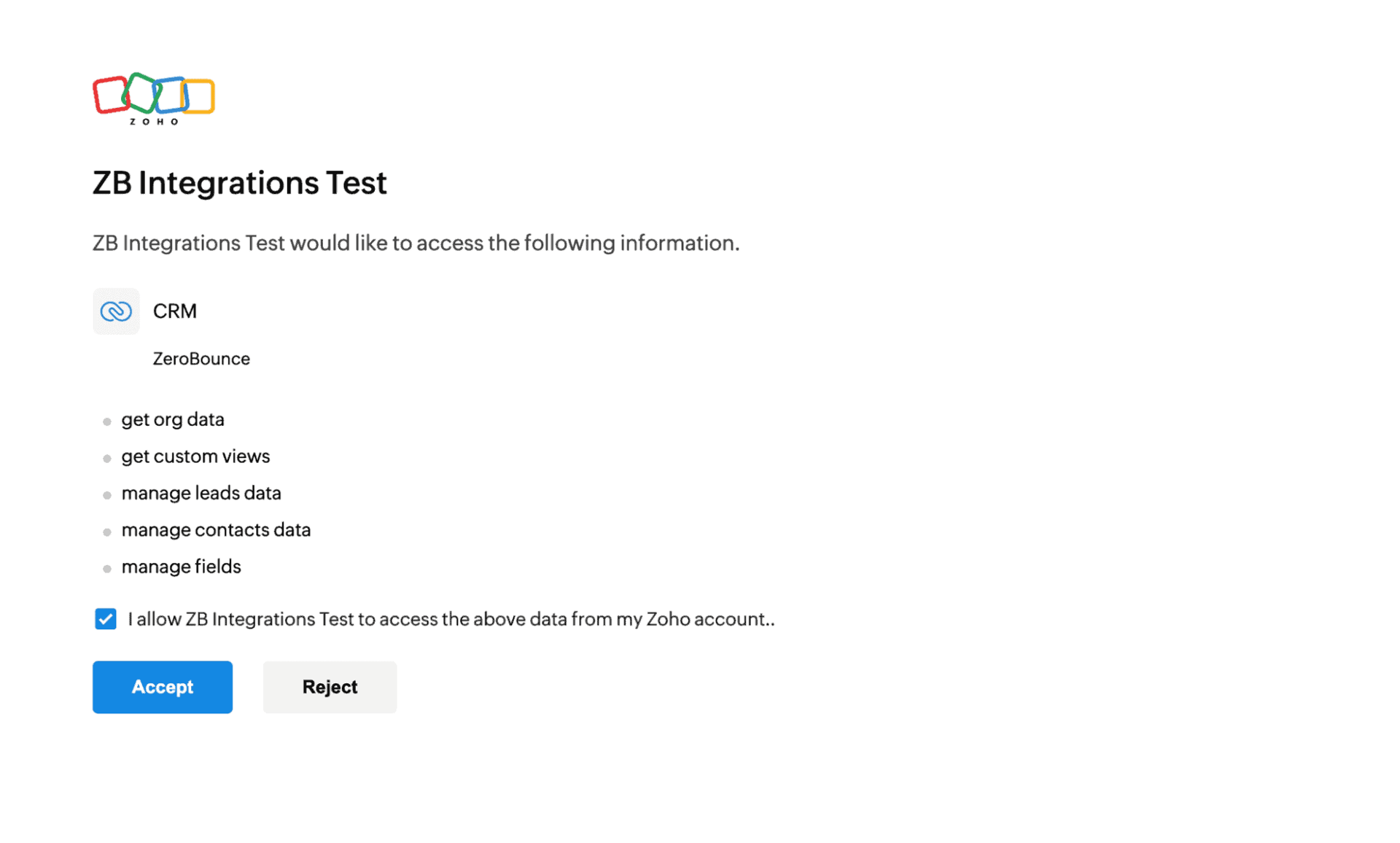
Choose the account you wish to authorize
Step 6:
Once you have authorized access ZeroBounce will gather all of your email addresses for the account you selected during the authorization process.
Choose one or more lists to validate/score. Click the validate or score button to start the process. Depending on how many emails you have to process it could take a few minutes to pull the lists and add them to our processing queue.
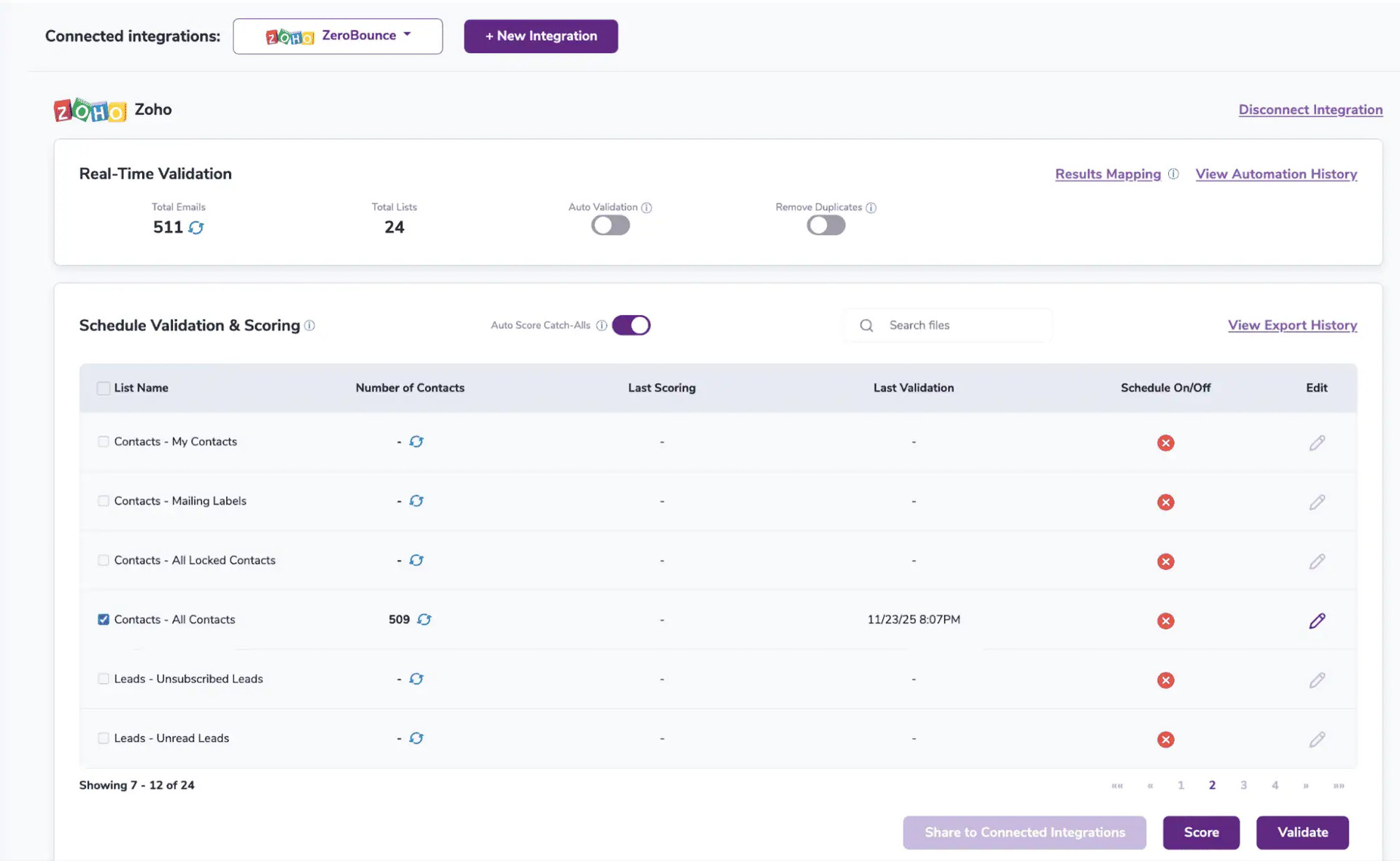
After successful integration, you will be able to view your lists in your ZeroBounce Dashboard.
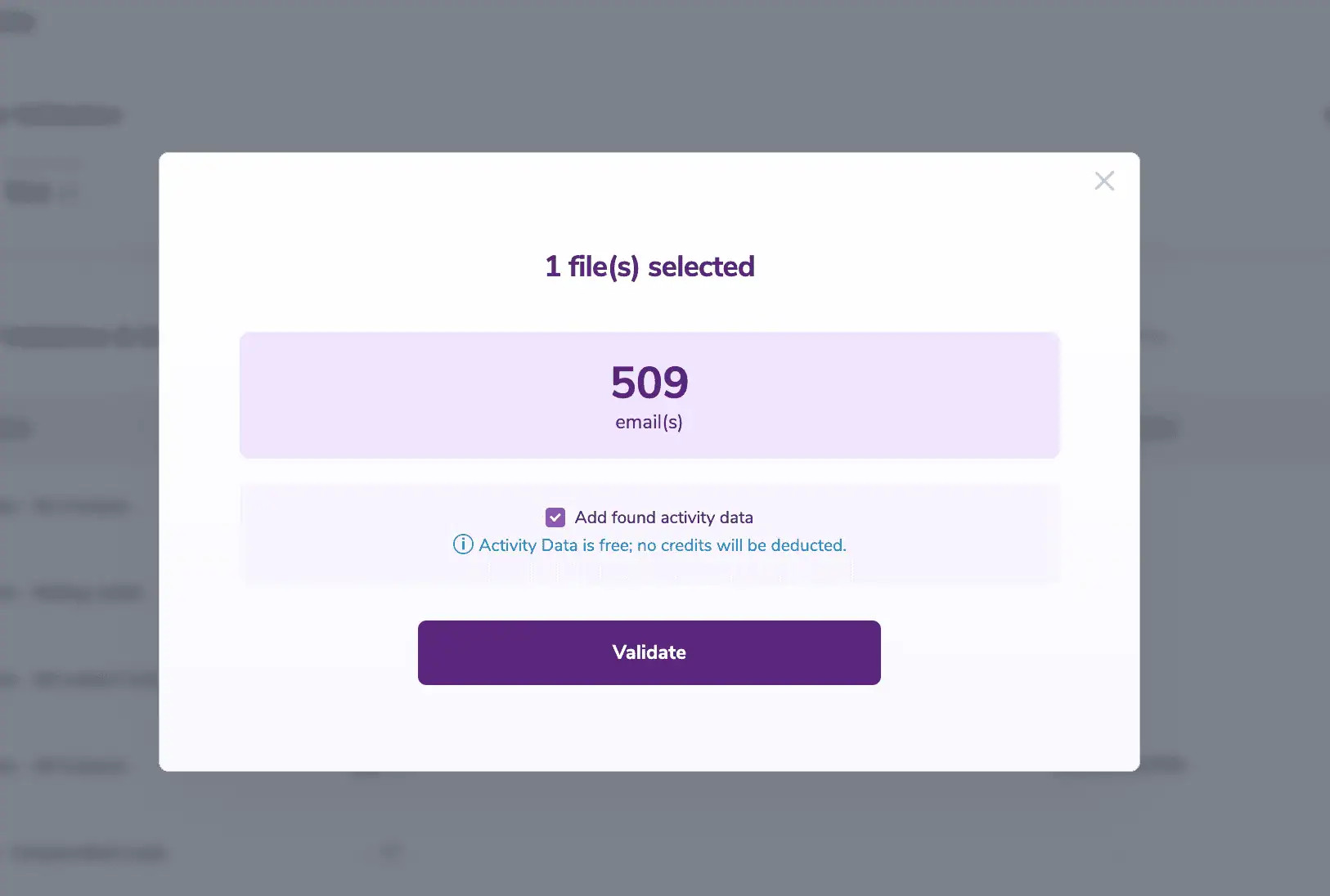
Validation pop-up
On validate you will be presented with a popup with that can assist your validation process:
Step 7:
You will be taken to the Email Validationⓘ Results page which will show the list you selected in queue.
![[object Object], results page](https://www.zerobounce.net/cdn-cgi/image/fit=scale-down,format=auto,quality=90,width=1920,metadata=none/docs/assets_next_docs/docs/api-integrations/zoho-integration/image2.webp)
Email Validation results page
Step 8:
Once your list has completed processing you should receive an email notification and you will see that the Download button will appear.

Status: Completed
Step 9:
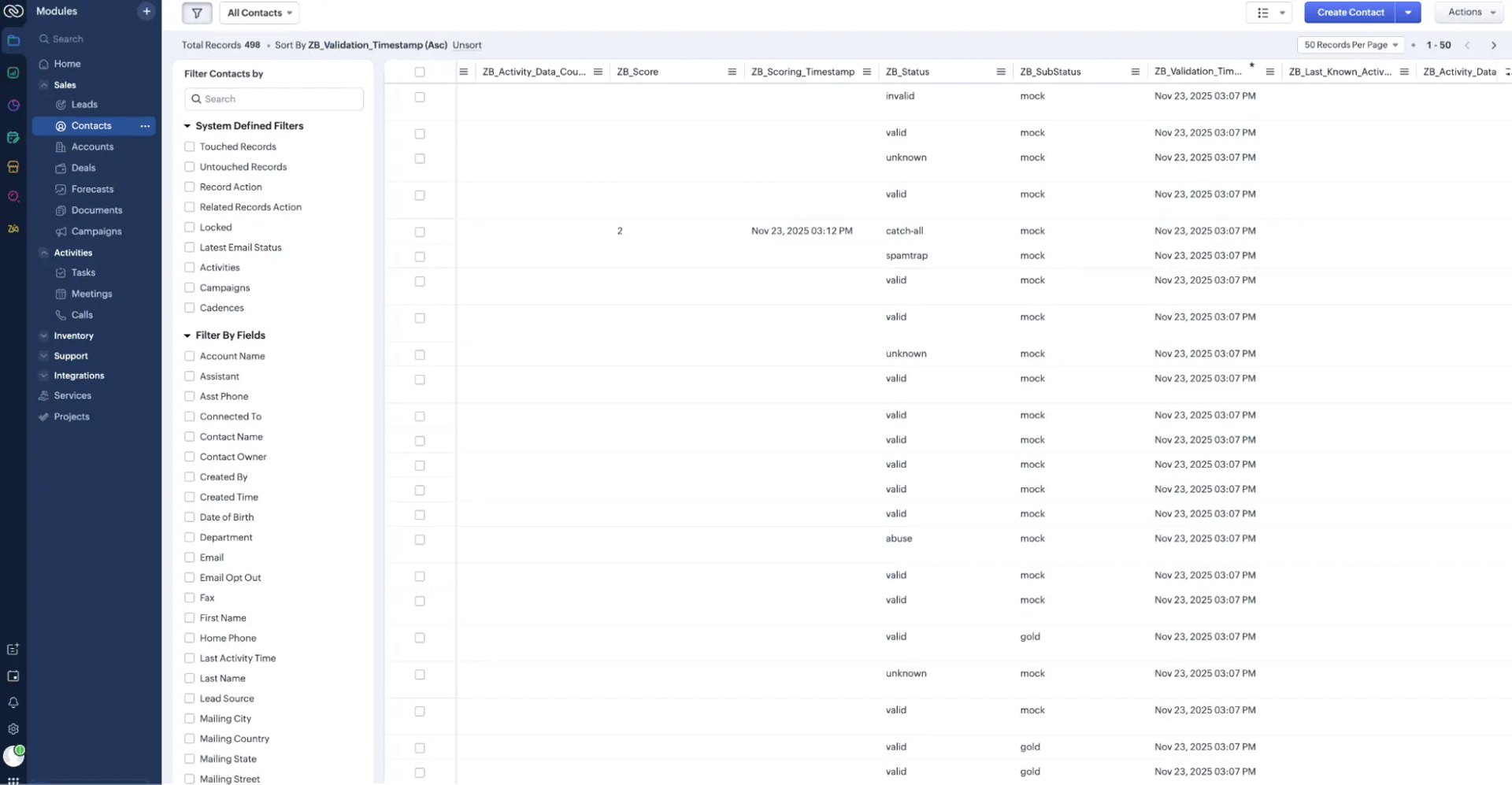
When you export your contacts, you'll find the following tags included in the exported file:
The following tags will be automatically created in your integration with the first automatically validation/scoring results export.
These tags are essential for maintaining up-to-date and accurate contact information, allowing for better management and engagement with your contacts.
When this feature is enabled, catch-all emailsⓘ are automatically scored each time a validation action is performed. This process consumes 1 credit per email. Please note that auto-scoring does not apply to emails added through auto-validation.
Zoho does not support automatic validation for bulk contact imports. You'll need to add single contacts in order to use the auto validation feature.
Please note that if auto-validation is enabled for both All Leads and All Contacts, a lead that has already been validated and is later converted into a contact will make the newly created contact eligible for auto-validation.
