
Docs
Docs
Prerequisites
You must have an active iPost account. If you do not have an account, you can create one at https://www.ipost.com/.
Step 1:
Go to https://www.zerobounce.net/members/signin and sign in with your ZeroBounce account. After that go on the menu on left and click Integrations.
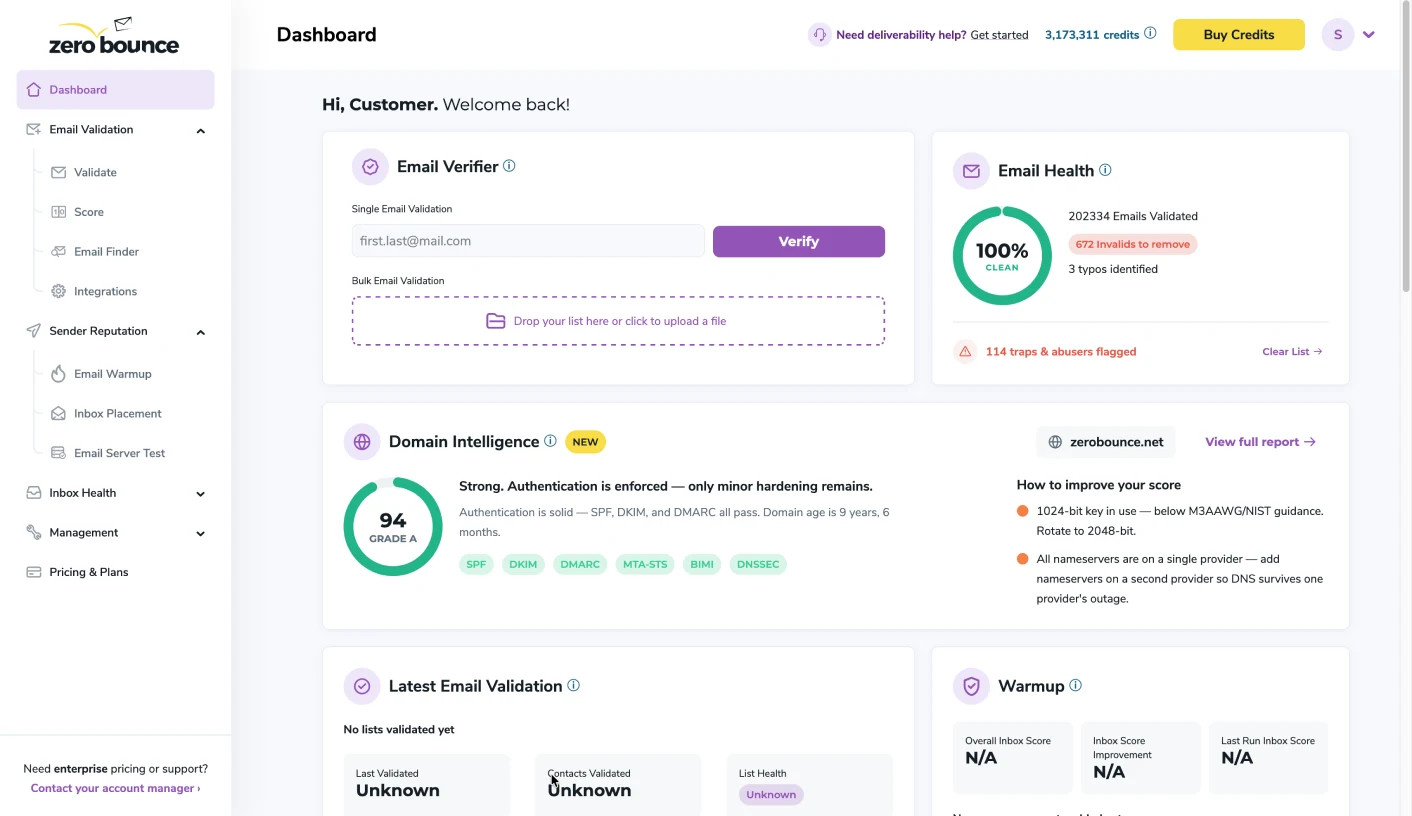
ZeroBounce Dashboard
Step 2:
On the Integrations page select iPost from the Integration List.
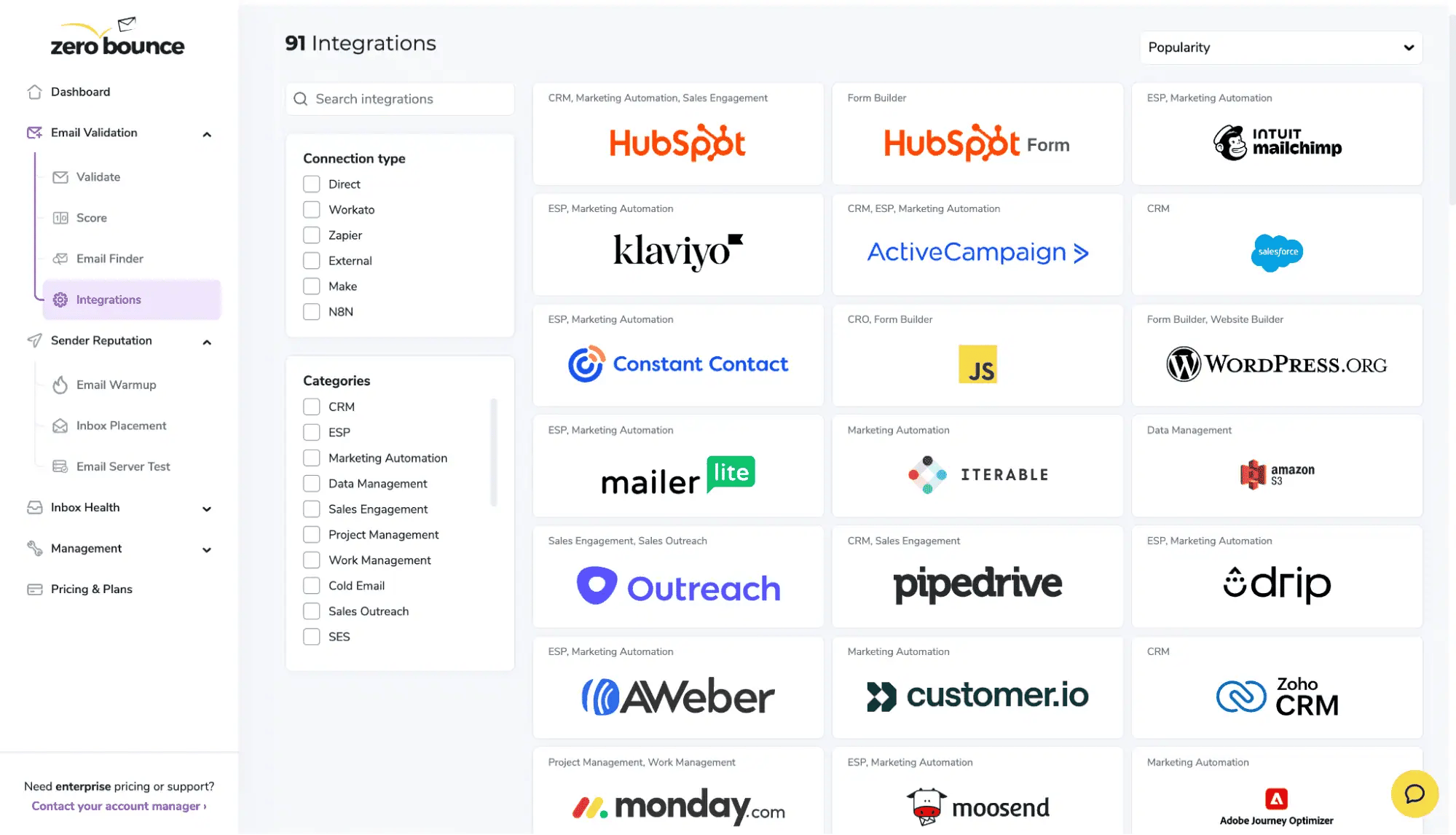
ZeroBounce Integrations Dashboard
Step 3:
Click on iPost to begin the integration process.
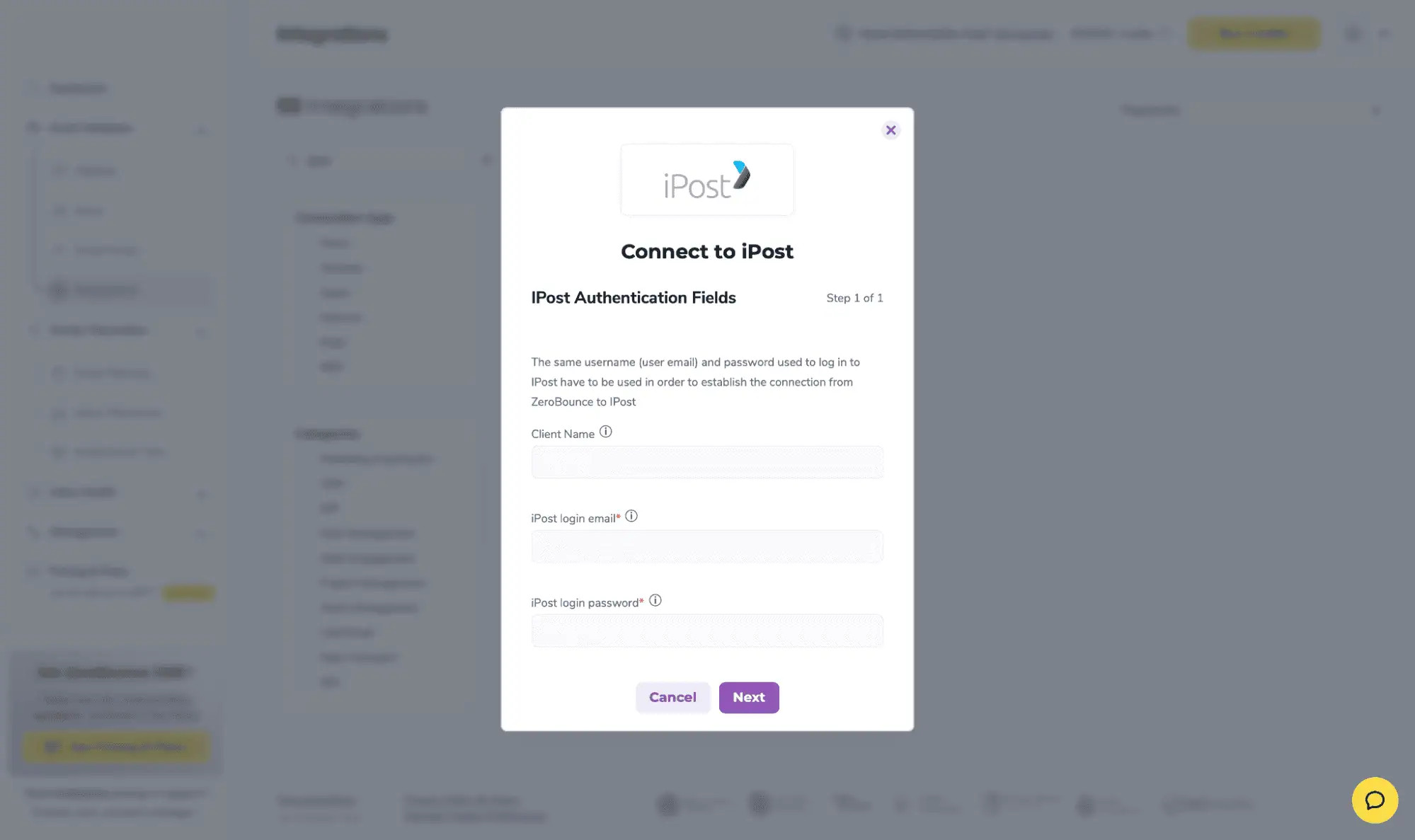
Redirect pop-up modal
Enter your IPOST account credentials and authorize access to your account.
Step 4:
Choose one or more Lists/Data tables to validate/score. Click the validate or score button to start the process. Depending on how many emails you have to process it could take a few minutes to pull the Lists/Data tables and add them to our processing queue.
After the integration is completed successfully, your synced Lists/Data tables will appear in the IPOST dashboard.
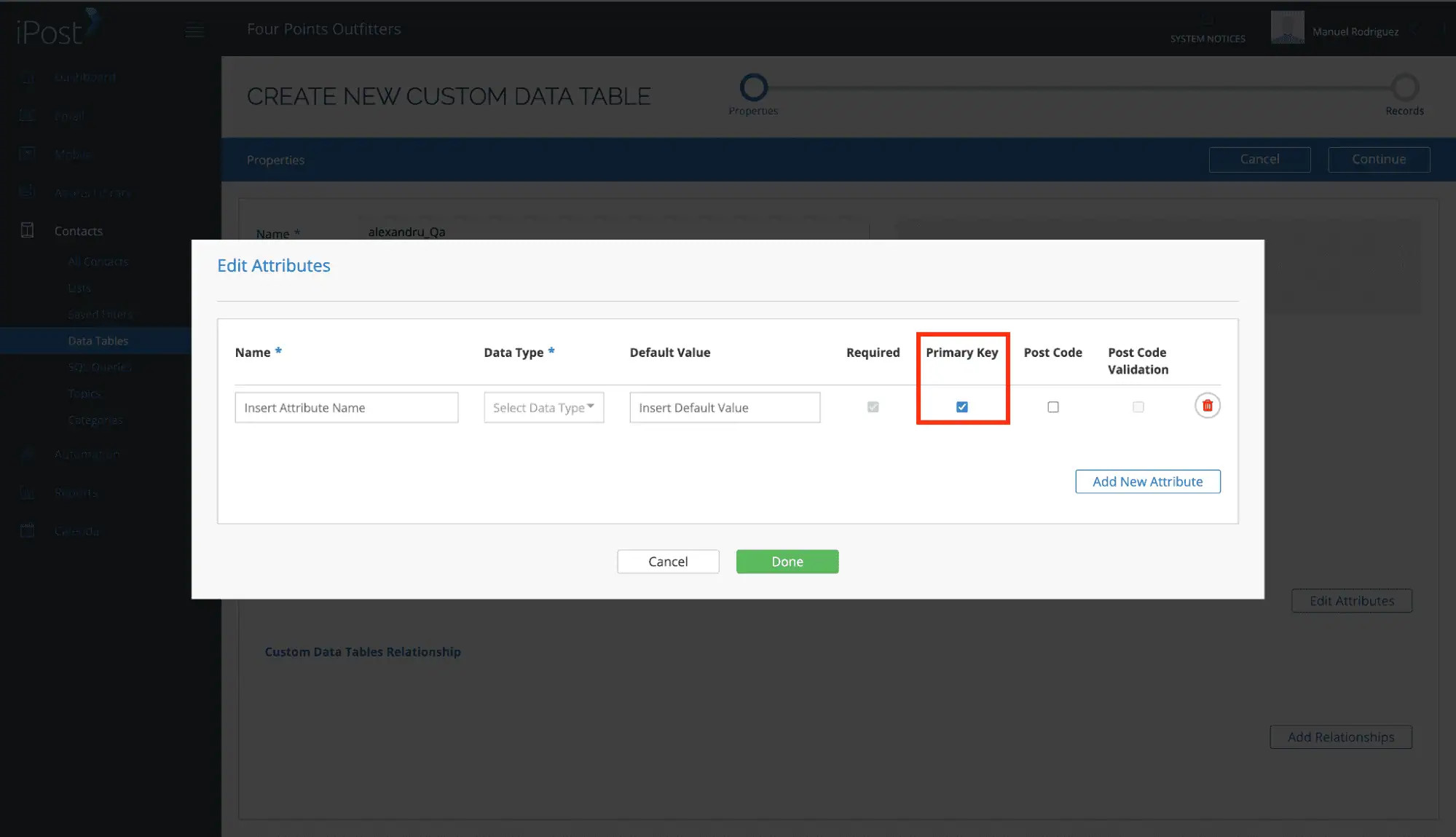
In order for Data Tables to be used in Integrations, they must have primary keys. Composite primary keys consisting of multiple columns are also supported.
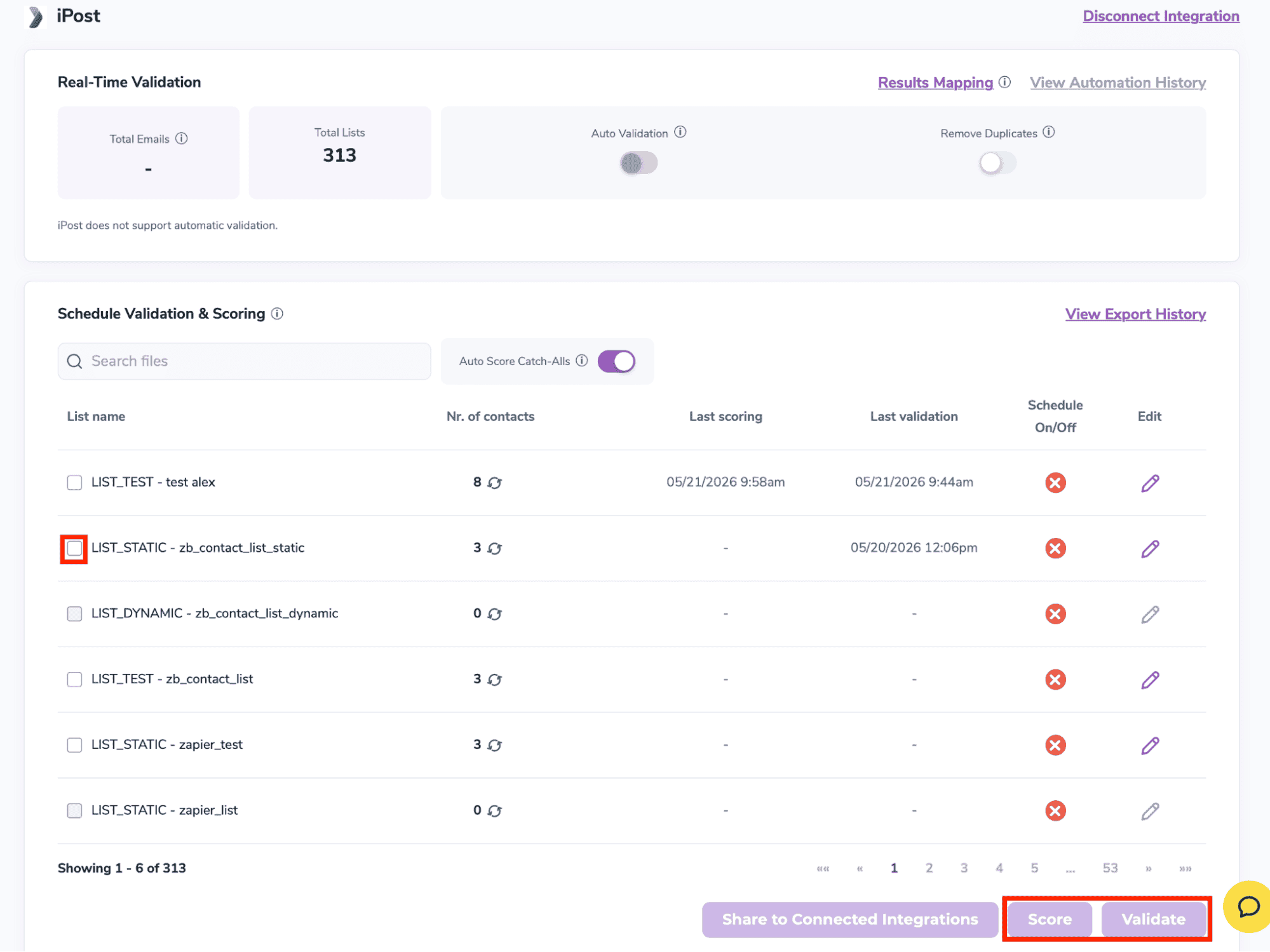
After successful integration, you will be able to view your lists in your ZeroBounce Dashboard.
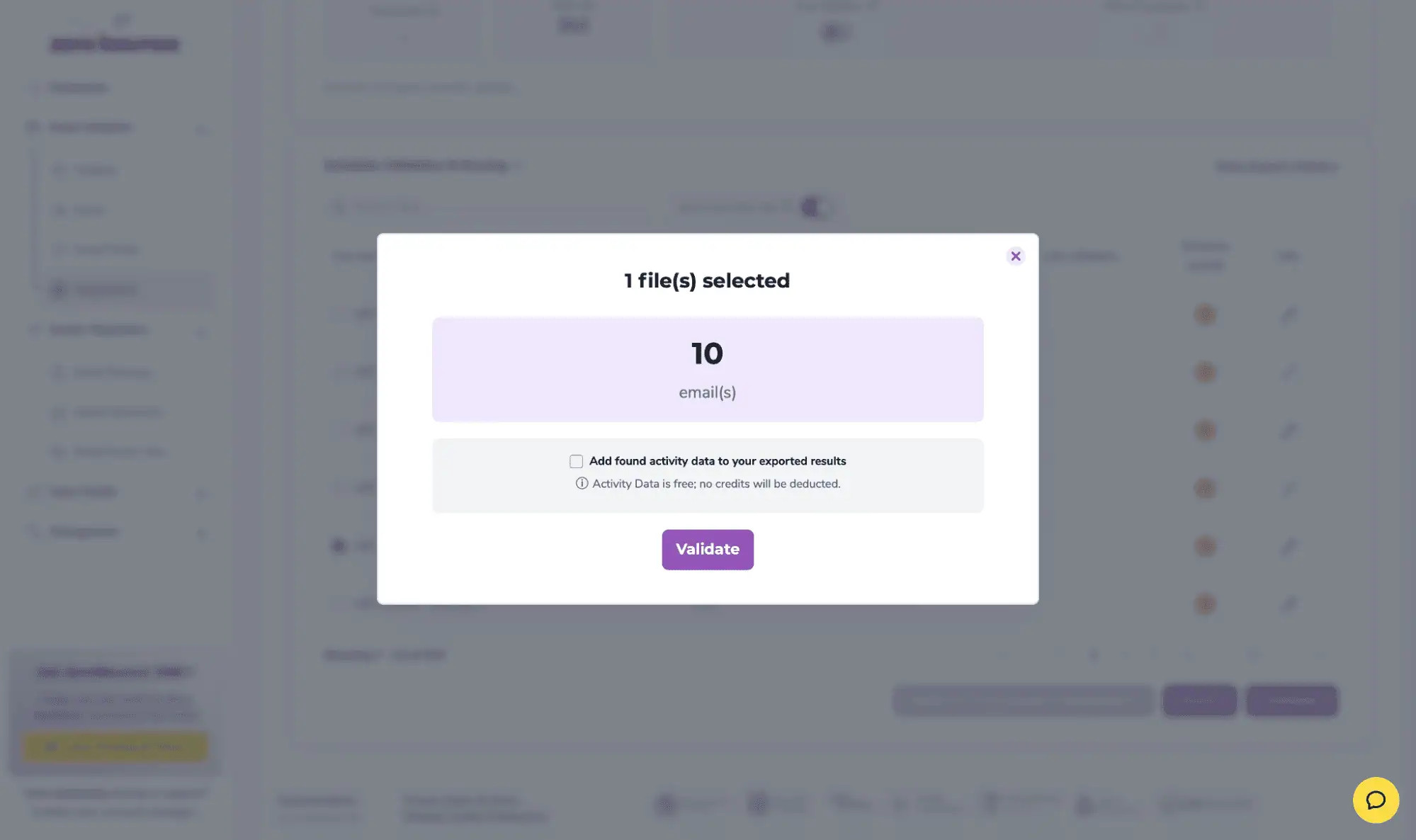
Validation Pop-up
ZeroBounce Activity Data - uses interaction data to identify emails that have been opened, clicked, forwarded, or unsubscribed. The matching process is performed in-house through ZeroBounce's infrastructure, and your data is not transferred or shared with any third parties.
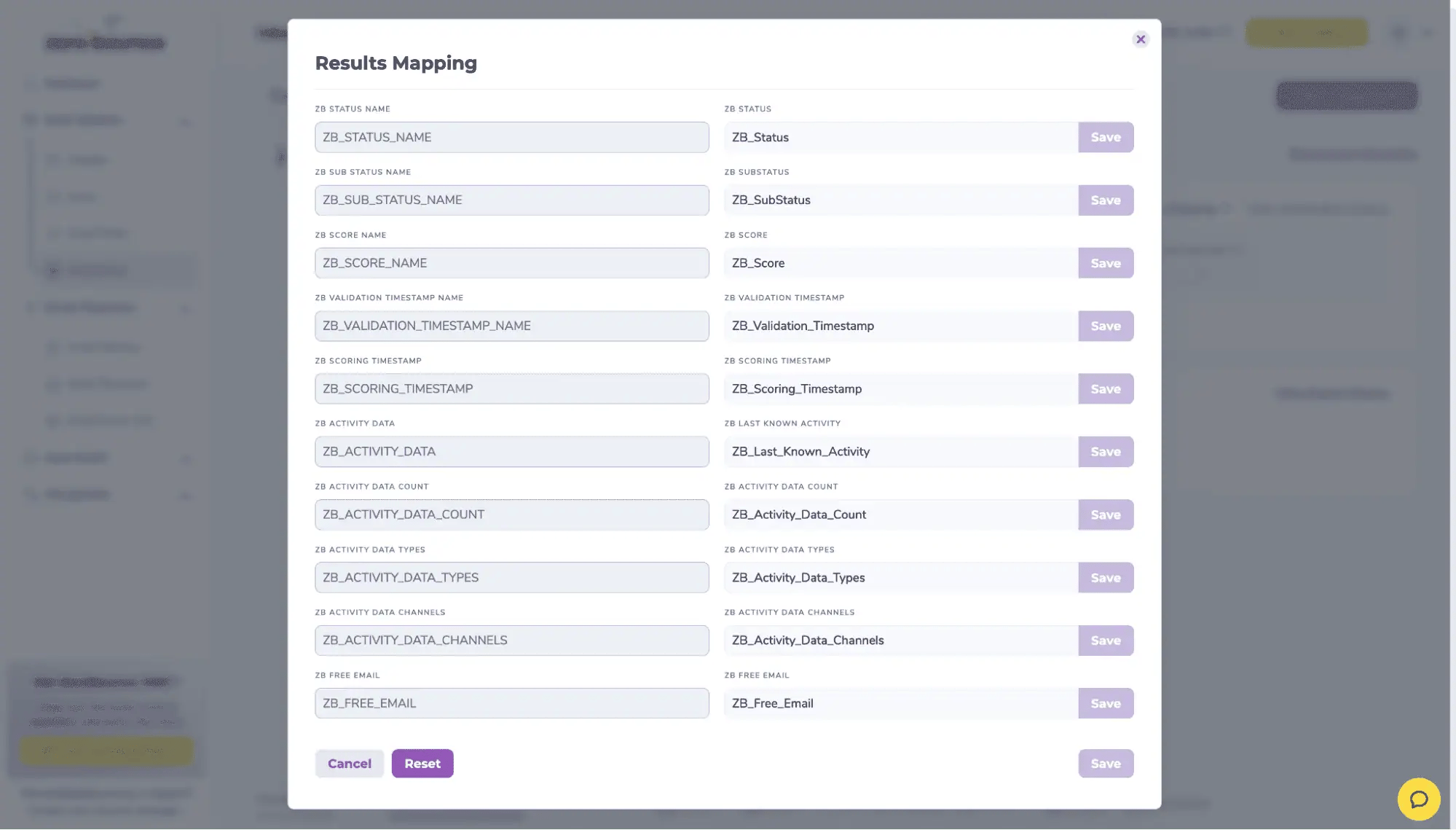
In the Result Mapping section: we do not guarantee that changes to the export column names (e.g. ZB_Status, etc.) will be reflected in iPost. We recommend not making changes.
Step 5:
You will be taken to the Email Validationⓘ Results page which will show the list you selected in queue.
![[object Object], results page](https://www.zerobounce.net/cdn-cgi/image/fit=scale-down,format=auto,quality=90,width=3840,metadata=none/docs/assets_next_docs/docs/api-integrations/ipost/ipost_step_5.webp)
Email Validation results page
Step 6:
Once your list has completed processing you should receive an email notification and you will see that the Download button will appear.
Note: The results of the validation and scoring are automatically exported to the integration they originated from.

Status: Completed
Step 7:
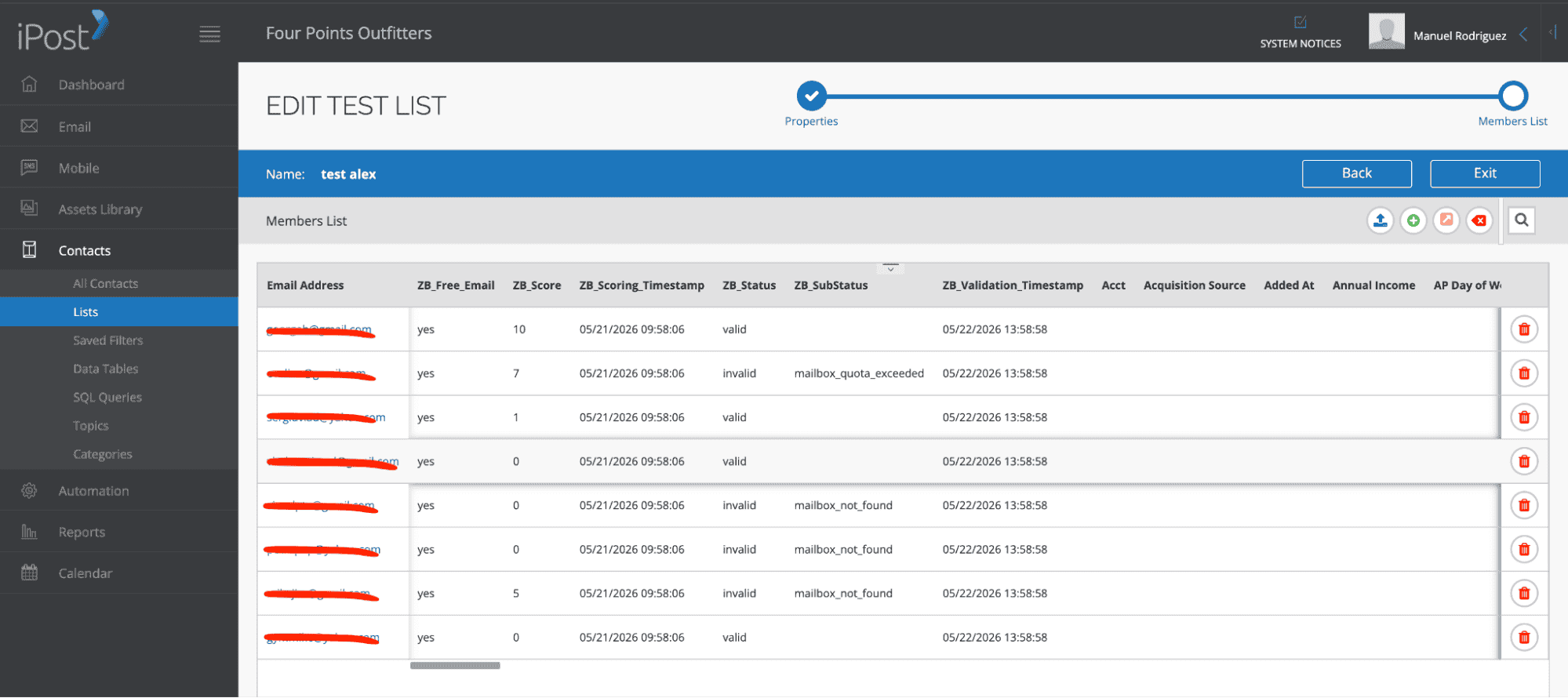
When you export your contacts, you'll find the following tags included in the exported file:
The following columns will be automatically created in your integration with the first automatic validation/scoring results export.
These columns are essential for maintaining up-to-date and accurate contact information, allowing for better management and engagement with your contacts.
Not available
Not available
