Docs
Docs
A step-by-step walkthrough for connecting ZeroBounce Warmup to your HubSpot account. Works with HubSpot Marketing Hub Professional & Enterprise.
Warmup requires an active Email Deliverability Toolkit subscription at the 'Team' tier or higher, and HubSpot Marketing Hub Professional or Enterprise (Free/Starter plans can't run the workflow automation Warmup relies on). Then connect and authenticate your sending domain in HubSpot's Domains & URLs → Email Sending settings.
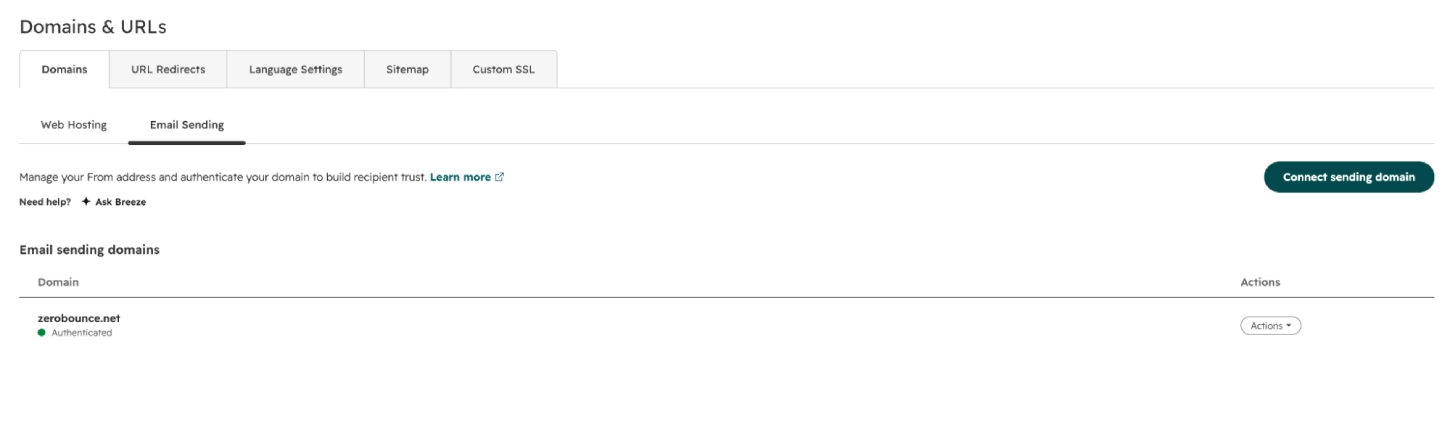
Screenshot: HubSpot Domains & URLs — Email Sending, domain marked Authenticated
From Tools → Sender Reputation → Email Warmup in your ZeroBounce dashboard, click More on the Warmup Accounts panel and select HubSpot Connection to begin linking the two platforms.
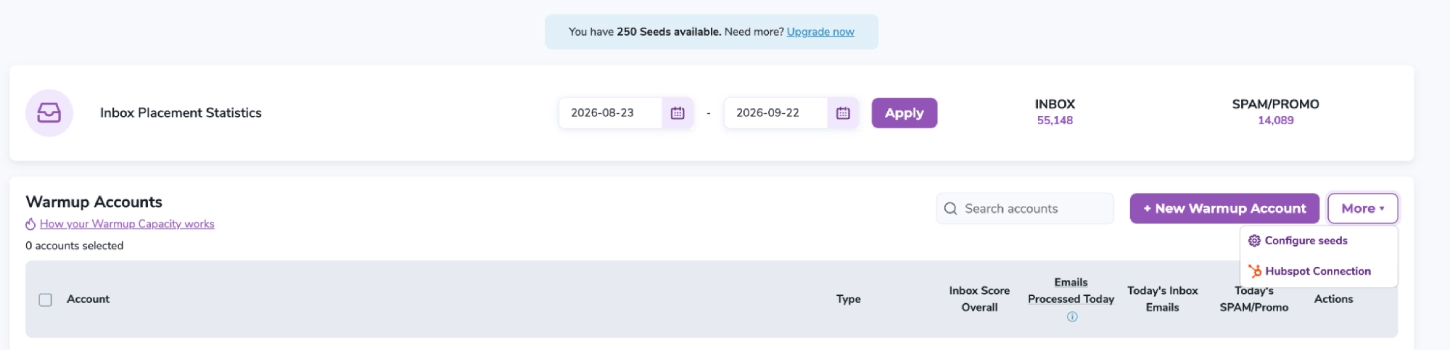
Screenshot: ZeroBounce Warmup dashboard — More → HubSpot Connection
A consent modal explains what happens next: you're redirected to HubSpot's authorization screen, asked to grant permissions, and your seed data syncs automatically once connected. Click Connect to proceed.
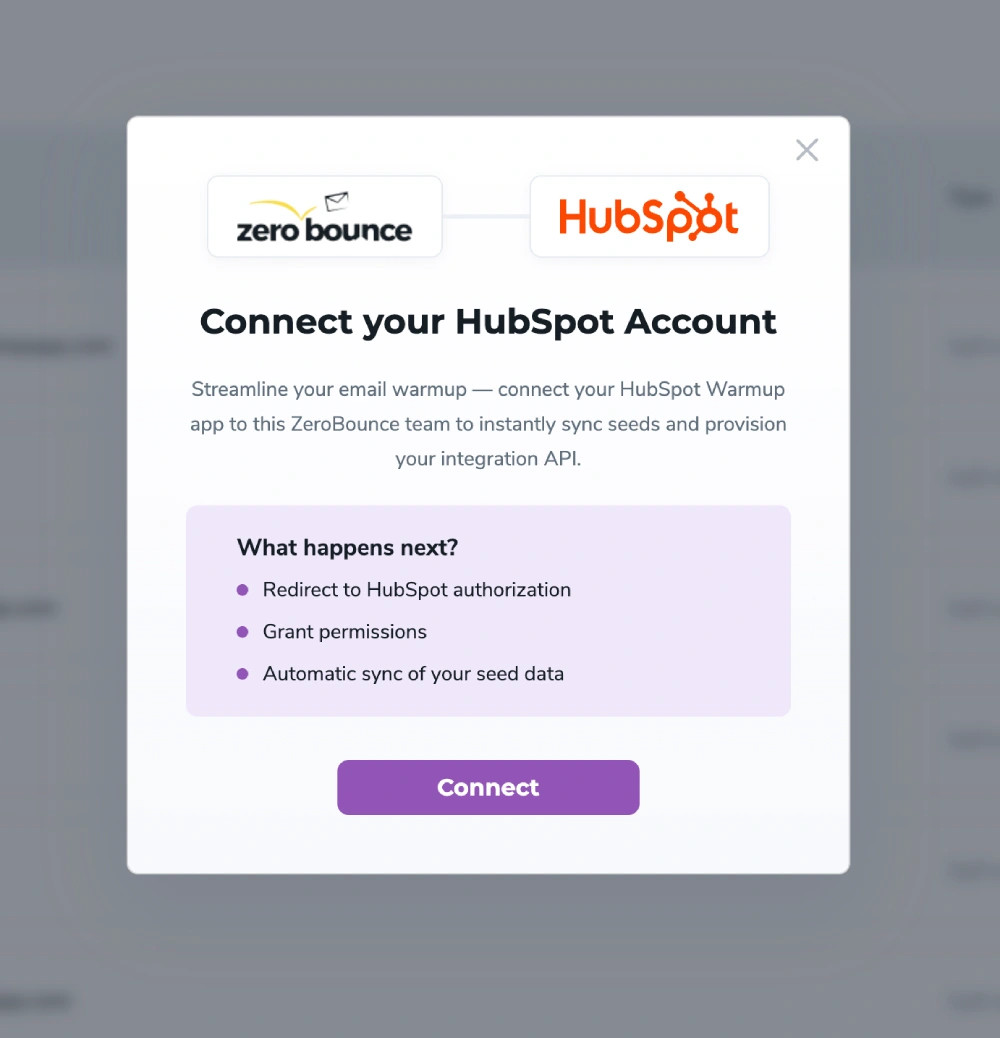
"Connect your HubSpot Account" consent modal
If your HubSpot login has access to multiple portals, pick the correct one from the list — each entry shows the portal name, domain, and portal ID so you can confirm you're linking the right account.
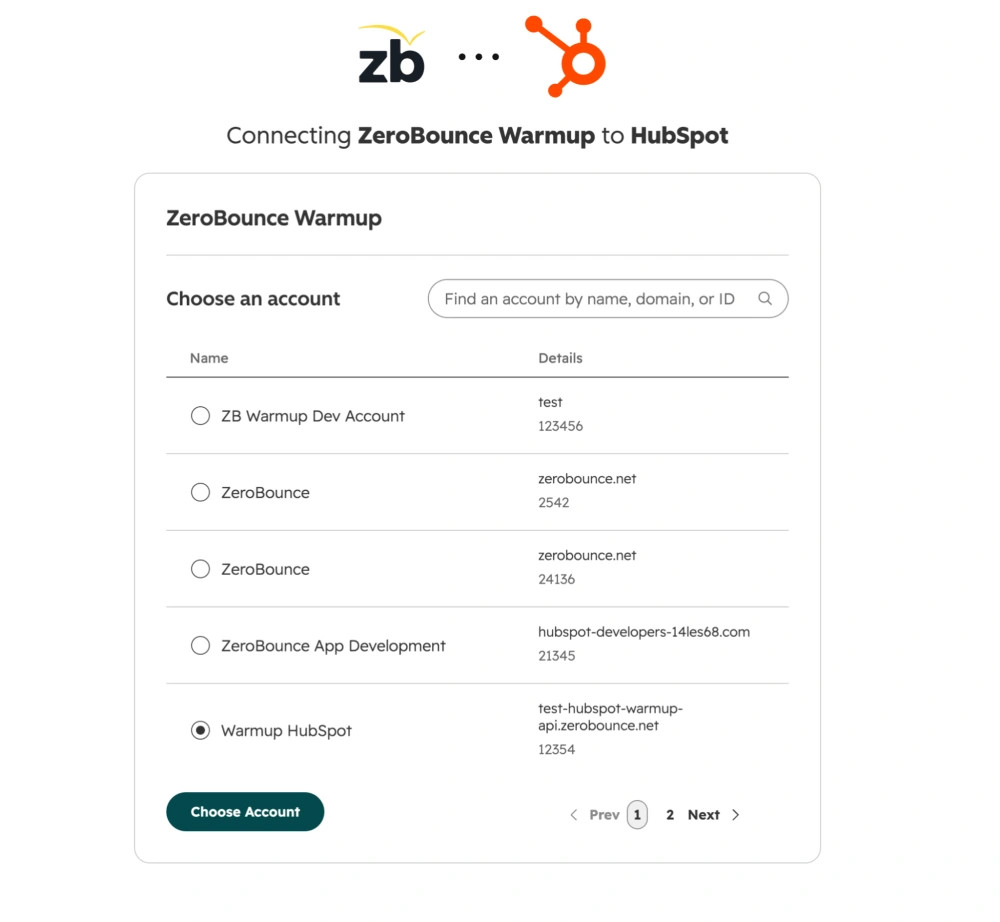
Screenshot: HubSpot portal picker with Choose Account button
A confirmation screen lets you jump straight into HubSpot to continue setup, or close the modal and configure things from the ZeroBounce side first.
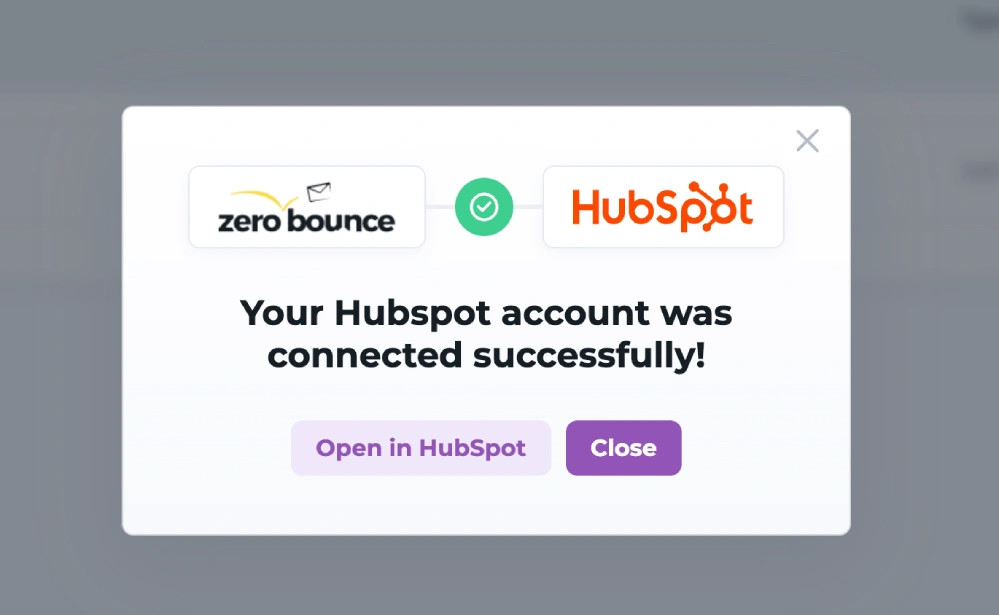
Screenshot: "Your HubSpot account was connected successfully!"
Inside HubSpot, the ZeroBounce Warmup card walks you through a short checklist: confirming your Marketing Hub tier, enabling HubSpot marketing contacts, linking your ZeroBounce account, adding a sender, generating a warmup email template, publishing the HubSpot email draft, and completing the first daily warmup run.
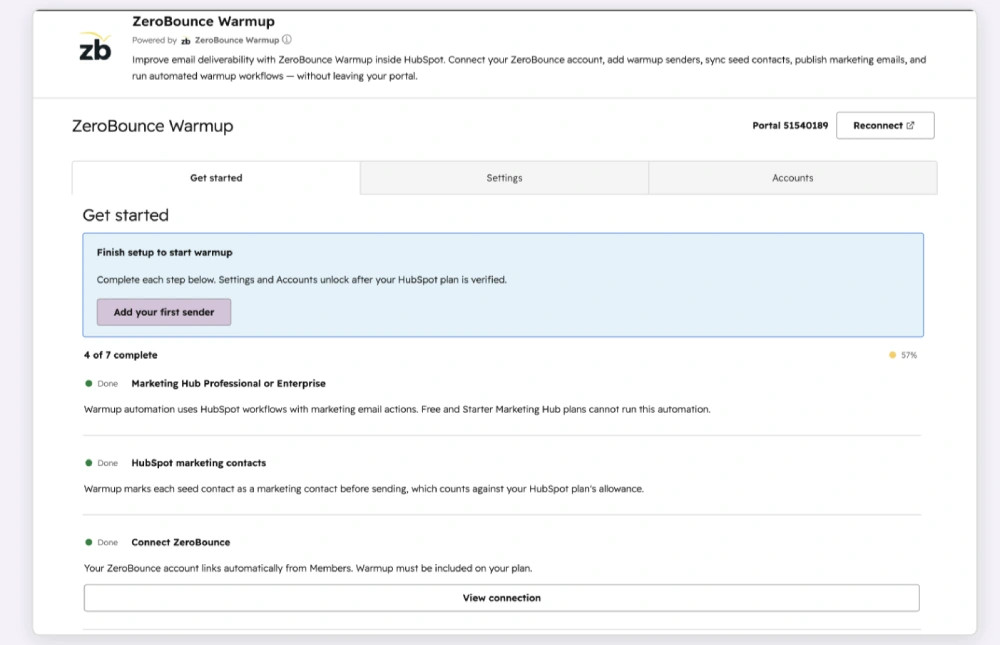
Screenshot: HubSpot "Get started" checklist, e.g. 4 of 7 complete
Enter the sender email address you wish to warm up (e.g. you@yourdomain.com) under Accounts in the HubSpot card, then click Add sender.
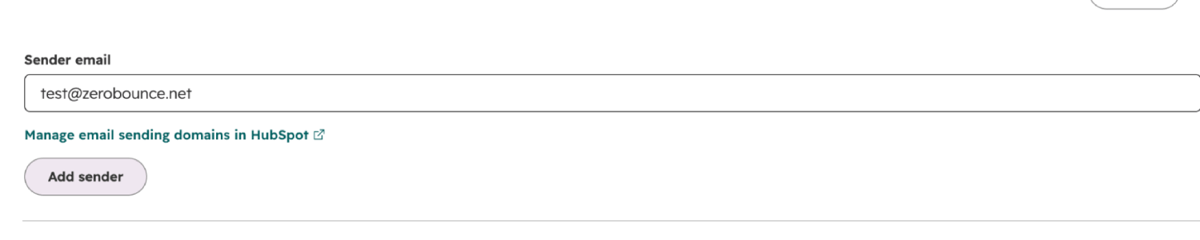
Screenshot: "No warmup senders yet" panel with sender-email field
ZeroBounce can't verify your domain automatically, so you'll be asked to confirm it's connected and authenticated in HubSpot under Settings → Domains → Email sending before the sender is added.
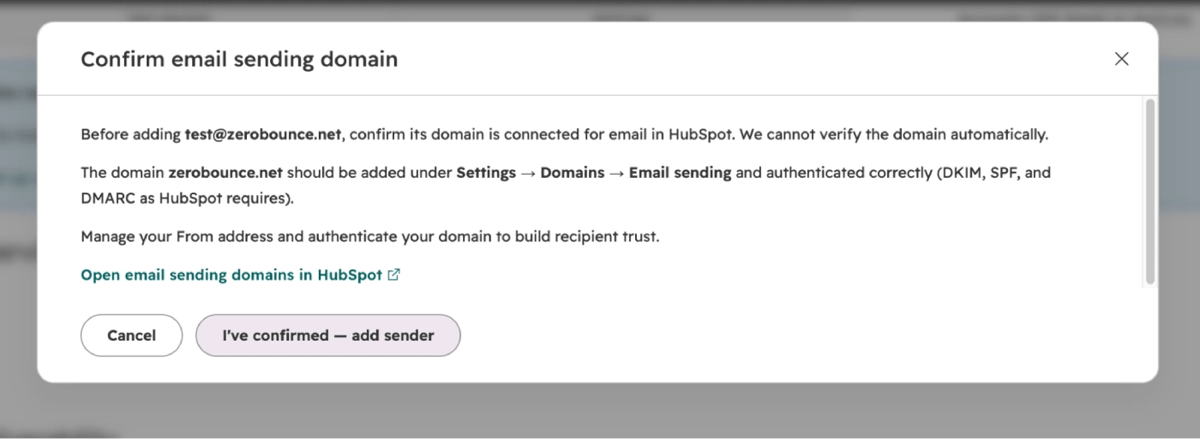
Screenshot: "Confirm email sending domain" dialog
The sender is added to your warmup team, but warmup won't start sending until the address is verified. Check spam or promotions if the confirmation email doesn't appear within a few minutes.
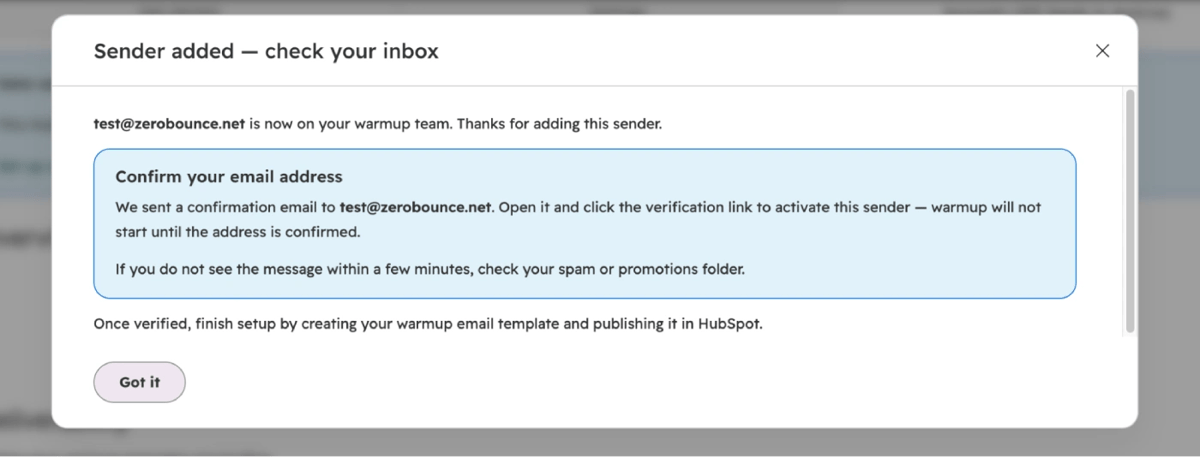
Screenshot: "Sender added — check your inbox" modal
Open the email from ZeroBounce Support and click Confirm Warmup Account. The link expires after 15 minutes, so verify promptly — if the address is already tied to another ZeroBounce account, ownership transfers to yours.
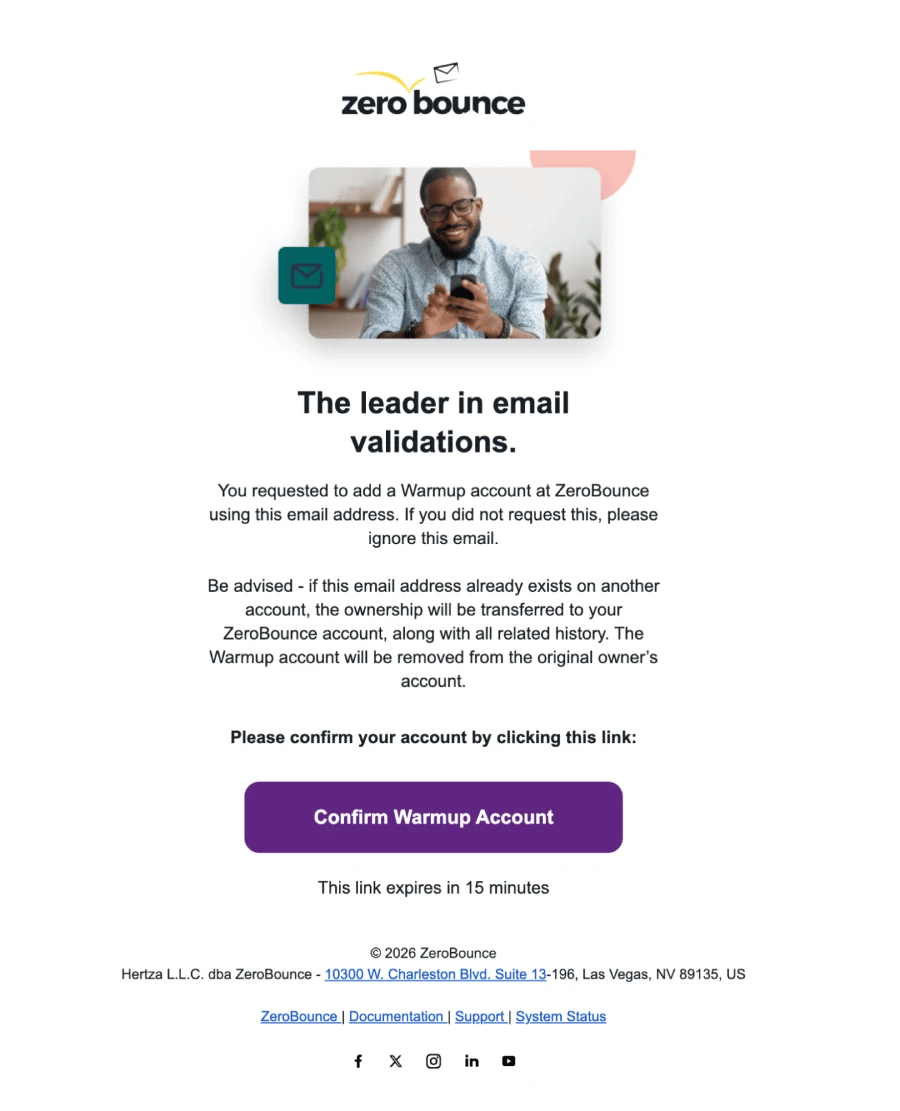
Screenshot: ZeroBounce confirmation email with Confirm Warmup Account button
Fill in your company name, website, and description, and select the types of emails you send. ZeroBounce's Custom Email Content engine uses this to generate warmup emails that match your real communication style — content is generated in English and rotates automatically each day to avoid looking repetitive.
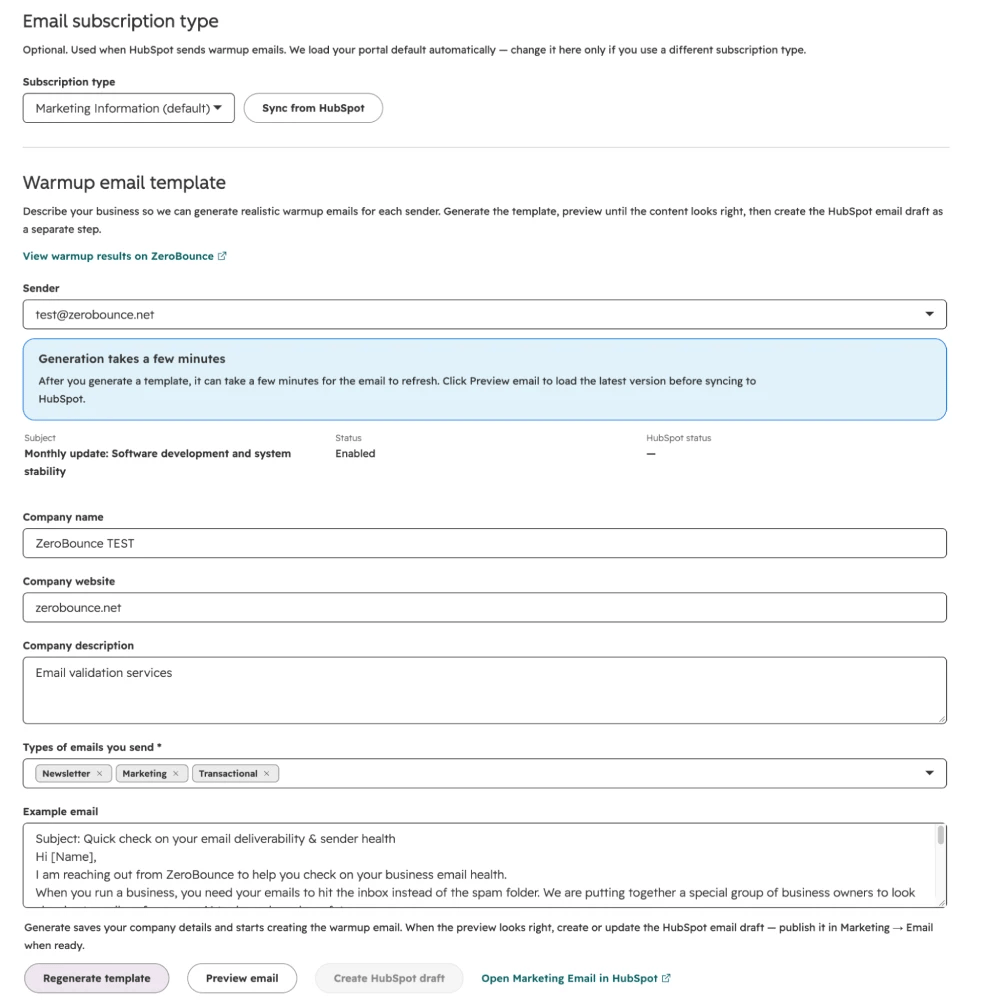
Screenshot: Settings form — company name, website, description, email type
Generation can take a few minutes to refresh. Once you're happy with the preview, click Create HubSpot draft to push the generated email into HubSpot as a draft named after your sender address.
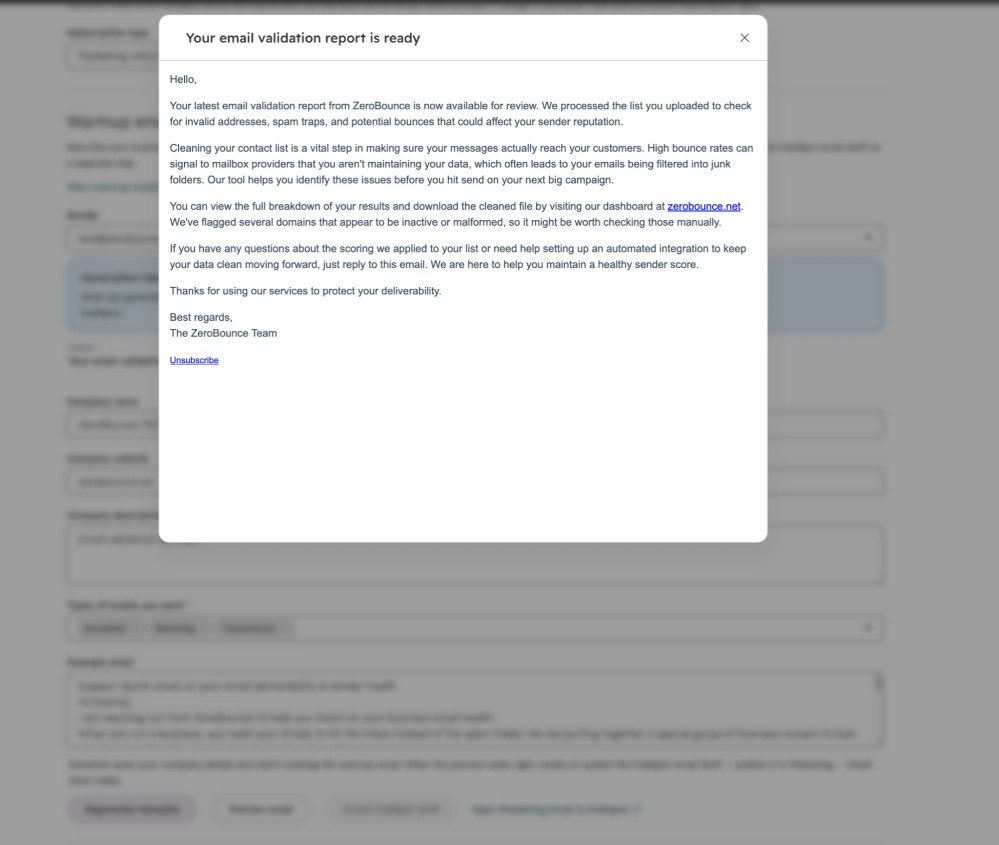
Screenshot: Regenerate template / Preview email / Create HubSpot draft buttons
Find the draft named after your sender email, review HubSpot's suggestions (e.g. adding personalization tokens, checking tracking-consent requirements), and click Publish.

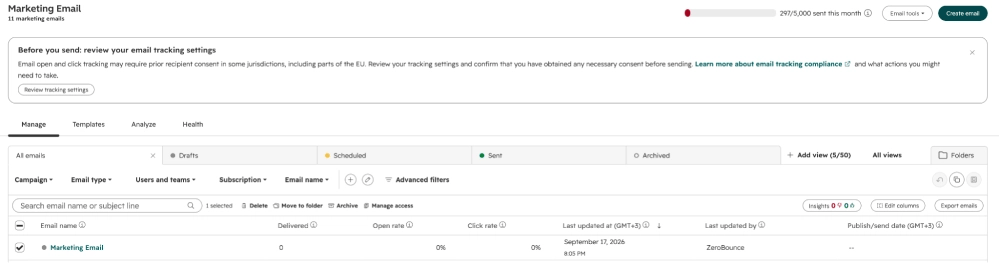

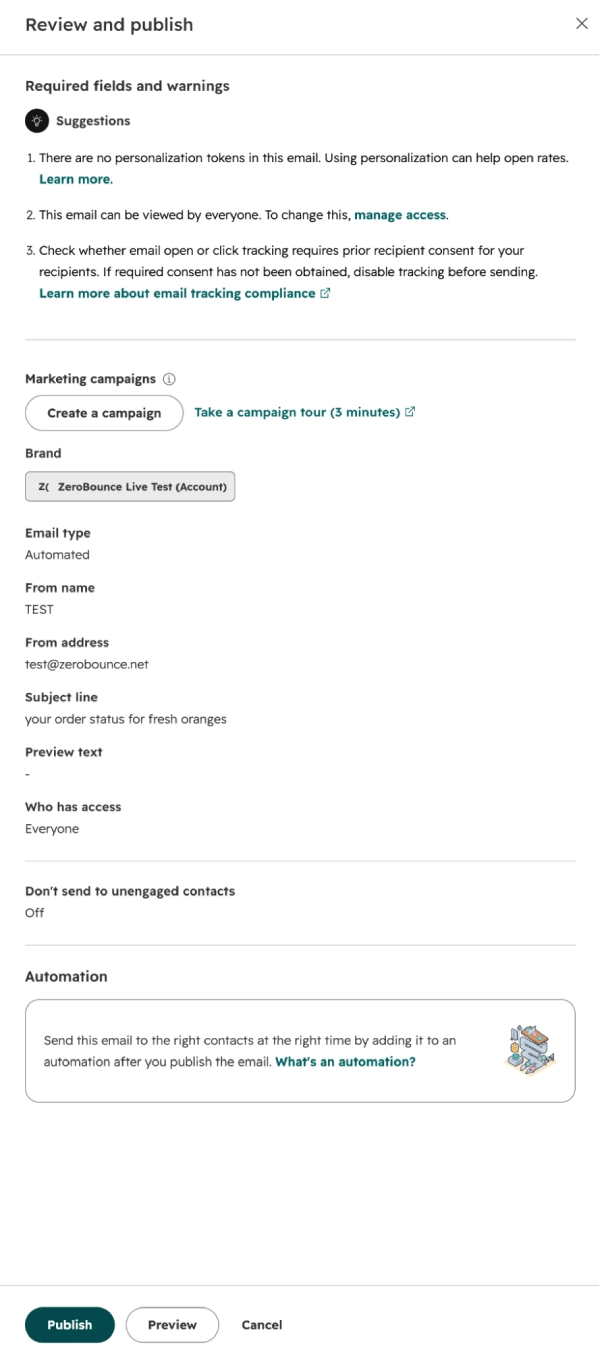
Screenshot: HubSpot "Review and publish" dialog
Once every step in the HubSpot checklist shows Done, the first daily automation run kicks off: seed contacts are imported and warmup emails start sending on your configured schedule (weekdays only, time zone, and start date, if set).
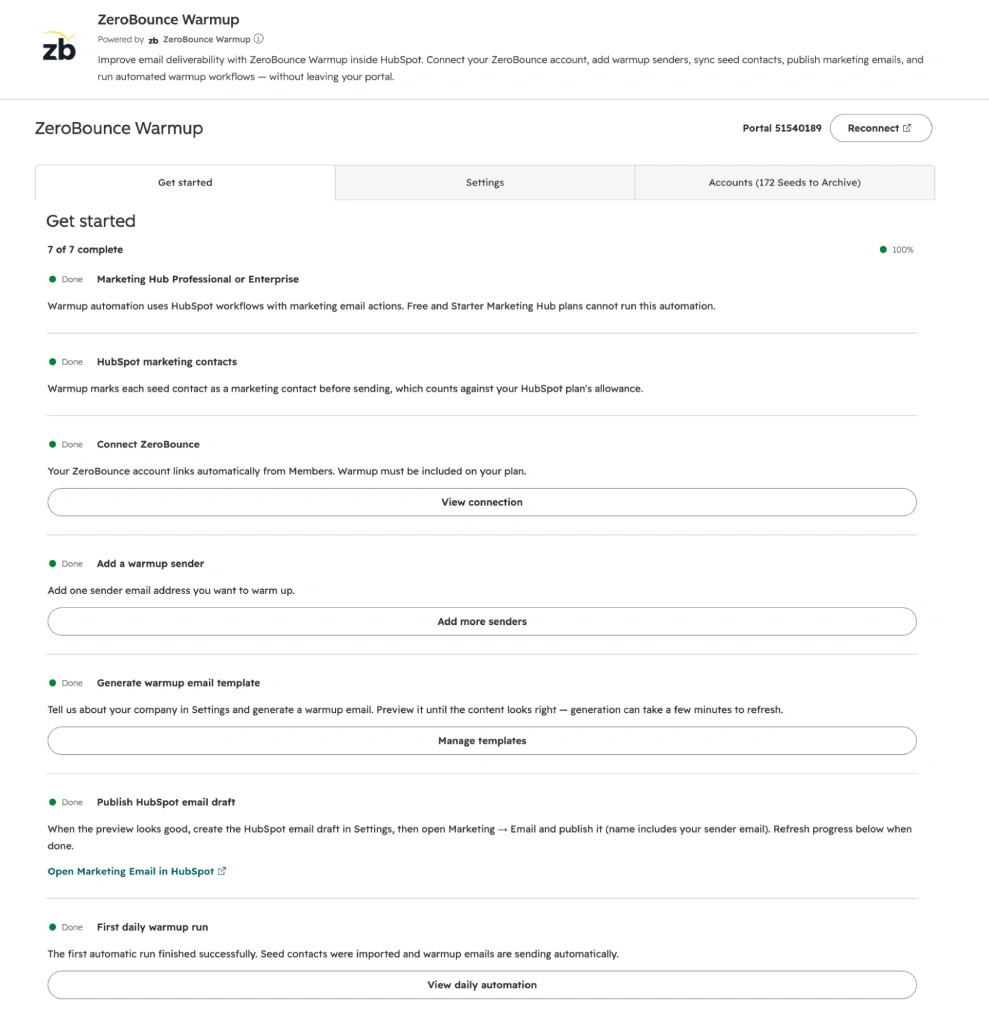
Screenshot: HubSpot checklist — 7 of 7 complete, 100%
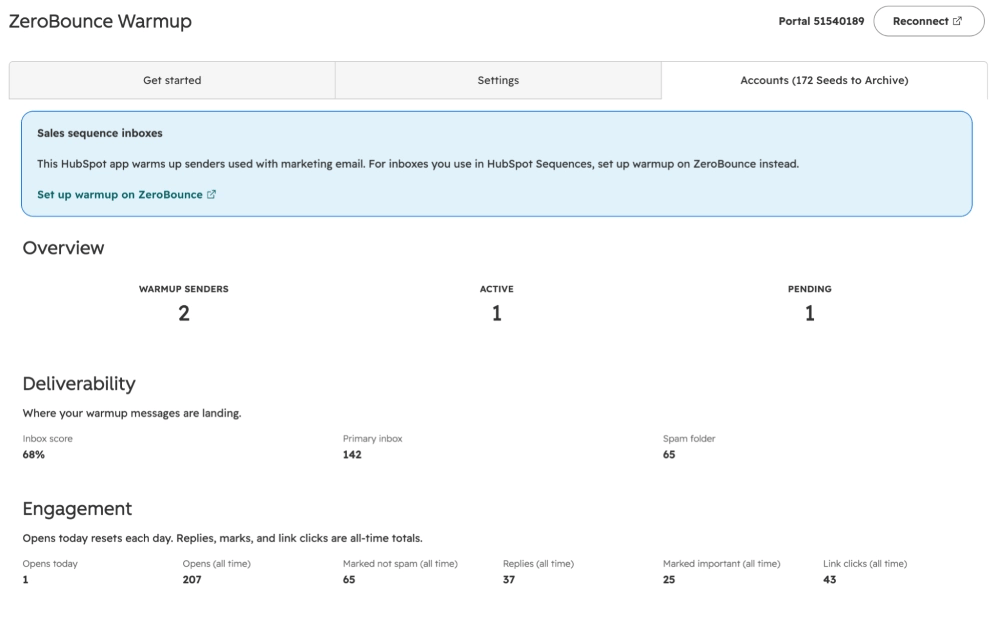
Track daily deliverability and engagement — primary inbox vs. spam, replies, link clicks — for each sender from the Warmup dashboard's Statistics view at any time.
Need help along the way? Visit zerobounce.net/docs/warmup or reach out to ZeroBounce Support — available 24/7.